
Laptop fans are supposed to spin quietly in the background. But if your laptop suddenly sounds like a mini jet engine, it can be frustrating. Many Windows 11 users experience loud laptop fan noise, especially during simple tasks like browsing or watching videos. The good news? In most cases, the problem is easy to fix. In this guide, you’ll learn why your laptop fan becomes noisy in Windows 11 and how to fix it step-by-step — even if you’re not a tech expert. How to Fix Laptop Fan Noise in Windows 11 will not be a problem anymore whether its any laptop.
By the end of this article, your laptop should run cooler, quieter, and more efficiently.
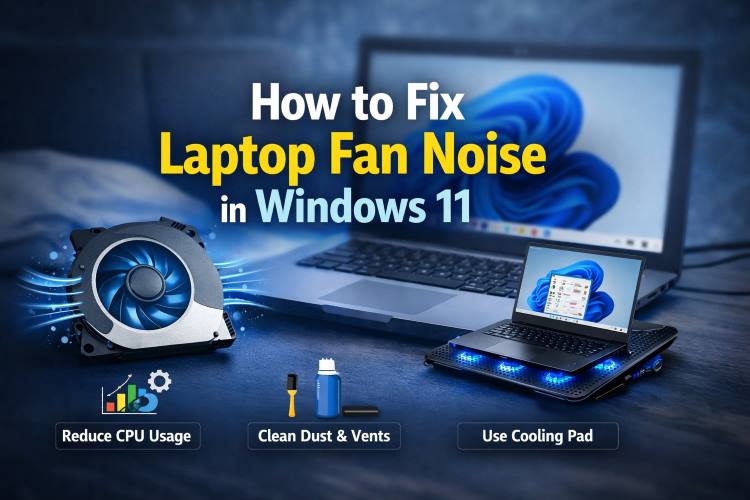
Quick Fixes for Loud Laptop Fan Noise
If you’re in a hurry, try these quick solutions:
- Close unnecessary background apps
- Change Windows 11 power mode to Balanced
- Clean laptop air vents and fan
- Disable heavy startup programs
- Update drivers and Windows
- Use a laptop cooling pad
If the fan noise still persists, continue reading for the complete troubleshooting guide.
Why Your Laptop Fan Is So Loud in Windows 11
Before fixing the problem, it’s important to understand why it happens.
Laptop fans spin faster when the system generates more heat.
Common reasons include:
| Cause | Explanation |
|---|---|
| High CPU usage | Too many programs running |
| Dust buildup | Blocks airflow and traps heat |
| Background apps | Windows processes consuming resources |
| Outdated drivers | Poor power optimization |
| Malware | Hidden programs stressing CPU |
| Poor ventilation | Using laptop on bed or couch |
Once you identify the cause, fixing the issue becomes much easier.
1. Check CPU Usage in Task Manager
The most common reason for loud fan noise is high CPU usage.
Steps to check CPU usage:
- Press Ctrl + Shift + Esc
- Open Task Manager
- Click Processes
- Sort by CPU Usage
If a program constantly uses 40–100% CPU, it will cause the fan to spin loudly.
Fix
- Close unnecessary apps
- End high CPU tasks
- Uninstall unused programs
This simple step alone can instantly reduce fan noise.
Must Read : Systweak Advanced Driver Updater Review: Does It Really Fix Driver Issues on Windows?
2. Change Power Mode in Windows 11
Windows power settings control how aggressively your CPU runs.
If your laptop is set to Best Performance, the fan will run faster.
Change power mode:
- Open Settings
- Click System
- Select Power & Battery
- Under Power Mode, choose:
✔ Balanced
This reduces heat and improves battery life.
3. Disable Heavy Startup Programs
Some apps automatically start when Windows boots, using CPU and memory.
These background programs can cause constant fan noise.
How to disable startup apps:
- Open Task Manager
- Go to Startup Apps
- Disable unnecessary programs
Examples to disable:
- Game launchers
- Auto updaters
- Chat apps
- Unused cloud services
Fewer startup apps = less system load and quieter fans.
Must Read : Best Music Equalizer for Windows: I Tested Them All
4. Clean Dust from Laptop Vents and Fan
Dust is one of the biggest reasons laptop fans get loud.
Over time, dust blocks air vents and traps heat inside the laptop.
Signs your laptop needs cleaning
- Fan constantly spinning
- Laptop overheating
- Hot air blowing out
How to clean safely
Use:
- Compressed air
- Soft brush
- Vacuum with low suction
Blow air into the side and bottom vents.
If your laptop is old, consider professional internal cleaning.
5. Update Windows and Drivers
Outdated drivers can cause poor CPU power management, which leads to overheating.
Update Windows 11
- Open Settings
- Go to Windows Update
- Click Check for updates
Update drivers
Focus on:
- Chipset driver
- Graphics driver
- BIOS update
- Thermal management driver
Manufacturers like Dell, HP, Lenovo, and ASUS often release updates that improve fan control.
6. Scan for Malware
Sometimes hidden malware runs background processes that push CPU usage high.
Run a quick security scan:
- Open Windows Security
- Go to Virus & Threat Protection
- Run Quick Scan
If threats are detected, remove them immediately.
This can drastically reduce system load and quiet down your laptop fan.
Must Read : ABBYY FineReader PDF for Windows Review: Is It Worth the Price?
7. Improve Laptop Ventilation
Where you place your laptop matters more than you think.
Bad airflow = heat buildup = loud fan.
Avoid using laptops on:
- Beds
- Blankets
- Sofas
- Pillows
Instead use:
- Hard desk surface
- Laptop stand
- Cooling pad
Better airflow helps your fan run slower and quieter.
8. Use a Laptop Cooling Pad (Recommended)
If you use your laptop for gaming, editing, or heavy multitasking, a cooling pad can help a lot.
Cooling pads add extra fans underneath the laptop to improve airflow.
Recommended Cooling Pad Features
| Feature | Benefit |
|---|---|
| Multiple fans | Better cooling |
| Adjustable height | Improved airflow |
| USB powered | No external power needed |
| Silent fan design | Quiet operation |
Benefits
- Reduces laptop temperature
- Decreases fan noise
- Improves performance
- Extends laptop lifespan
👉 Check price
Cooling Pad vs Laptop Stand
| Feature | Cooling Pad | Laptop Stand |
|---|---|---|
| Cooling fans | Yes | No |
| Noise reduction | Better | Moderate |
| Portability | Medium | High |
| Price | Slightly higher | Budget friendly |
Best choice?
- Heavy users / gamers → Cooling Pad
- Office users → Laptop Stand
👉 Learn more about the best laptop cooling pads
Real-World Scenarios Where Laptop Fans Get Loud
Here are common situations where fans suddenly become noisy.
1. During Video Calls
Apps like Zoom or Teams use CPU and camera simultaneously.
2. While Gaming
Games push both CPU and GPU heavily.
3. Multiple Chrome Tabs
Each tab uses RAM and CPU resources.
4. Background Windows Updates
Updates can spike system activity.
In most cases, the fan becomes quiet again once the heavy task ends.
Things to Consider Before Buying Cooling Accessories
If you’re planning to buy cooling equipment, keep these factors in mind.
Fan Speed (RPM)
Higher RPM provides better cooling.
Noise Level
Look for silent or low-noise fans.
Size Compatibility
Make sure it matches your laptop size (13–17 inches).
Build Quality
Metal mesh cooling pads perform better than plastic ones.
USB Ports
Some models offer extra USB ports for convenience.
Additional Tips to Keep Laptop Fans Quiet
These simple habits help maintain long-term cooling.
✔ Keep laptop vents clean
✔ Avoid blocking airflow
✔ Limit unnecessary background apps
✔ Use power-saving modes
✔ Restart your laptop regularly
✔ Avoid using laptop on soft surfaces
These small habits can prevent overheating issues completely.
FAQs – Laptop Fan Noise in Windows 11
Why is my laptop fan suddenly loud on Windows 11?
The most common reasons include high CPU usage, background programs, dust buildup, or poor ventilation.
Is it normal for laptop fans to run constantly?
Occasional fan activity is normal, especially during heavy tasks. However, constant loud fan noise usually indicates overheating or high system load.
How do I check if my laptop is overheating?
Signs include:
- Hot keyboard surface
- Loud fan noise
- Slow performance
- Sudden shutdowns
Monitoring tools can also show CPU temperatures.
Can Windows 11 updates cause fan noise?
Yes. During updates, system processes temporarily increase CPU usage, which can cause the fan to spin faster.
Do cooling pads really work?
Yes. A good cooling pad can reduce laptop temperature by 5–10°C, which helps keep the internal fan quieter.
Can dust damage my laptop fan?
Yes. Excess dust blocks airflow and forces the fan to spin faster, which may eventually damage internal components.
Final Verdict
A loud laptop fan in Windows 11 usually isn’t a serious hardware issue.
Most of the time, it’s caused by:
- High CPU usage
- Dust buildup
- Poor airflow
- Background applications
By following the steps in this guide, you can reduce fan noise, improve laptop cooling, and boost performance.
If your laptop still runs hot after trying everything, investing in a reliable cooling pad or laptop stand can make a noticeable difference.
A quieter laptop means better focus, better performance, and longer hardware life.