
Staying organized has become more challenging than ever. Between work meetings, personal appointments, deadlines, online classes, and family events, it’s easy to miss something important. That’s where a reliable calendar app makes a huge difference. The best calendar apps don’t just remind you about upcoming events, they help you plan your day, manage multiple schedules, collaborate with others, and even automate repetitive tasks.
But with so many options available, choosing the right one can feel overwhelming.
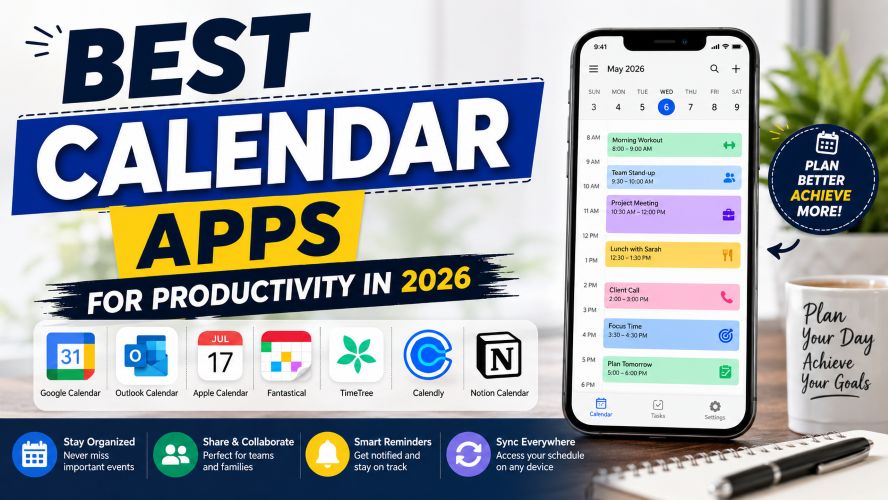
In this guide, we’ll compare the best calendar apps for Android, iPhone, Windows, Mac, and the web. Whether you’re a student, freelancer, remote worker, or business owner, you’ll find an option that matches your workflow and budget.
Quick Summary
If you’re short on time, here’s a quick overview of our top recommendations.
| Calendar App | Best For | Free Plan | Paid Plan |
|---|---|---|---|
| Google Calendar | Everyday users | ✅ | Free |
| Microsoft Outlook Calendar | Microsoft 365 users | ✅ | Optional |
| Apple Calendar | Apple ecosystem | ✅ | Free |
| Fantastical | Professionals | Limited | Yes |
| Any.do Calendar | Task management | ✅ | Yes |
| TimeTree | Families & groups | ✅ | Yes |
| Calendly | Appointment scheduling | ✅ | Yes |
| Notion Calendar | Productivity enthusiasts | ✅ | Free |
Best Overall: Google Calendar
Best Premium Choice: Fantastical
Best for Families: TimeTree
Best for Businesses: Outlook Calendar
Best for Appointment Booking: Calendly
Why Choosing the Right Calendar App Matters
A calendar isn’t just for remembering birthdays anymore.
Modern calendar apps can help you:
- Organize work and personal schedules
- Receive reminders before important events
- Share calendars with family or coworkers
- Schedule meetings automatically
- Sync across all your devices
- Reduce scheduling conflicts
- Improve daily productivity
The right app saves time every day while reducing stress caused by missed appointments.
How We Selected These Calendar Apps
Instead of simply listing popular names, we evaluated each app using practical criteria that matter to everyday users.
Our Evaluation Factors
- Ease of use
- Cross-platform availability
- Sync reliability
- Collaboration features
- Reminder options
- Privacy and security
- Integrations
- Value for money
- Free features
- User experience
This balanced approach ensures every recommendation serves a specific purpose rather than trying to be everything for everyone.
Must Read : I Used AI for 30 Days: My Complete Workflow Results
1. Google Calendar – Best Overall Calendar App
If you need one calendar app that works almost everywhere, Google Calendar remains one of the strongest choices.
It combines simplicity with powerful scheduling features while remaining completely free for most users.
Whether you’re managing college classes, office meetings, vacations, or family events, Google Calendar handles them effortlessly.
Key Features
- Multiple calendar support
- Color-coded events
- Smart reminders
- Recurring events
- Shared calendars
- Gmail integration
- Google Meet scheduling
- Time zone support
- Goal scheduling
- Tasks integration
Pros
✅ Completely free
✅ Excellent mobile apps
✅ Fast synchronization
✅ Works on every major platform
✅ Easy collaboration
Cons
❌ Advanced customization is limited
❌ Best experience requires a Google account
Best For
- Students
- Professionals
- Small businesses
- Remote workers
- Families
- Everyday users
Why We Recommend It
Google Calendar strikes the perfect balance between simplicity and functionality.
You don’t need to spend hours learning how it works, yet it includes nearly every feature most users will ever need.
2. Microsoft Outlook Calendar – Best for Office Productivity
If your work revolves around Microsoft 365, Outlook Calendar is one of the smartest choices.
Instead of using separate tools for emails, meetings, and scheduling, Outlook combines everything into a single interface.
That makes it especially valuable for corporate teams.
Key Features
- Email integration
- Microsoft Teams meetings
- Shared calendars
- Room booking
- Automatic meeting scheduling
- Category labels
- Cross-device syncing
- Smart reminders
Pros
✅ Excellent for business users
✅ Strong collaboration tools
✅ Enterprise-grade security
✅ Deep Microsoft integration
Cons
❌ Interface may feel overwhelming for beginners
❌ Some premium features require Microsoft 365
Best For
- Corporate professionals
- Large organizations
- Hybrid teams
- Office employees
Why It Stands Out
If most of your communication already happens through Outlook and Microsoft Teams, this calendar naturally fits into your workflow without requiring additional apps.
3. Apple Calendar – Best for Apple Users
Apple Calendar is one of the most underrated productivity apps.
Because it’s built directly into iPhone, iPad, Mac, and Apple Watch, it works seamlessly across the Apple ecosystem.
There’s no need to install extra software or create another account.
Key Features
- Siri support
- iCloud synchronization
- Shared calendars
- Location-based alerts
- Travel time estimation
- Natural language event creation
- Widget support
Pros
✅ Completely free
✅ Beautiful interface
✅ Excellent Apple integration
✅ Reliable syncing
Cons
❌ Limited customization
❌ Less useful outside Apple’s ecosystem
Best For
- iPhone users
- Mac users
- Apple Watch owners
- Families using Apple devices
Why Choose Apple Calendar?
If you already own Apple devices, using Apple Calendar is often the simplest and most efficient option.
It feels native because it is.
Feature Comparison at a Glance
| Feature | Google Calendar | Outlook | Apple Calendar |
|---|---|---|---|
| Free Version | ✅ | ✅ | ✅ |
| Android | ✅ | ✅ | ❌ |
| iPhone | ✅ | ✅ | ✅ |
| Windows | ✅ | ✅ | Limited |
| Mac | ✅ | ✅ | ✅ |
| Shared Calendars | ✅ | ✅ | ✅ |
| Email Integration | Gmail | Outlook | |
| Meeting Scheduling | Excellent | Excellent | Good |
| Ease of Use | Excellent | Very Good | Excellent |
Which Calendar App Is Right for You?
Choosing the right calendar depends more on your daily workflow than on the number of features.
Here are a few quick recommendations:
- Students: Google Calendar
- Corporate professionals: Outlook Calendar
- Apple users: Apple Calendar
- Remote workers: Google Calendar
- Families: TimeTree
- Freelancers: Fantastical and Notion Calendar
The remaining apps each focus on a different need, from advanced scheduling to shared family planning and appointment booking. In the next section, we’ll compare those specialized options to help you find the best fit.
4. Fantastical – Best Premium Calendar App for Professionals
If you’re looking for a polished calendar app packed with advanced productivity features, Fantastical is one of the best premium choices available.
Its clean interface, natural language event creation, and powerful scheduling tools make it especially popular among professionals who manage busy calendars.
Instead of spending time creating events manually, you can type something like:
“Lunch with Sarah next Tuesday at 1 PM”
Fantastical automatically creates the event with the correct date and time.
Key Features
- Natural language event creation
- Calendar sets for different workflows
- Weather forecasts inside your calendar
- Meeting proposals
- Time zone support
- Focus filters
- Widgets for home screen
- Integration with Zoom, Google Meet, and Microsoft Teams
- Cross-platform syncing
Pros
✅ Beautiful and intuitive interface
✅ Excellent scheduling experience
✅ Powerful customization
✅ Great for busy professionals
Cons
❌ Premium subscription required for advanced features
❌ More expensive than many competitors
Best For
- Executives
- Consultants
- Freelancers
- Business owners
- Power users
Why We Like It
Fantastical feels less like a traditional calendar and more like a personal scheduling assistant.
If your calendar is filled with client meetings, travel plans, and recurring events, its premium features can save valuable time.
5. Any.do Calendar – Best for Combining Tasks and Events
Many people don’t just need a calendar—they also need a task manager.
That’s exactly where Any.do stands out.
Instead of switching between separate productivity apps, Any.do combines your calendar, reminders, shopping lists, and daily tasks in one place.
Key Features
- Built-in task management
- Daily planner
- Smart reminders
- Recurring tasks
- Calendar sync
- Grocery lists
- Voice entry
- Cross-platform support
Pros
✅ Excellent task integration
✅ Clean interface
✅ Daily planning mode
✅ Easy for beginners
Cons
❌ Advanced collaboration is limited
❌ Premium plan unlocks the best features
Best For
- Students
- Freelancers
- Busy professionals
- Personal productivity
Must Read : Free AI Tools Better Than Paid Ones (Top 15 Picks)
Why Choose Any.do?
If your biggest challenge is forgetting what needs to be done rather than forgetting appointments, Any.do offers the perfect balance between planning and execution.
6. TimeTree – Best Shared Calendar App for Families
Keeping everyone’s schedule aligned can be difficult.
School activities, work shifts, birthdays, doctor appointments, vacations, and family events often overlap.
TimeTree solves this problem by making shared calendars incredibly simple.
Every family member can view, edit, and comment on shared events.
Key Features
- Shared family calendars
- Group scheduling
- Event comments
- Shared notes
- Color-coded members
- Multiple calendars
- Notifications
- Photo attachments
Pros
✅ Excellent collaboration
✅ Easy to use
✅ Perfect for families
✅ Free plan available
Cons
❌ Limited business features
❌ Interface feels basic
Best For
- Families
- Couples
- Student groups
- Sports teams
- Small organizations
Real-World Example
Imagine planning your child’s soccer practice while coordinating work meetings and a family vacation.
Instead of messaging everyone separately, you simply update TimeTree once, and everyone stays informed.
7. Calendly – Best for Appointment Scheduling
Calendly isn’t designed to replace your calendar.
Instead, it connects to your existing calendar and makes booking meetings effortless.
Instead of emailing back and forth trying to find a suitable time, simply send your booking link.
People choose an available slot, and Calendly automatically schedules the meeting.
Key Features
- Booking links
- Automatic scheduling
- Time zone detection
- Calendar integrations
- Meeting buffers
- Round-robin scheduling
- Payment integrations
- Workflow automation
Pros
✅ Saves hours every week
✅ Excellent automation
✅ Easy setup
✅ Professional appearance
Cons
❌ More scheduling tool than calendar
❌ Advanced automation requires premium plans
Best For
- Consultants
- Coaches
- Agencies
- Recruiters
- Sales teams
- Freelancers
Why It’s Worth Considering
If you regularly book client calls, interviews, or consultations, Calendly removes one of the biggest productivity bottlenecks.
8. Notion Calendar – Best for Productivity Enthusiasts
Notion Calendar has quickly become a favorite among users who already rely on Notion for notes, projects, and knowledge management.
It combines scheduling with workspace organization, helping users keep projects and meetings connected.
Key Features
- Google Calendar synchronization
- Project integration
- Meeting scheduling
- Keyboard shortcuts
- Multiple time zones
- Clean interface
- Workspace integration
- Fast navigation
Pros
✅ Excellent for Notion users
✅ Modern interface
✅ Fast performance
✅ Completely free
Cons
❌ Learning curve for new users
❌ Best experience inside the Notion ecosystem
Best For
- Content creators
- Students
- Startup teams
- Project managers
- Productivity enthusiasts
Why We Recommend It
If you already organize projects inside Notion, using Notion Calendar keeps your meetings, deadlines, and project timelines connected in one workflow.
Detailed Comparison Table
| App | Best For | Free Version | Shared Calendars | Task Management | Appointment Booking | Cross-Platform |
|---|---|---|---|---|---|---|
| Google Calendar | Everyday users | ✅ | ✅ | Basic | Limited | ✅ |
| Outlook Calendar | Business | ✅ | ✅ | Good | Good | ✅ |
| Apple Calendar | Apple users | ✅ | ✅ | Basic | No | Apple only |
| Fantastical | Professionals | Limited | ✅ | Good | Good | ✅ |
| Any.do | Personal productivity | ✅ | Limited | Excellent | No | ✅ |
| TimeTree | Families | ✅ | Excellent | Basic | No | ✅ |
| Calendly | Scheduling meetings | ✅ | Works with existing calendars | No | Excellent | ✅ |
| Notion Calendar | Project planning | ✅ | Good | Good | Limited | ✅ |
Real-World Use Cases
For Students
Managing assignments, exams, classes, and extracurricular activities becomes much easier with Google Calendar or Notion Calendar.
For Freelancers
Client meetings, project deadlines, invoices, and personal tasks can all stay organized using Fantastical or Any.do.
For Remote Teams
Outlook Calendar and Google Calendar simplify collaboration by integrating with video conferencing platforms and shared schedules.
For Families
TimeTree allows everyone to stay updated without sending constant reminders in group chats.
For Consultants and Coaches
Calendly eliminates unnecessary back-and-forth emails by allowing clients to book available time slots instantly.
Buying Guide: How to Choose the Best Calendar App
Before choosing a calendar app, consider how you plan your day and what features matter most. Here are the key factors to evaluate:
1. Device Compatibility
Make sure the app works seamlessly across all your devices, whether you use Android, iPhone, Windows, Mac, or the web.
2. Sync Reliability
A good calendar should update instantly across every connected device to avoid missed appointments.
3. Collaboration Features
If you work with a team or share schedules with family members, look for shared calendars, event comments, and permission controls.
4. Integrations
Consider whether the app integrates with your email, video conferencing tools, task manager, or project management software.
5. Ease of Use
The best calendar app is one you’ll actually enjoy using every day. A clean interface and intuitive navigation can make a big difference.
Must Read : Luminar Update 2026: What Photographers Need to Know
Get More From Your Calendar App: Productivity Tips
Installing a calendar app is only the first step. The real value comes from building habits that help you stay organized without feeling overwhelmed.
Here are a few practical tips that can make your calendar work harder for you.
1. Use Color Coding
Assign different colors to different areas of your life.
For example:
- 🔵 Work meetings
- 🟢 Personal appointments
- 🟡 Family events
- 🔴 Deadlines
- 🟣 Health and fitness
This makes your schedule easier to scan at a glance.
2. Schedule Time for Deep Work
Don’t only schedule meetings.
Block time for focused work, studying, writing, or creative projects. Treat these time blocks like appointments that shouldn’t be interrupted.
3. Enable Smart Reminders
Set reminders based on the importance of the event.
A useful approach is:
- 1 day before for important meetings
- 1 hour before for appointments
- 15 minutes before for quick reminders
This reduces the chance of missing important commitments.
4. Share Calendars When Needed
If you collaborate with coworkers or family members, shared calendars can reduce confusion and prevent scheduling conflicts.
5. Review Your Calendar Weekly
Spend 10–15 minutes each week reviewing upcoming events, deadlines, and recurring appointments.
A quick weekly review helps you spot conflicts before they become problems.
Common Mistakes to Avoid
Even the best calendar app won’t improve productivity if it’s used poorly. Avoid these common mistakes:
- Adding too many unnecessary reminders
- Ignoring recurring events
- Forgetting to update canceled meetings
- Using separate calendars that don’t sync
- Overbooking your day without breaks
- Skipping regular calendar reviews
- Not backing up important calendar data
Small improvements in how you use your calendar can have a significant impact over time.
Frequently Asked Questions (FAQs)
1. What is the best free calendar app?
For most users, Google Calendar offers the best combination of features, reliability, and cross-platform support without requiring a paid subscription.
2. Which calendar app is best for Android?
Google Calendar is the top choice for Android users because it integrates seamlessly with Google services and syncs across multiple devices.
3. What is the best calendar app for iPhone?
Apple Calendar is ideal for users who primarily use Apple devices. If you need advanced features or cross-platform support, Google Calendar and Fantastical are excellent alternatives.
4. Which calendar app is best for families?
TimeTree is designed specifically for shared scheduling, making it a great option for families, couples, and small groups.
5. Can I use multiple calendar apps together?
Yes. Many apps support synchronization with services like Google Calendar or Outlook Calendar, allowing you to manage events across different platforms.
6. Which calendar app is best for business users?
Microsoft Outlook Calendar is an excellent choice for organizations already using Microsoft 365, while Google Calendar works well for businesses using Google Workspace.
7. Do calendar apps work offline?
Most calendar apps allow you to view previously synced events without an internet connection. However, creating new events or syncing changes typically requires internet access.
Featured Snippet: What Is the Best Calendar App?
The best calendar app depends on your needs. Google Calendar is the best overall choice for most people because it’s free, easy to use, and works across Android, iPhone, Windows, Mac, and the web. Outlook Calendar is ideal for business users, Apple Calendar is perfect for Apple device owners, TimeTree excels at family scheduling, and Calendly is the top choice for appointment booking.
Final Verdict
Choosing the best calendar app isn’t about finding the one with the longest feature list—it’s about selecting the one that fits naturally into your daily routine.
Here’s a quick recommendation based on different user needs:
| User Type | Recommended App |
|---|---|
| Best Overall | ⭐ Google Calendar |
| Android Users | ⭐ Google Calendar |
| iPhone & Mac Users | ⭐ Apple Calendar |
| Business Professionals | ⭐ Outlook Calendar |
| Freelancers | ⭐ Fantastical |
| Students | ⭐ Google Calendar |
| Families | ⭐ TimeTree |
| Appointment Scheduling | ⭐ Calendly |
| Productivity Enthusiasts | ⭐ Notion Calendar |
| Task + Calendar Management | ⭐ Any.do Calendar |
If you’re unsure where to start, Google Calendar remains the safest recommendation for most users thanks to its simplicity, reliable syncing, and broad compatibility.
If your workflow has more specialized needs, such as managing a family schedule, booking client meetings, or integrating projects with your calendar—apps like TimeTree, Calendly, or Notion Calendar may offer a better experience.
Before choosing a premium plan, explore the free version to ensure it matches your daily workflow. Upgrading only makes sense if you’ll regularly benefit from the additional features.
I am using Google calendar only, but after switching to iphone I must start using Apple calendar or maybe other apps as mentioned above
I love Google calendar, but yes there are better calendar apps especially if they are connected to the CRM then they can do wonders.
Handsdown to choose Calendly. My clients book their desired meeting time from there and appointment is scheduled.
Calendly is certainly useful for others to book your time
I must explore these and see If my ai agent can encormproate this in my workflow
Yes you should explore these Paislee
Was knowing about Calendly only
Now you know about more softwares
I like Any.do calendar
Thanks for letting us know Keith