
Have you ever opened a Markdown editor and immediately felt overwhelmed?
Split preview panes.
Markdown symbols everywhere.
Buttons and menus you never touch.
Instead of helping you write, the tool becomes the distraction.
That’s the exact problem Typora was built to solve.
In this detailed Typora review, you’ll learn how this minimalist Markdown editor removes friction, improves focus, and why it’s trusted by writers, bloggers, developers, and students worldwide.
If you’re looking for a Markdown editor that just works, without unnecessary complexity, this article is for you.
Quick Summary
- Tool: Typora Markdown Editor
- Best for: Writers, bloggers, developers, students
- Platforms: Windows, macOS, Linux
- Pricing: One-time license (no subscription)
- Core strength: Seamless live preview with zero distractions
What Is Typora?
Typora is a minimalist Markdown editor designed to eliminate the traditional split-screen workflow.
Instead of writing Markdown on one side and previewing it on another, Typora merges both into a single, seamless experience.
There’s no preview toggle.
No editing modes.
No syntax clutter.
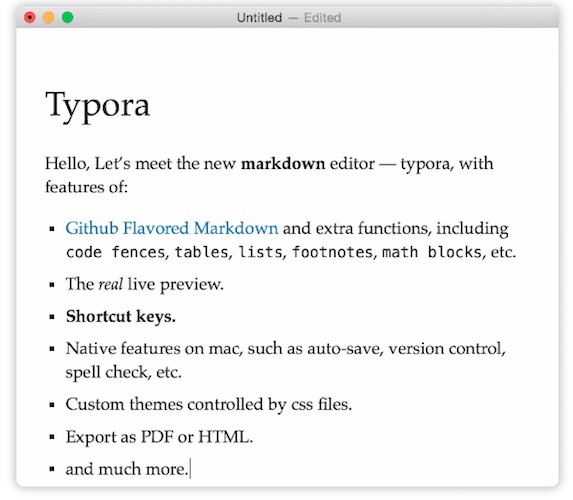
What you see while typing is exactly how your content will look when published.
This philosophy is best described as:
What You See Is What You Mean.
Must Read : Aiarty Image Enhancer Review: Features, Performance & Verdict
Key Features of Typora (Detailed Breakdown)
Seamless Live Preview (No Split Screen)
This is Typora’s standout feature.
Markdown symbols automatically disappear as you type.
Headers become actual headers.
Lists render instantly.
Images display visually instead of as text.
The result feels closer to writing in a word processor — but with Markdown’s flexibility underneath.
This dramatically reduces mental friction and speeds up writing.
True Distraction-Free Writing Environment
Typora removes everything that pulls your attention away:
- No preview windows
- No mode switching
- No cluttered toolbars
You’re left with a clean canvas and your thoughts.
This makes Typora especially effective for long-form writing, documentation, and focused study sessions.
Simple Yet Powerful Markdown Support
Typora supports all essential Markdown elements, including:
- Headers
- Ordered and unordered lists
- Task lists
- Tables (Markdown Extra)
- Code fences with syntax highlighting
- Inline formatting
- Image rendering
It also supports advanced content like:
- Mathematical formulas
- Flowcharts and diagrams
- Inline styling
This balance makes Typora suitable for both beginners and advanced users.
Focus Mode and Typewriter Mode
These features are designed for deep work.
Focus Mode blurs everything except the current line you’re typing.
Typewriter Mode keeps the active line vertically centered on the screen.
Together, they create a calm, immersive writing experience that’s hard to find in other editors.
Must Read : Aiarty Image Enhancer Review – Upscale Photos to 32K Naturally
File Organization and Navigation
Typora includes built-in file management features:
- File tree panel
- Article (file list) panel
- Folder-based organization
You can store your files locally or inside sync services like Dropbox or iCloud.
This makes it easy to manage multiple writing projects without extra tools.
Outline Panel for Structured Writing
The Outline panel automatically generates a clickable structure from your headings.
Benefits include:
- Jumping to any section instantly
- Maintaining clean heading hierarchy
- Improving SEO structure for blog posts
If you write long articles or documentation, this feature saves time and keeps content organized.
Import and Export Flexibility
Typora allows you to export your content into multiple formats:
- PDF (with bookmarks)
- Word (DOCX)
- OpenOffice
- LaTeX
- MediaWiki
- EPUB
You can also import documents from other formats, making Typora a flexible part of your writing workflow.
Word Count and Reading Time
Typora displays:
- Word count
- Character count
- Line count
- Estimated reading time
This is especially useful for bloggers, students, and content creators working with word limits.
Must Read : Why Is My Phone Screen Pressing Itself? Causes, Fixes, and Long-Term Solutions
Auto Pair and Smart Editing
Typora behaves like a modern code editor when needed:
- Auto-pairs brackets and quotation marks
- Auto-pairs Markdown symbols like * and _
- Smooth table editing
These small quality-of-life features add up during daily use.
Pros and Cons of Typora
Pros
- Clean and minimalist interface
- Seamless live preview
- Excellent Markdown support
- Focus and typewriter modes
- One-time purchase (no subscription)
- Works on Windows, macOS, and Linux
Cons
- No built-in cloud sync
- Limited plugin ecosystem
- Not ideal for real-time collaboration
Typora vs Other Markdown Editors
| Feature | Typora | Obsidian | Typical Markdown Editors |
|---|---|---|---|
| Live preview | Seamless | Partial | Split screen |
| Distraction-free | Yes | Moderate | No |
| Learning curve | Low | Medium | Medium |
| File organization | Good | Excellent | Basic |
| Best use case | Writing | Knowledge base | Development |
Typora stands out for writers who value simplicity and focus over heavy customization.
Real-World Use Cases
Bloggers and Content Creators
- Write long-form SEO articles
- Maintain clean heading structure
- Export to WordPress-friendly formats
Developers and Technical Writers
- Create Markdown documentation
- Highlight code blocks
- Add diagrams and formulas
Students and Researchers
- Take structured notes
- Write math-heavy content
- Organize lecture materials
Authors and Long-Form Writers
- Use focus mode for deep work
- Export to EPUB for ebooks
Is Typora Worth It?
If you value:
- Focus over features
- Simplicity over complexity
- Writing flow over configuration
Then Typora is absolutely worth considering.
It doesn’t try to do everything.
It does one thing exceptionally well — help you write without friction.
👉 Check price
👉 See full features
👉 Learn more about Typora
Things to Consider Before Buying Typora
Before choosing Typora, ask yourself:
- Do I prefer a clean interface over heavy customization?
- Do I mainly write solo content?
- Do I like Markdown but dislike visible syntax?
If yes, Typora is a strong match.
Frequently Asked Questions (FAQs)
Is Typora good for beginners?
Yes. Typora hides most Markdown syntax, making it beginner-friendly.
Is Typora free?
Typora offers a free trial. Continued use requires a one-time license.
Does Typora work on Windows and Mac?
Yes. It supports Windows, macOS, and Linux.
Is Typora good for blogging?
Yes. It’s excellent for writing long-form blog posts with proper structure.
Can Typora export to Word?
Yes. You can export documents directly to DOCX format.
Does Typora support diagrams?
Yes. You can create diagrams using text-based syntax.
Is Typora better than Obsidian?
For pure writing, yes. Obsidian is better suited for interconnected notes.
Final Verdict: Typora Review
Typora isn’t flashy or overloaded with features.
And that’s exactly why it works.
If you want a minimalist Markdown editor that stays out of your way and lets you focus on writing, Typora is one of the best options available.
Clean. Fast. Thoughtfully designed.
I am a book author and I want distract free writing. I googled about it and found this gem here. Thanks for the recommendation Nikhil. I have started the 15 days free trial, let’s see if it really helps me
Glad to know. Let me know how it works out!
As an aspiring poet I was looking for a writing software. I have ordered it. Loved using it for 15 days and now I think I will be using Typora for ever
All the best for your peot career. Distract free writing is all we need