
Have you ever tried watching an old video on a modern 4K screen?
Instead of sharp visuals, you often see blur, pixelation, and grainy textures. Faces lose detail, motion looks rough, and the entire video feels outdated.
This usually happens because many older videos were recorded in lower resolutions like 480p or 720p. When these videos are displayed on large high-resolution screens, they appear blurry and stretched.
The good news is that modern video enhancement tools can improve video resolution and upscale footage to 4K while restoring some of the lost details.
In this guide, you will learn how to upscale blurry videos step by step and what tools can help you improve video quality quickly.
Quick Summary
If you just want the quick steps, here’s the simplified process.
Step 1: Choose a video upscaling tool
Step 2: Import your blurry video
Step 3: Select an enhancement model or preset
Step 4: Set the output resolution to 4K
Step 5: Preview the quality improvement
Step 6: Export the enhanced video
Modern video upscaling tools can help improve:
• video resolution
• detail sharpness
• frame smoothness
• noise and grain
Must Read : How to Uninstall Software Completely in Windows: Why Choose Revo Uninstaller Pro
Why Videos Become Blurry
Understanding why videos become blurry helps you fix the issue more effectively.
Low Original Resolution
Many older videos were recorded in resolutions such as:
480p
720p
early 1080p
When these are played on modern displays, they appear soft or pixelated.
Compression Loss
Videos uploaded online are usually compressed to reduce file size.
This compression removes fine details, resulting in:
• blurry edges
• reduced texture
• visual noise
Low Frame Rate
Older recordings sometimes use low frame rates such as 15 or 24 frames per second.
Low FPS can make motion appear choppy and less smooth.
Must Read : How to Edit Videos in One Tool Instead of Using Multiple Apps
What Does Upscaling to 4K Mean?
Upscaling is the process of increasing video resolution while trying to restore visual details.
For example:
480p video → upscaled to 1080p
720p video → upscaled to 4K
1080p video → enhanced to 4K
Instead of simply stretching pixels, advanced upscaling tools analyze each frame and attempt to rebuild missing details.
Step-by-Step: How to Upscale Blurry Video to 4K
Step 1: Choose a Video Upscaling Tool
The first step is selecting a reliable video enhancement tool.
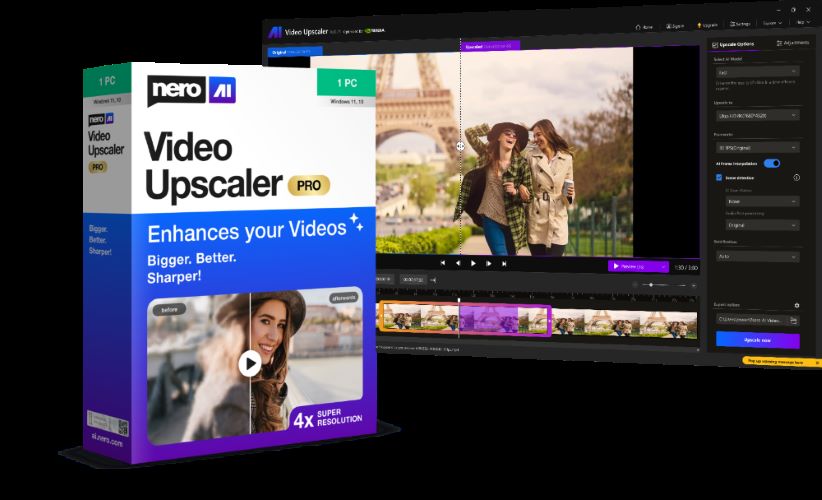
One option used by many creators is Nero AI Video Upscaler PRO. It focuses on improving video resolution and restoring older footage.
The software includes features such as:
• video restoration models
• real-time preview
• frame interpolation
• color adjustments
You can check full features before deciding if it fits your needs.
Step 2: Import Your Video
Most video upscaling tools allow you to import videos easily.
You can usually:
• drag and drop a file
• import multiple clips
• add an entire folder of videos
This is useful when working with multiple files.
Step 3: Select an Upscaling Model
Different enhancement models are designed for different types of content.
Common modes include:
Fast Mode – quick processing
Realistic Mode – ideal for real video footage
Animation Mode – best for cartoons or animation
Restoration Mode – improves old or damaged videos
Face Enhancement Mode – improves facial details
Selecting the correct model can significantly improve output quality.
Must Read : How to Create AI Explainer Videos Using Text Prompts
Step 4: Choose the Output Resolution
To upscale your video to 4K, select the resolution:
3840 × 2160
Some tools also allow you to upscale videos by:
2× resolution
4× resolution
The final quality depends on the original footage.
Step 5: Preview the Results
Some tools provide a real-time preview feature.
This allows you to compare:
Original video vs enhanced video
Previewing helps you adjust settings before exporting the final file.
Step 6: Export the Enhanced Video
Once the enhancement process finishes, export the video.
You can usually choose:
• output format
• resolution
• frame rate
• compression settings
After exporting, your video should appear sharper on modern screens.
Features That Help Improve Blurry Videos
Super Resolution
Super resolution increases video resolution while preserving as many details as possible.
Benefits include:
• sharper edges
• clearer textures
• improved depth
Noise and Grain Removal
Old videos often contain grain or noise.
Noise reduction helps:
• clean up footage
• reduce visual artifacts
• improve clarity
Frame Interpolation
Frame interpolation increases frame rate by generating additional frames.
Example improvements:
24 FPS → 60 FPS
30 FPS → 120 FPS
This results in smoother motion.
Face Enhancement
Face enhancement technology improves facial clarity in videos.
It helps restore:
• facial outlines
• expressions
• texture details
This is especially helpful for old recordings.
Pros and Cons of Video Upscaling Tools
Pros
• Improves clarity of old videos
• Enhances resolution up to 4K
• Reduces grain and noise
• Makes motion smoother
Cons
• Processing can take time
• Requires decent computer hardware
• Some details cannot be fully restored
• Output files can be large
Comparison of Video Upscaling Options
Beginner tools usually offer simple one-click enhancements.
Professional editing tools provide more control but require experience.
Online video enhancers are easier to use but may have limitations on file size or quality.
Choosing the right tool depends on your editing experience and project needs.
Must Read : Step by Step AI Video Maker tutorial
Real-World Use Cases
Restoring Old Family Videos
Old home videos often look blurry on modern screens.
Upscaling can make these videos clearer and easier to watch.
Improving YouTube Content
Many creators enhance older videos so they match modern video quality standards.
This helps maintain a consistent viewing experience.
Suggested internal link anchor text:
how to improve video quality for YouTube
Enhancing Archived Footage
Archivists and filmmakers often upscale historical recordings to improve visual clarity.
This helps preserve valuable footage.
Things to Consider Before Upscaling Videos
Hardware Performance
Video enhancement requires processing power.
Better results usually require:
• a strong GPU
• enough RAM
• fast storage
Processing Time
The time required depends on:
• video length
• resolution
• hardware performance
Long videos may take longer to process.
Realistic Expectations
Upscaling can significantly improve video clarity, but it cannot perfectly recreate details that were never recorded.
It improves visual quality but does not completely transform extremely low-quality footage.
Frequently Asked Questions
Can blurry videos really be converted to 4K?
Yes. Video upscaling tools can increase resolution and improve clarity, although results depend on the original footage.
What is the best way to fix blurry videos?
Using dedicated video upscaling software is one of the most effective ways to enhance resolution and reduce blur.
Does upscaling improve old videos?
Yes. Upscaling can restore detail, reduce noise, and make older footage look better on modern screens.
How long does video upscaling take?
Processing time varies based on video length, resolution, and hardware speed.
Can beginners upscale videos easily?
Yes. Many modern tools offer simple interfaces with presets that make video enhancement beginner-friendly.
Final Verdict
Upscaling blurry video to 4K is now easier than ever thanks to modern video enhancement tools.
With the right approach, you can restore old recordings, improve video clarity, and make footage look better on modern displays.
If you frequently work with older footage or low-resolution videos, exploring dedicated video upscaling software can help you achieve cleaner and sharper results.