
Accidentally deleting important files is more common than you think. One wrong click, a quick cleanup, or a failed update—and suddenly photos, documents, or videos are gone.
Most users panic because they assume deleted files are permanently erased. In reality, many deleted files are still recoverable if you act quickly and follow the right steps for your device.
In this tutorial, you’ll learn how to recover deleted files easily, whether you’re using Windows, macOS, Android, or iPhone—without technical jargon or risky shortcuts. By the end, you’ll know exactly what to do, what tools help, and what mistakes to avoid.
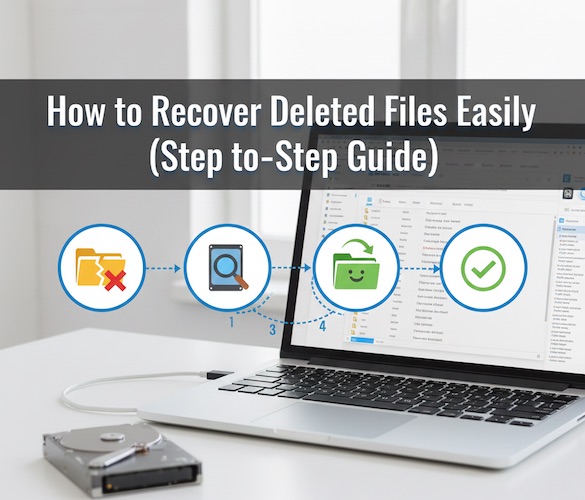
Quick Summary
This guide is for:
- Beginners who accidentally deleted files
- Users who emptied the recycle bin or trash
- Android and iPhone users who lost photos, videos, or messages
You’ll learn:
- Built-in recovery options (free methods)
- Step-by-step file recovery for each device
- When to use trusted data recovery software
Result you can expect:
- Recover deleted files safely
- Avoid permanent data loss
- Save time and stress
What You Need Before Getting Started
Basic Requirements
- The device where files were deleted
- Internet connection (for software tools)
- Storage space for recovered files
Skill Level
- Beginner-friendly
- No technical or coding knowledge required
Important Things to Know
- Stop using the device immediately after deletion
- New data can overwrite deleted files
- Recovery success depends on time and storage activity
Must Read : How to Recover Deleted WhatsApp Messages Without Backup
Step-by-Step Tutorial: Recover Deleted Files on Any Device
How to Recover Deleted Files on Windows
Step 1: Check the Recycle Bin
What to do:
- Double-click the Recycle Bin on your desktop
- Find the deleted file
- Right-click → Restore
Why it matters:
Windows doesn’t permanently delete files right away.
Tip: Sort by Date Deleted for faster results.
Step 2: Use File History (If Enabled)
What to do:
- Go to Control Panel → File History
- Click Restore personal files
- Choose a previous version
Why it matters:
File History creates automatic backups.
Step 3: Use Data Recovery Software
If the file isn’t in Recycle Bin or backups:
Recommended features to look for:
- Read-only scanning (safe)
- Preview before recovery
- Supports NTFS/FAT drives
Why this works:
Deleted files remain on disk until overwritten.
Must Read : QnE Companion Review: Free Windows Utilities to Boost Productivity
How to Recover Deleted Files on Mac
Step 1: Check Trash
What to do:
- Open Trash from Dock
- Right-click file → Put Back
Step 2: Restore from Time Machine
What to do:
- Open the folder where the file was
- Click Time Machine icon
- Browse backups → Restore
Why it matters:
Time Machine is macOS’s most reliable recovery method.
Step 3: Use Mac Data Recovery Software
If Trash is emptied and no backup exists:
Look for software that:
- Supports APFS & HFS+
- Works with macOS Ventura and newer
- Allows file preview
How to Recover Deleted Files on Android
Step 1: Check Google Photos / Files App
What to do:
- Open Google Photos → Trash
- Restore within 30 days
Step 2: Check Device Backup
What to do:
- Go to Settings → Google → Backup
- Restore during device setup (if recent backup exists)
Step 3: Use Android Recovery Software (PC-Based)
Important warning:
Avoid root unless absolutely necessary.
Best practice:
- Connect phone to PC
- Use recovery software that supports non-root scans
What can be recovered:
- Photos
- Videos
- Documents
- WhatsApp media (limited)
Must Read : Aiarty Image Enhancer Review – Upscale Photos to 32K Naturally
How to Recover Deleted Files on iPhone
Step 1: Check “Recently Deleted” Folder
What to do:
- Open Photos → Recently Deleted
- Restore within 30–40 days
Step 2: Restore from iCloud Backup
What to do:
- Go to Settings → General → Reset → Erase All Content
- Restore from backup during setup
Why it matters:
iCloud backups include photos, app data, and messages.
Step 3: Use iPhone Data Recovery Software
Without resetting your phone, you can:
- Scan iPhone directly
- Extract data from iCloud/iTunes backups
Best features to look for:
- No jailbreak required
- Selective recovery
- Supports latest iOS versions
👉 Check current price of iOS recovery tools that support selective restore.
Best Settings & Best Practices for File Recovery
| Practice | Why It Helps |
|---|---|
| Stop using device immediately | Prevents overwriting |
| Recover to external drive | Avoids data loss |
| Use preview before restore | Saves time |
| Choose read-only scan tools | Prevents corruption |
Advanced Tips
- Deep scan only if quick scan fails
- Recover file types first (photos/docs)
- Avoid free tools that install adware
Common Mistakes to Avoid
- ❌ Installing recovery software on same drive
- ❌ Continuing to use the device heavily
- ❌ Falling for “100% recovery guaranteed” claims
- ❌ Rooting or jailbreaking unnecessarily
- ❌ Restoring backups without checking contents
Real-World Use Cases & Scenarios
Who Benefits Most
- Students who lost assignments
- Freelancers missing client files
- Parents recovering family photos
- Business users restoring documents
When This Works Best
- Recently deleted files
- Formatted drives
- System crashes
- Accidental cleanup
Pros & Cons of File Recovery Methods
Pros
- Saves irreplaceable data
- Works without technical skills
- Many free scan options
Cons
- Not all files are recoverable
- Success decreases over time
- Some tools require paid licenses for recovery
Software vs Built-In Recovery (Quick Comparison)
| Feature | Built-in Tools | Recovery Software |
|---|---|---|
| Ease of use | High | High |
| File types | Limited | Wide |
| Deep scan | ❌ | ✅ |
| Preview | ❌ | ✅ |
Buying Guide: Choosing the Right Recovery Tool
Look for:
- OS compatibility
- Preview before recovery
- Clear refund policy
- No aggressive upsells
- Good user reviews
Avoid tools that:
- Promise unrealistic results
- Require jailbreaking/rooting by default
- Bundle unnecessary software
Frequently Asked Questions (FAQs)
Is this suitable for beginners?
Yes. All methods are beginner-friendly and explained step-by-step.
How long does file recovery take?
Quick scans: 5–10 minutes
Deep scans: 30–90 minutes (depending on storage size)
Can I recover files from a formatted drive?
Yes, in many cases—especially if no new data was written.
Do free recovery tools work?
They can scan for free, but recovery often requires a paid version.
Can this be done on low-end devices?
Yes. Recovery software runs on PCs, not directly on phones.
What file types can be recovered?
Photos, videos, documents, audio files, and archives.
Is file recovery safe?
Yes, if you use read-only, reputable tools.
Final Thoughts & Recommendation
Accidentally deleting files doesn’t have to be permanent. With the right approach, timing, and tools, you can recover deleted files easily on Windows, Mac, Android, and iPhone.
Start with built-in recovery options. If those fail, trusted data recovery software can save hours of frustration—and priceless data.
If you’re dealing with important files and want a reliable solution, exploring a professional recovery tool with preview and selective restore features is often worth it.
Hey mate I was able to recover the files from file history. Thanks a ton I thought I would have to spend my dollars on a data recovery software.
That’s awesome. I know the pain for recovering your important files. This is really amazing to know!