


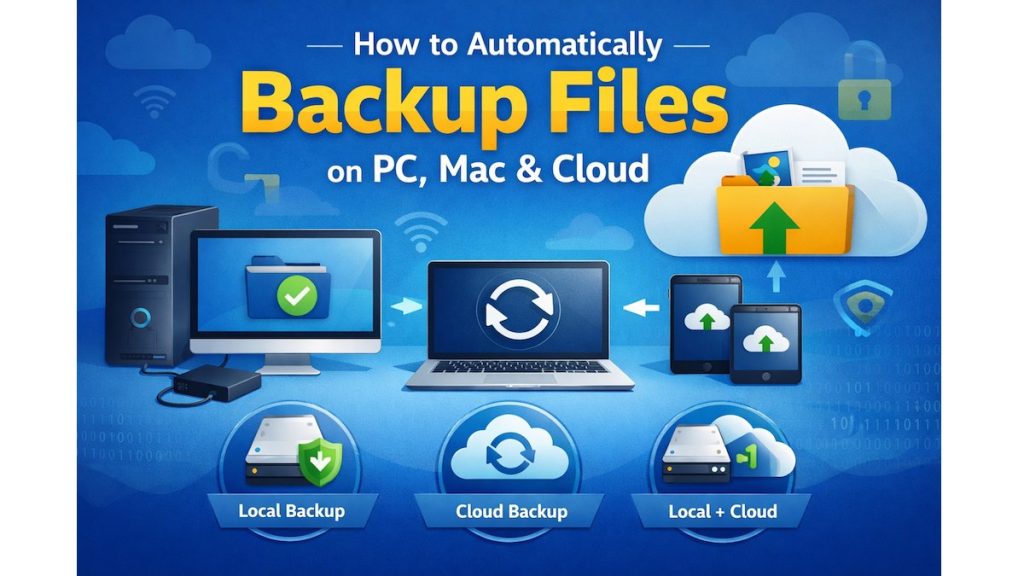
Have you ever lost important photos, work files, or documents because your computer crashed or was stolen?
You’re not alone.
Hard drives fail. Ransomware happens. Accidental deletes are more common than most people admit.
That’s why automatic file backup is no longer optional—it’s essential.
The good news?
You don’t need to be a tech expert to protect your data.


In this beginner-friendly guide, you’ll learn how to automatically backup files on PC, Mac, and cloud services, step by step, using simple tools that work quietly in the background.
Quick Summary
- Automatic backups protect your files from loss, theft, and hardware failure
- Windows and macOS include built-in backup tools
- Cloud backup adds extra protection and remote access
- The best setup uses local + cloud backup together
- Beginner-friendly tools can automate everything once set up
What Does Automatic File Backup Mean?
Automatic file backup means your files are copied regularly and automatically without you needing to remember to do anything.
Once enabled, backup software will:
- Monitor selected folders
- Detect changes
- Save updated copies on a schedule
This protects you from:
- Hardware failure
- Malware or ransomware
- Accidental deletion
- System crashes
Must Read : Copernic Desktop & Cloud Search Review: Features, Pros & Cons
Why Automatic Backups Are Better Than Manual Backups
Manual backups rely on memory—and humans forget.
Automatic backups:
- Run in the background
- Stay consistent
- Reduce human error
- Save time long-term
If your data matters, automation is the safest approach.
How to Automatically Backup Files on Windows PC
Option 1: Windows Built-in Backup (File History)
Windows includes a free tool called File History.
Best for: Basic local backups to an external drive
How to Set It Up
- Connect an external hard drive
- Go to Settings → Update & Security → Backup
- Select Add a drive
- Turn on File History
Windows will automatically back up:
- Documents
- Pictures
- Desktop
- Videos
Pros
- Free and simple
- No extra software needed
Cons
- No cloud backup
- Limited customization
Option 2: Automatic Cloud Backup Software
Dedicated backup tools offer stronger protection.
They automatically back up:
- All file types
- External drives
- System files (optional)
- Cloud + local locations
This is ideal if you want set-and-forget protection.
Must Read : WhatsApp Business Features for Small Businesses
How to Automatically Backup Files on Mac
Option 1: macOS Time Machine
Time Machine is Apple’s built-in backup solution.
Best for: Mac users who want easy local backups
How to Set It Up
- Connect an external drive
- Go to System Settings → General → Time Machine
- Select the backup disk
- Turn on automatic backups
Time Machine backs up:
- Apps
- Documents
- Photos
- System files
Pros
- Very beginner-friendly
- Restores entire Mac easily
Cons
- Requires external drive
- No offsite cloud protection
Option 2: Cloud Backup for Mac
Cloud backup services add protection against:
- Fire or theft
- Drive failure
- Natural disasters
They work silently and continuously.
Must Read : VinCheckup Review: Is This Vehicle History Report Accurate in 2026?
Cloud Backup vs Cloud Storage (Important Difference)
Many beginners confuse these two.
| Feature | Cloud Backup | Cloud Storage |
|---|---|---|
| Automatic | ✅ Yes | ❌ Mostly manual |
| File versioning | ✅ Yes | Limited |
| Full system backup | ✅ Yes | ❌ No |
| Designed for recovery | ✅ Yes | ❌ No |
Tip: Cloud storage is for syncing.
Cloud backup is for protection.
How to Automatically Backup Files to the Cloud
Step-by-Step Overview
- Choose a cloud backup provider
- Install the software
- Select files or drives
- Set backup schedule
- Enable encryption (recommended)
Once set, backups run automatically—even when you forget.
Best Automatic Backup Strategy (Recommended)
The safest method is the 3-2-1 Backup Rule:
- 3 copies of your data
- 2 different storage types
- 1 offsite backup
Example Setup:
- Original files on your PC or Mac
- External hard drive backup
- Cloud backup copy
This covers nearly every failure scenario.
Comparison: Local Backup vs Cloud Backup
| Feature | Local Backup | Cloud Backup |
|---|---|---|
| Speed | Fast | Slower initial upload |
| Offsite protection | ❌ No | ✅ Yes |
| Setup | Easy | Easy |
| Ongoing cost | One-time | Subscription |
Best choice: Use both together.
Real-World Backup Use Cases
Students
- Protect assignments
- Recover accidentally deleted files
- Access backups anywhere
Freelancers
- Client data protection
- Version history
- Business continuity
Families
- Photo and video safety
- Ransomware protection
- Easy restores
Buying Guide: What to Look for in Backup Software
Before choosing a backup solution, consider:
- Automatic scheduling
- File version history
- Strong encryption
- Unlimited storage (if possible)
- Cross-platform support
- Simple restore process
Avoid tools that require constant manual uploads.
Pros and Cons of Automatic Backup Tools
Pros
- Peace of mind
- Time-saving
- Consistent protection
- Easy file recovery
Cons
- Initial setup time
- Subscription cost (cloud backup)
- First backup may take time
FAQs (People Also Ask)
1. What is the easiest way to automatically backup files?
Using built-in tools like Windows File History or macOS Time Machine is the easiest starting point.
2. Is cloud backup safe for personal files?
Yes, reputable services use encryption to protect your data.
3. How often should backups run automatically?
Daily backups are ideal for most users.
4. Can I backup external hard drives automatically?
Yes, many backup tools support external drives.
5. Do automatic backups slow down my computer?
Most run quietly in the background with minimal impact.
6. Is free backup software enough?
Free tools are fine for basics, but paid options offer better protection.
7. What happens if I delete a file by mistake?
Most backup tools keep older versions for recovery.
Final Verdict & Recommendation
If you’ve never backed up your files before, start today.
At minimum:
- Use built-in backup tools
- Add an external hard drive
For complete protection:
- Combine local backup with cloud backup
- Choose a tool that runs automatically
- Use encryption and version history
Automatic backups remove stress, save time, and protect what matters most.