
Have you ever felt boxed in by your system’s default disk tools? Maybe Windows Disk Management won’t resize a partition properly. Or your dual-boot setup breaks after an update. Or you want total control over partitions, boot order, and backups, without juggling multiple tools. That’s exactly where BootIt Bare Metal comes in. This in-depth BootIt Bare Metal review explores whether this all-in-one boot manager and advanced partitioning tool is worth your time and money—especially if you’re a power user, IT pro, or serious multi-boot enthusiast.
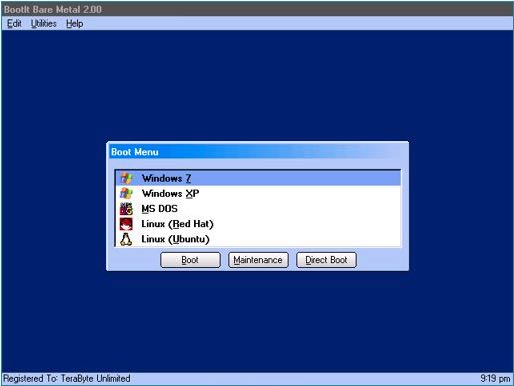
Quick Summary
- What it is: A powerful boot manager, partition manager, and disk imaging tool in one package
- Best for: Advanced users, dual/multi-boot systems, disk management pros
- Strengths: Extreme flexibility, non-destructive partitioning, built-in imaging
- Weakness: Learning curve for beginners
- Verdict: One of the most powerful non-UEFI boot and partition tools available today
👉 Best if you want full control over your disks—not just basic resizing.
Primary & Secondary Keywords Used
- Primary keyword: BootIt Bare Metal review
- Secondary keywords:
- BootIt Bare Metal partition manager
- BootIt Bare Metal boot manager
- advanced partitioning tool
- multi-boot manager software
Naturally supported with LSI terms like disk imaging software, MBR vs GPT, non-destructive resizing, and boot configuration management.
Core Features Explained (In Plain English)
1. Advanced Partition Manager
BootIt Bare Metal shines brightest as a partition manager.
It supports virtually every modern and legacy disk layout you might encounter.
Key partitioning features:
- Supports MBR, EMBR, and GPT
- Create, move, copy, delete, and undelete partitions
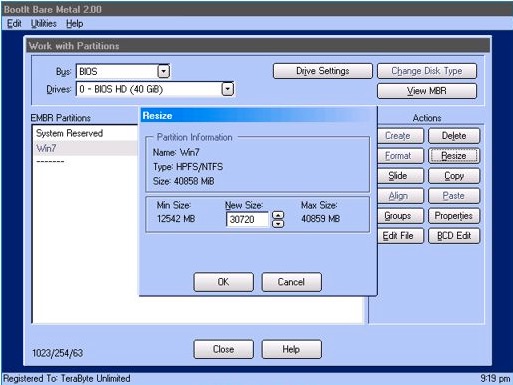
- Resize partitions without data loss
- Works with FAT, FAT32, exFAT, NTFS, and Linux Ext2/3/4
- Create 200+ primary partitions on EMBR disks
- Convert between disk types without wiping data
- Enforce proper Windows 7+ alignment
- Full control over drive geometry
💡 This is miles ahead of Windows Disk Management.
Must Read : How to Fix App Crashing on Android (Step-by-Step Guide)
2. Powerful Boot Manager
If you run multiple operating systems, this is where BootIt BM earns its reputation.
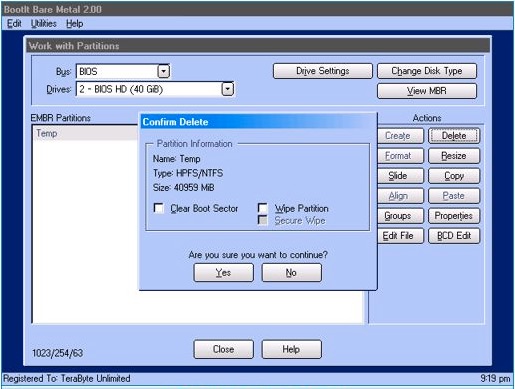
Boot manager highlights:
- Boot any partition on any of up to 16 drives
- Boot multiple OS installs from a single partition
- Hide or unhide partitions per OS
- Swap drives or change partition order dynamically
- Auto-detect existing operating systems
- Direct Boot Menu (skip the main menu)
- Password-protected boot items
- Supports Windows, Linux, MS-DOS, OS/2, and more
🔍 Ideal for complex multi-boot labs and test systems.
3. Built-In Disk Imaging & Backup
BootIt BM includes the full version of Image for DOS, fully integrated into its desktop interface.
What you can do:
- Back up individual partitions or entire drives
- Restore systems after failure or corruption
- Clone drives or migrate to larger disks
- Expand partitions during restore
- Work with internal and external drives (USB, eSATA, IEEE1394)
This eliminates the need for separate backup software.
4. Automation & Scripting (Advanced Users)
The paid version includes an enhanced TBScript engine, opening the door to automation.
Automate tasks like:
- Partition creation, deletion, resizing
- Scheduled disk imaging
- OS deployment across different hardware
- Configuration file edits
- File access across hidden partitions
🧠 A serious time-saver for system administrators.
Real-World Use Cases
Who Actually Needs BootIt Bare Metal?
This isn’t a casual tool—and that’s a good thing.
Best-fit scenarios:
- Dual-boot or multi-boot Windows/Linux setups
- IT professionals managing multiple systems
- Power users with large-capacity drives
- Test environments needing frequent restores
- Users migrating systems to new hardware
- Anyone frustrated by Windows’ disk limitations
Ask yourself: Do I want control—or convenience?
Must Read : Why Is My Phone Screen Pressing Itself? Causes, Fixes, and Long-Term Solutions
Pros and Cons
Advantages
| Pros |
|---|
| All-in-one boot, partition, and imaging tool |
| Non-destructive resizing |
| Supports massive drives (16+ exabytes) |
| Works independently of installed OS |
| Extremely flexible boot options |
| No subscription required |
Drawbacks
| Cons |
|---|
| Learning curve for beginners |
| Interface feels utilitarian |
| Non-UEFI focus may limit some setups |
| Overkill for casual users |
BootIt Bare Metal vs Alternatives
| Feature | BootIt BM | Windows Disk Mgmt | Typical Boot Managers |
|---|---|---|---|
| Non-destructive resizing | ✅ | ❌ | ❌ |
| Multi-OS boot flexibility | ✅ | ❌ | ⚠️ |
| Disk imaging included | ✅ | ❌ | ❌ |
| GPT & EMBR support | ✅ | ⚠️ | ⚠️ |
| Automation & scripting | ✅ | ❌ | ❌ |
👉 BootIt BM is in a different league.
Things to Consider Before Buying
Before clicking “Check price,” think about:
- Do you run multiple operating systems?
- Do you frequently resize or reorganize partitions?
- Do you need reliable bare-metal backups?
- Are you comfortable learning advanced tools?
If you answered yes to more than one, this tool makes sense.
Must Read : Systweak Advanced Driver Updater Review: Does It Really Fix Driver Issues on Windows?
FAQs (People Also Ask Friendly)
Is BootIt Bare Metal safe to use?
Yes. It operates outside your OS, reducing the risk of file system corruption when managing partitions.
Does BootIt Bare Metal support Windows 11?
It supports all modern Windows versions in non-UEFI configurations. Always verify your boot mode.
Can beginners use BootIt Bare Metal?
Beginners can use it, but it’s best suited for users willing to learn advanced disk concepts.
Is disk imaging included?
Yes, the full Image for DOS is bundled with the software.
Can I recover data from a failed drive?
If you have an image backup, recovery is fast and reliable.
Does it support Linux partitions?
Yes, including Ext2, Ext3, and Ext4 file systems.
Is it a one-time purchase?
Yes. No subscriptions or recurring fees.
Final Verdict: Is BootIt Bare Metal Worth It?
If you’re looking for a serious boot manager and advanced partitioning tool, BootIt Bare Metal delivers unmatched control and reliability.
It’s not flashy.
It’s not beginner-focused.
But it works—and it works incredibly well.
Recommended for:
✔ Power users
✔ IT professionals
✔ Multi-boot enthusiasts
✔ Anyone who values control over convenience
If disk management matters to you, this is a tool worth mastering.