Home Blog Page 3

How to Learn a New Language Without Going to Classes

0

Traditional language classes are expensive, time-consuming, and often ineffective for busy adults. Fixed schedules, outdated textbooks, and lack of real conversation practice leave many learners frustrated.

But here’s the good news: you can learn a new language without going to classes—and many people now reach fluency faster doing it.

With the right tools, structure, and daily habits, self-learning a language is no longer a gamble. It’s a smart, flexible, and affordable alternative that works for beginners and advanced learners alike.

This guide shows exactly how to learn a new language at home, using modern strategies, practical tools, and proven language-learning apps—without overwhelming you.

How to Learn a New Language Without Going to Classes

Quick Summary

  • You don’t need classes to learn a language
  • Self-learning is cheaper, flexible, and often faster
  • Apps, real conversations, and daily habits matter more than textbooks
  • Tools like Mondly by Pearson provide structured, class-free learning
  • Consistency beats intensity every time

Why Learning a Language Without Classes Works

Language learning isn’t about memorizing grammar rules—it’s about daily exposure, practice, and repetition.

Here’s why self-learning works so well:

  • Learn anytime, anywhere
  • Study at your own pace
  • Focus on real-world conversations
  • Avoid classroom pressure
  • Save hundreds of dollars

Most traditional classes teach theory first. Self-learning flips that model by focusing on speaking, listening, and understanding from day one.

Must Read : AVS4You Review – Is This All-in-One Multimedia Suite Worth It?


Step-by-Step: How to Learn a New Language Without Going to Classes

1. Start With Clear, Practical Goals

Before opening any app, ask yourself:

  • Why do I want to learn this language?
  • Travel, work, exams, or conversation?
  • How fluent do I really need to be?

Clear goals help you stay consistent and choose the right learning tools.

Example goals:

  • Hold a 10-minute conversation in 30 days
  • Understand movies without subtitles
  • Communicate while traveling

2. Use a Language Learning App for Structure

Self-learning fails when there’s no structure.

That’s where language learning apps shine.

One standout option is Mondly by Pearson, designed for people learning without classes.

Why Mondly Works for Self-Learners

  • Learn 41 languages from your native language
  • Over 1,000 language combinations
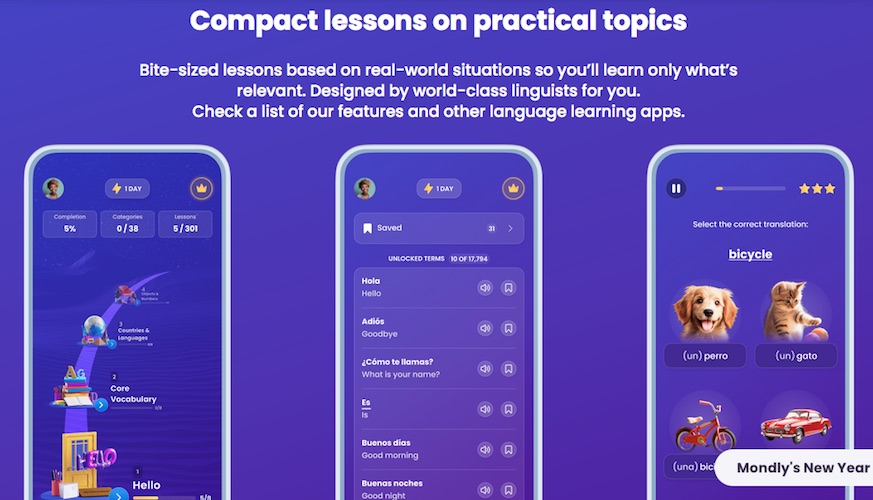
  • Bite-sized lessons (perfect for busy schedules)
  • Real-life conversations, not textbook phrases
  • Quick daily lessons to build habits
  • Works on mobile, tablet, and desktop

Mondly was named:

  • Editors’ Choice on Google Play
  • Best New App by Apple
  • App of the Year on Facebook

This makes it ideal for learners who want progress without classrooms or tutors.

👉 CTA: Learn more about Mondly’s features


3. Focus on Speaking From Day One

One of the biggest mistakes self-learners make is waiting too long to speak.

Instead:

  • Speak out loud during lessons
  • Repeat phrases even if you feel silly
  • Practice pronunciation daily

Apps with speech recognition and conversation simulations help build confidence early—something classrooms often lack.


4. Learn Vocabulary in Context (Not Lists)

Memorizing random words doesn’t help you speak.

Instead, learn:

  • Phrases
  • Full sentences
  • Common situations (ordering food, introductions, travel)

Mondly uses 40+ practical topics like:

  • Greetings
  • Travel
  • Shopping
  • Work conversations

This makes learning feel natural and usable.

Must Read : How to update your drivers in Windows automatically


5. Build a Daily Language Habit (10–15 Minutes)

You don’t need hours a day.

Consistency matters more than duration.

Best daily routine:

  • 5 minutes: review vocabulary
  • 5 minutes: lesson or conversation
  • 5 minutes: listening or speaking

Mondly’s daily lessons are designed exactly for this purpose.


6. Use Listening to Train Your Brain

Listening trains your ear before you even speak fluently.

Easy ways to practice:

  • Short dialogues
  • Native pronunciation audio
  • App-based listening exercises

Over time, your brain starts recognizing patterns automatically.
How to Learn a New Language Without Going to Classes

7. Simulate Real Conversations

You don’t need a classroom to practice conversations.

Modern tools offer:

  • Interactive dialogues
  • Real-world scenarios
  • Instant feedback

Mondly includes 41 real conversations designed to improve fluency fast.

Must Read : Why Is My Phone Screen Pressing Itself? Causes, Fixes, and Long-Term Solutions


Comparison: Self-Learning vs Traditional Classes

FeatureSelf-Learning AppsLanguage Classes
CostLow or FreeExpensive
FlexibilityAnytimeFixed schedule
PaceYour speedGroup-based
Speaking PracticeHighLimited
Real-Life FocusYesOften No

Pros & Cons of Learning Without Classes

✅ Pros

  • Affordable or free
  • Flexible schedule
  • Faster speaking practice
  • Personalized pace
  • Learn from your native language

❌ Cons

  • Requires self-discipline
  • No physical teacher
  • Progress depends on consistency

Who Is This Method Best For?

Learning a language without classes is perfect for:

  • Busy professionals
  • Students on a budget
  • Travelers
  • Digital nomads
  • Introverts who prefer solo learning

Buying Guide: Choosing the Right Language App

Before choosing any app, check:

  • Number of supported languages
  • Native language support
  • Real conversation practice
  • Speech recognition
  • Daily lesson reminders
  • Multi-device access

Mondly checks all these boxes and is built with world-class linguists and award-winning technology.

👉 CTA: See full features and supported languages


Real-World Use Cases

Scenario 1: Learning for Travel

You can master travel phrases in weeks using topic-based lessons.

Scenario 2: Career Growth

Improve communication skills for international work.

Scenario 3: Personal Growth

Learn a new language for fun and mental fitness.


FAQs – People Also Ask

Can you learn a language fluently without classes?

Yes. With consistent practice, conversation-focused tools, and daily exposure, fluency is achievable.

What’s the best way to learn a language at home?

Using structured apps, daily habits, listening practice, and speaking exercises.

How long does it take to learn a language without classes?

Basic conversation can take 1–3 months. Fluency depends on time and consistency.

Are language learning apps effective?

Yes, especially apps with real conversations and speech recognition.

Is Mondly good for beginners?

Yes. It’s designed for beginners and advanced learners alike.

Can I learn multiple languages at once?

It’s possible, but focusing on one language at a time is recommended.


Internal Linking Suggestions

  • Best language learning apps for beginners
  • How to stay consistent while learning online
  • Top productivity apps for self-learners

Final Verdict: Is Learning Without Classes Worth It?

Absolutely.

Learning a new language without going to classes is no longer risky or unstructured. With the right tools, especially modern language learning apps like Mondly by Pearson, you can achieve real progress—faster, cheaper, and more comfortably than traditional classrooms.

If you want flexibility, real conversations, and daily progress, self-learning is the smarter choice.
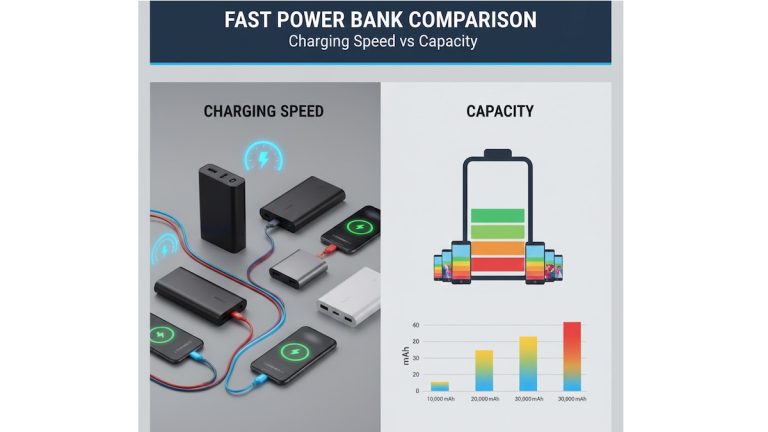
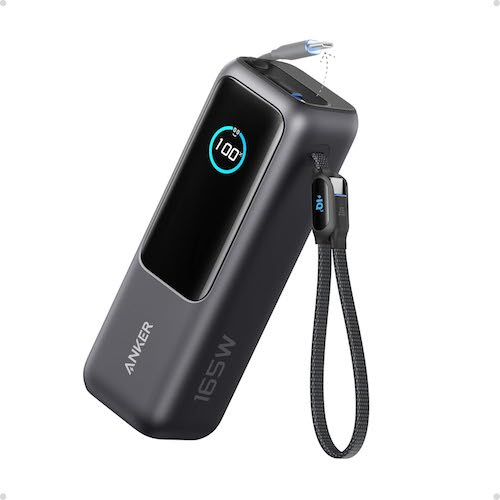
Fast Power Bank Comparison: Speed vs Capacity Explained

0

Have you ever bought a power bank that looked perfect on paper, but felt disappointing after a few days of use?

Maybe it charged your phone painfully slow.
Or maybe it charged fast—but died way too quickly.

Fast Power Bank Comparison

You’re not alone.

With buzzwords like PD fast charging, Quick Charge, 20,000mAh, and 65W output everywhere, choosing the right power bank has become more confusing than it should be.

This guide breaks everything down in plain English so you can finally understand the real difference between charging speed vs capacity—and choose the right power bank for your needs.


Quick Summary for Busy Readers

  • Charging speed decides how fast your device charges
  • Capacity (mAh) decides how long the power bank lasts
  • Fast charging without enough capacity = frequent recharging
  • High capacity without fast charging = slow experience
  • The best power bank balances both based on usage

What Is a Fast Power Bank?

A fast power bank isn’t about size or price—it’s about power output.

Charging speed depends on:

  • Output wattage (W)
  • Supported fast-charging standards
  • Cable and device compatibility

Common Fast-Charging Standards You’ll See

  • USB Power Delivery (PD) – Best for phones, tablets, and laptops
  • Qualcomm Quick Charge (QC) – Popular with Android devices
  • PPS (Programmable Power Supply) – Smarter, cooler charging

A 10,000mAh power bank with 30W PD can charge your phone faster than a 30,000mAh power bank limited to 12W output.

Must Read : Best Type C Charger with Long Wire (Fast & Reliable)


Understanding Power Bank Capacity (mAh Explained Simply)

Capacity is measured in milliampere-hours (mAh).

What Capacity Means in Real Life

CapacityWhat You Can Expect
5,000mAhEmergency top-up
10,000mAh1–2 phone charges
20,000mAh3–4 phone charges
30,000mAh+Multiple devices or long trips

Keep in mind: due to energy loss, you usually get 70–80% usable power, not 100%.


Charging Speed vs Capacity: What’s the Real Difference?

This is where most buyers get stuck.

Charging Speed

  • Measured in Watts (W)
  • Determines how fast your device charges
  • Critical for modern smartphones, tablets, and laptops

Capacity

  • Measured in mAh
  • Determines how long the power bank lasts
  • Important for travel, emergencies, and multiple devices

Both matter—but not equally for everyone.


Comparison Table: Fast Charging vs High Capacity

FeatureFast Charging Power BankHigh-Capacity Power Bank
Main FocusSpeedLongevity
Typical Output18W–65W+12W–18W
WeightLighterHeavier
Best ForQuick top-upsLong usage
Recharge TimeFasterSlower

Why Fast Charging Matters More Today

Modern devices are designed to charge fast.

Real-World Example

  • 18W charger → about 2 hours
  • 30W charger → about 1 hour
  • 65W charger → under 45 minutes

If your power bank doesn’t support fast charging:

  • You waste time
  • Devices heat up more
  • Battery efficiency suffers

That’s why fast charging is no longer a luxury—it’s a necessity.


When Capacity Matters More Than Speed

Fast charging isn’t everything.

Choose higher capacity if you:

  • Travel often
  • Go camping or hiking
  • Use multiple devices daily
  • Experience power outages

Example use case:
A traveler charging a phone, earbuds, smartwatch, and camera will benefit more from 20,000mAh or higher, even if charging is slightly slower.


The Sweet Spot: Balanced Fast Power Banks

For most people, the best choice is a balanced power bank.

Ideal Specs for Most Users

  • Capacity: 10,000–20,000mAh
  • Output: At least 30W USB-C PD
  • Ports: USB-C + USB-A
  • Fast input recharge support

These models offer speed without unnecessary bulk.

Must Read : Best Budget Earbuds in 2026


Real-World Use Cases: Which One Should You Choose?

For Office & Daily Commute

  • 10,000mAh
  • 20–30W fast charging
  • Slim and lightweight

For Travelers & Digital Nomads

  • 20,000–30,000mAh
  • 45–65W USB-C PD
  • Laptop-compatible

For Students

  • Affordable fast charging
  • 10,000–20,000mAh
  • Compact design

For Gamers & Power Users

  • High wattage output
  • Efficient heat control
  • Short recharge time

Pros and Cons Breakdown

Fast Charging Power Banks

Pros

  • Saves time
  • Ideal for modern devices
  • Less heat during charging

Cons

  • Higher price
  • Smaller capacity in some models

High-Capacity Power Banks

Pros

  • Long-lasting power
  • Great for multiple devices
  • Ideal for emergencies

Cons

  • Heavy and bulky
  • Slow recharge
  • Less pocket-friendly

Things to Consider Before Buying a Power Bank

1. Output Wattage

  • Phones: 18–30W
  • Tablets: 30–45W
  • Laptops: 45–65W+

2. Input Charging Speed

A fast output means nothing if the power bank itself takes 10 hours to recharge.

3. Ports & Compatibility

USB-C is future-proof. Multiple ports mean shared power.

4. Safety & Build Quality

Look for overcharge protection, temperature control, and certified batteries.


Frequently Asked Questions (FAQs)

Is fast charging bad for battery health?

No. Modern fast charging is temperature-controlled and safe when supported by the device.

Is higher mAh always better?

Not necessarily. High capacity without fast charging can be frustrating.

Can power banks charge laptops?

Yes, but only models supporting USB-C PD (45W or higher).

Why does charging feel slower sometimes?

Cable quality, device limits, and power sharing affect speed.

Is wireless charging slower than wired?

Yes. Wireless charging is convenient but less efficient.

How long does a power bank last?

Most last 300–500 charge cycles before noticeable capacity loss.

Must Read : Why Is My Phone Screen Pressing Itself? Causes, Fixes, and Long-Term Solutions


Internal Linking Suggestions

  • Best USB-C Power Banks for Travel
  • Fast Charging Standards Explained
  • How to Extend Smartphone Battery Life
  • Power Bank Safety Tips

Final Verdict: Charging Speed or Capacity?

There’s no one-size-fits-all answer.

If you value time, prioritize fast charging.
If you value endurance, prioritize capacity.
If you want the best experience—balance both.

A well-balanced fast power bank:

  • Saves time
  • Lasts all day
  • Works with modern devices
  • Feels future-proof

👉 See full features of recommended fast power banks and choose what fits your lifestyle best.

Copernic Desktop & Cloud Search Review: Features, Pros & Cons

0

Have you ever spent more time searching for a file than actually working on it?

If your Windows search feels slow, incomplete, or blind to emails, PDFs, and cloud files, you’re not alone. As our computers store thousands of documents across folders, drives, emails, and cloud platforms, finding one specific file can become frustratingly inefficient.

Copernic Desktop & Cloud Search Review

That’s exactly where Copernic Desktop & Cloud Search positions itself—as a powerful alternative to basic Windows search, designed for people who value speed and relevance.

In this in-depth Copernic Desktop & Cloud Search review, I’ll walk you through its features, real-world benefits, drawbacks, pricing insights, and who it’s actually worth buying for—based on practical, experience-driven analysis.


Quick Summary

Copernic Desktop & Cloud Search is a Windows-based search tool that indexes over 170 file types, supports advanced search operators, works offline, and respects user privacy. It’s best suited for professionals, researchers, and heavy file users who want deeper, faster, and more accurate search results than native Windows search.

Best for: Power users, business professionals, researchers
Not ideal for: Casual users with minimal files
Key strength: Search depth, relevance, and privacy

Must Read : AVS4You Review – Is This All-in-One Multimedia Suite Worth It?


What Is Copernic Desktop & Cloud Search?

Copernic Desktop & Cloud Search is a Windows desktop search solution that allows you to instantly locate files, emails, attachments, and documents stored across:

  • Local hard drives
  • Network drives
  • Outlook emails & attachments
  • Cloud-connected storage

Unlike basic search tools that rely on filename matching, Copernic uses a powerful indexing engine that understands context, keywords, and metadata.

In simple terms: it helps you find what you actually mean, not just what you type.


Primary Keyword

Copernic Desktop & Cloud Search review


Key Features of Copernic Desktop & Cloud Search

1. Advanced Indexing Technology

Copernic builds a detailed keyword map (index) of your system. Once indexing is complete:

  • Searches become nearly instant
  • Results are ranked by relevance
  • Context matters—not just filenames

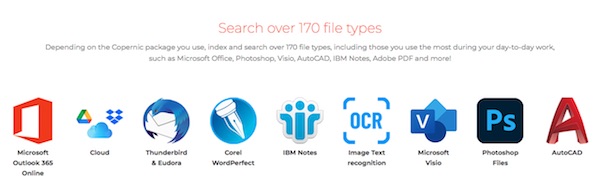
It supports 170+ file formats, including:

  • Word, Excel, PowerPoint
  • PDFs
  • Outlook emails
  • Photoshop, AutoCAD, Visio
  • Text and multimedia files

This alone sets it apart from many lightweight desktop search tools.


2. Ultra-Fast Search Engine

Once indexed, Copernic displays results as you type.

There’s no need to hit Enter and wait. The interface updates dynamically, which dramatically improves workflow efficiency—especially when you’re searching multiple times per hour.


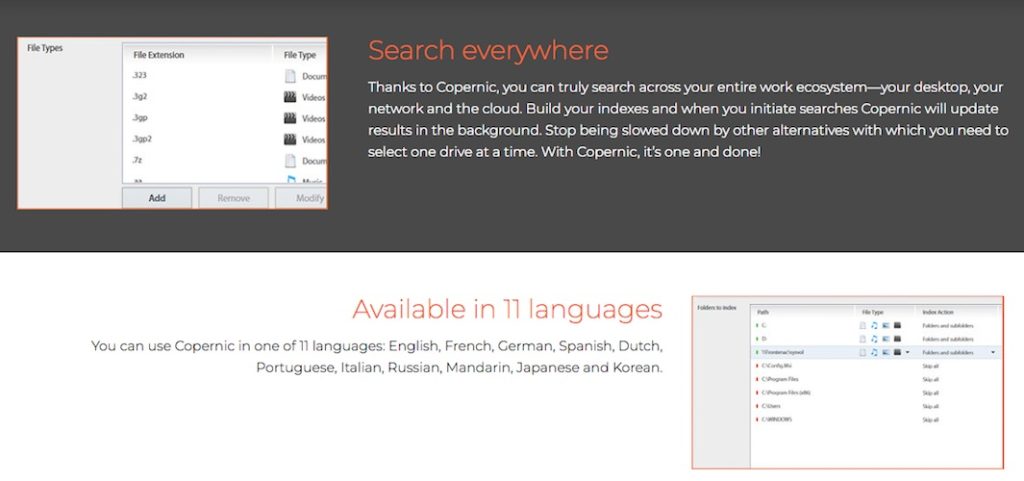
3. Search Across Desktop, Network & Cloud

Most tools force you to choose one location at a time. Copernic doesn’t.

You can search:

  • Entire PC
  • Network drives
  • Cloud-connected data

All in one unified search interface.

This “one-and-done” approach saves time and reduces friction.


4. Works Completely Offline

No internet? No problem.

Copernic allows you to:

  • Search files
  • Browse emails
  • Open documents

Even when fully offline—making it ideal for travelers, remote workers, and privacy-focused users.


5. Privacy-First Design

This is a big plus.

Copernic does not collect or transmit user data. All indexing and searching happens locally on your machine.

If data security matters to you, this is a major advantage over cloud-dependent alternatives.


6. Powerful Search Operators

For advanced users, Copernic supports:

  • Boolean operators (AND, OR, NOT, NEAR)
  • Prefix searches
  • Keyword refinement
  • Field-specific filters

You can narrow results by:

  • File type
  • Date
  • Author
  • Size
  • Location

Perfect for power users who want precision.

Must Read : WhatsApp Business Features for Small Businesses


7. Refine Pane & Contextual Menu

The left-side Refine Pane allows deeper filtering without restarting searches.

You can also:

  • Right-click files
  • Access native context menus
  • Open files instantly in default apps

Small details like this greatly enhance usability.


8. Low Resource Usage

Despite its depth, Copernic has one of the lowest memory footprints among enterprise-grade desktop search tools.

This means:

  • No system slowdowns
  • Background indexing without interruptions
  • Smooth multitasking

Copernic Desktop & Cloud Search Pricing

Copernic uses a subscription-based pricing model, billed yearly.

What You Should Know:

  • Yearly subscription includes updates
  • Discount available for 3-year plans
  • Pricing reflects professional-grade functionality

While it’s not a free tool, the value lies in time saved and productivity gained.


Pros and Cons

Pros

  • Extremely fast and accurate search
  • Supports 170+ file types
  • Works offline
  • Privacy-focused (no data collection)
  • Advanced filters and operators
  • Low system resource usage
  • Multi-language support (11 languages)

Cons

  • Windows-only
  • Paid subscription (no lifetime license)
  • Initial indexing can take time on large systems

Who Is Copernic Best For?

Copernic Desktop & Cloud Search is ideal for:

  • Business professionals
  • Researchers & academics
  • Legal and compliance teams
  • Engineers & designers
  • Heavy Outlook email users
  • Anyone managing large file libraries

If you regularly search thousands of documents, this tool quickly pays for itself in saved time.


Who Might Not Need It?

You may not need Copernic if:

  • You store very few files
  • You rely mostly on cloud-only apps
  • You’re satisfied with basic Windows search

Copernic vs Alternatives

FeatureCopernicWindows SearchFree Search Tools
Search relevance⭐⭐⭐⭐⭐⭐⭐⭐⭐⭐
File type support170+LimitedModerate
Offline searchYesPartialVaries
Privacy-firstYesNoVaries
Advanced operatorsYesLimitedLimited

Copernic clearly targets users who need depth and precision, not just speed.


Real-World Use Cases

1. Finding Old Emails Instantly

Search email content, attachments, and metadata without opening Outlook.

2. Research & Documentation

Locate PDFs, notes, and drafts by topic—not filename.

3. Creative Workflows

Search across Photoshop, AutoCAD, and design files seamlessly.

4. Compliance & Legal Teams

Quickly retrieve documents across network drives with filters.

Must Read : Tablet For Students – Samsung Galaxy Tab A9+ Plus Review


Buying Guide: Things to Consider

Before purchasing, ask yourself:

  • Do I search files daily or hourly?
  • Do I work with large document volumes?
  • Do I need advanced filters and offline access?
  • Is data privacy important to me?

If you answered “yes” to most, Copernic is a strong fit.


FAQs (People Also Ask)

Is Copernic Desktop Search free?

No, Copernic is a paid subscription-based tool with yearly plans.

Does Copernic work on Mac?

No, it’s currently designed for Windows only.

Can Copernic search Outlook emails?

Yes, including email content and attachments.

Does it require internet access?

No, Copernic works fully offline once indexed.

Is Copernic safe and private?

Yes, it does not collect or transmit user data.

How long does indexing take?

Initial indexing time depends on file volume but runs in the background.


Internal Linking Suggestions

  • best Windows productivity tools
  • desktop search software comparison
  • how to organize files on Windows
  • Windows search alternatives

Final Verdict: Is Copernic Desktop & Cloud Search Worth It?

If you’re serious about productivity and tired of wasting time searching for files, Copernic Desktop & Cloud Search is one of the most powerful Windows search solutions available today.

It doesn’t try to be flashy—it focuses on accuracy, speed, privacy, and depth. While it’s not free, the return on investment becomes clear the moment you stop digging through folders and start finding files instantly.

Laptop Cooling Pad Review: Does It Really Reduce Heat?

0

Ever felt your laptop turn into a mini heater during gaming, video editing, or even long Zoom calls? 🔥
You’re not alone.

Overheating is one of the most common laptop problems today. It slows performance, increases fan noise, and can even shorten your laptop’s lifespan. That’s where laptop cooling pads come in—but do they really reduce heat, or are they just another tech accessory hype?

Laptop Cooling Pad Review

In this detailed laptop cooling pad review, I’ll break down how cooling pads work, real-world performance expectations, and whether investing in one actually makes sense. I’ll also use a popular model—the Kootek Laptop Cooling Pad with 5 Quiet Fans—as a practical reference point.

Let’s get into the truth behind laptop cooling pads.


Quick Summary

  • ✅ Laptop cooling pads do reduce heat, especially under heavy workloads
  • 🎮 Best for gaming, editing, and long work sessions
  • 🌬️ Pads with multiple fans perform better than single-fan models
  • 🧘 Ergonomic height adjustment is an underrated bonus
  • 🔇 Quiet operation matters more than raw fan speed

👉 Verdict: A good cooling pad won’t replace internal cooling—but it does help stabilize temperatures and improve comfort.


Do Laptop Cooling Pads Really Work?

Short Answer: Yes—but with limits.

A laptop cooling pad works by improving airflow around your laptop’s underside. Most laptops pull in air from the bottom and exhaust it from the sides or back. When airflow is restricted (like on a bed or couch), heat builds up fast.

Cooling pads help by:

  • Forcing cool air upward toward heat vents
  • Preventing heat from being trapped underneath
  • Reducing thermal throttling during heavy use

However, they don’t magically drop temperatures by 20°C. Realistic improvements range from 3°C to 10°C, depending on usage and pad quality.

Must Read : Best Type C Charger with Long Wire (Fast & Reliable)


How a Laptop Cooling Pad Reduces Heat

1. Active Cooling with Built-in Fans

Most modern cooling pads use one or more fans to push air directly into your laptop’s intake vents.

Example:
The Kootek Laptop Cooling Pad uses 5 built-in fans (1 large + 4 smaller fans) to distribute airflow evenly across the base.

2. Improved Air Circulation

Raising the laptop slightly allows hot air to escape instead of getting trapped underneath.

3. Reduced Internal Fan Strain

By assisting airflow, your laptop’s internal fans don’t need to spin as aggressively—resulting in less noise and wear.


Primary Keyword Focus

Primary Keyword: laptop cooling pad review

Secondary Keywords Used Naturally

  • do laptop cooling pads work
  • best laptop cooling pad for gaming
  • laptop overheating solution
  • cooling pad for gaming laptop
  • external laptop cooler benefits

Key Features That Actually Matter in a Cooling Pad

Not all cooling pads are equal. Here’s what makes a real difference:

🔹 Number of Fans

More fans = better airflow coverage.

  • Single fan → basic cooling
  • 3–5 fans → balanced and effective

The Kootek model includes 5 fans, which helps cool both CPU and GPU zones.

Must Read : Best Budget Earbuds in 2026


🔹 Fan Noise Level

A cooling pad should help you focus—not distract you.

  • Look for whisper-quiet fans
  • Avoid high RPM pads with no noise control

This is where quiet models shine during work or late-night gaming.


🔹 Adjustable Height & Ergonomics

Cooling is only half the story.

An ergonomic stand:

  • Reduces neck and wrist strain
  • Improves airflow naturally
  • Makes long sessions more comfortable

The Kootek cooling stand offers 6 height adjustment levels, which is ideal for both desk work and gaming.


🔹 USB Hub & Connectivity

Most cooling pads draw power from your laptop.

A built-in dual USB hub ensures you don’t lose ports for:

  • Mouse
  • Keyboard
  • External drives

Must Read : Why Is My Phone Screen Pressing Itself? Causes, Fixes, and Long-Term Solutions


Real-World Performance: What to Expect

Gaming Scenario 🎮

  • Temperature drop: 5–8°C
  • More stable FPS
  • Less thermal throttling
  • Reduced fan noise

Office Work / Browsing 💻

  • Minimal temperature change
  • Improved comfort
  • Better posture

Video Editing / Rendering 🎬

  • Noticeable heat reduction
  • Longer sustained performance
  • Less system lag under load

Pros and Cons of Using a Laptop Cooling Pad

✅ Pros

  • Reduces overheating risk
  • Improves laptop lifespan
  • Enhances ergonomics
  • Affordable solution
  • Portable and easy to use

❌ Cons

  • Requires USB power
  • Not a fix for internal dust or old thermal paste
  • Cheap models may be noisy

Pros & Cons Table

ProsCons
Better airflowNeeds USB port
Reduced thermal throttlingNot a miracle fix
Quiet fan optionsAdds extra accessory
Ergonomic comfortQuality varies by brand

Laptop Cooling Pad vs Alternatives

Cooling Pad vs Laptop Stand

  • Cooling Pad: Active cooling + airflow
  • Laptop Stand: Passive cooling only

👉 Best choice: Cooling pad with adjustable height


Cooling Pad vs Internal Cleaning

  • Cleaning: Fixes internal airflow issues
  • Cooling Pad: Enhances external airflow

👉 Best solution: Use both together


Who Should Buy a Laptop Cooling Pad?

A cooling pad is worth it if you:

  • Use a gaming laptop
  • Edit videos or photos
  • Experience frequent overheating
  • Work long hours on a laptop
  • Want better posture and comfort

It’s less necessary if:

  • You use a low-power ultrabook
  • Your laptop already runs cool
  • You mostly browse or stream

Buying Guide: What to Look For

Before clicking “Buy,” consider:

  • ✅ Laptop size compatibility (12–17 inches)
  • ✅ Fan count and layout
  • ✅ Noise level
  • ✅ Adjustable height
  • ✅ USB hub availability

👉 Tip: Always match fan placement with your laptop’s air vents.


FAQs – People Also Ask

1. Do laptop cooling pads damage laptops?

No. Quality cooling pads are safe and designed to assist airflow, not harm components.

2. How much temperature drop can I expect?

Typically 3–10°C, depending on workload and pad quality.

3. Are cooling pads good for gaming laptops?

Yes. They are especially useful for gaming laptops that generate more heat.

4. Do cooling pads work for MacBooks?

They can help slightly, but MacBooks rely more on passive cooling.

5. Is a cooling pad better than a laptop stand?

Yes, because it provides active cooling, not just elevation.

6. Are cooling pads noisy?

Good models use quiet fans designed for long sessions.

7. Can I use a cooling pad on my bed?

Not recommended. Use on flat surfaces for best airflow.


Internal Linking Suggestions

  • best gaming laptop accessories
  • how to fix laptop overheating
  • gaming laptop maintenance tips
  • USB-powered laptop gadgets

Final Verdict: Does a Laptop Cooling Pad Really Reduce Heat?

Yes—a laptop cooling pad does reduce heat, when used correctly and paired with realistic expectations.

It won’t replace internal cooling or fix hardware flaws, but it does:

  • Improve airflow
  • Stabilize performance
  • Increase comfort
  • Extend usability during heavy tasks

If you’re struggling with laptop heat, fan noise, or uncomfortable posture, a well-designed cooling pad like the Kootek Laptop Cooling Pad with 5 Quiet Fans is a smart, budget-friendly upgrade.

👉 Check price, see full features, or learn more before deciding—but for most users, it’s a practical solution that actually delivers value.

How to Create AI Explainer Videos Using Text Prompts

0

Have you ever noticed how some videos instantly grab your attention, while others get skipped within seconds?

That’s the power of explainer videos.

In today’s crowded digital space, people don’t want long explanations. They want clarity, visuals, and quick understanding. This is why explainer videos consistently outperform plain text when it comes to engagement, watch time, and conversions.

The problem?

Until recently, creating professional explainer videos required expensive tools, animation studios, or complex software that most beginners simply couldn’t handle.

Now, things have changed.

You can create studio-quality explainer videos using simple text prompts—even with zero video editing experience.

Let’s break down exactly how it works.


Quick Summary

If you’re short on time, here’s the key takeaway:

• Explainer videos boost engagement and conversions
• Text-prompt video tools remove technical barriers
• You can create doodle-style explainer videos in minutes
• Perfect for YouTube, Instagram, TikTok, ads, and sales pages
• No freelancers, no learning curve, no heavy software


What Are AI Explainer Videos?

Explainer videos are short visual videos designed to explain a product, service, or idea in a simple and engaging way.

Text-prompt explainer videos take this one step further.

Instead of manually designing scenes or animations, you simply describe what you want to show. The platform automatically generates visuals, doodle characters, and animations based on your text input.

This makes video creation accessible to:

• Beginners
• Marketers
• Educators
• Business owners

You focus on the message. The visuals take care of themselves.

How to Create AI Explainer Videos Using Text Prompts

Why Explainer Videos Convert So Well

Explainer videos aren’t just popular—they’re effective.

Here’s why they work so well:

• People process visuals faster than text
• Step-by-step animations improve understanding
• Visual storytelling builds trust
• Short videos keep attention longer

Studies consistently show that explainer videos can increase conversion rates by up to 80% when used on landing pages, ads, or product pages.

That’s why they’re widely used in affiliate marketing, online education, and business promotion.


The Old Ways of Creating Explainer Videos (And Why They Fail)

Before text-prompt tools existed, creators had limited options.

1. Using Traditional Video Software

This usually meant spending weeks learning complex tools.

Common issues:
• Steep learning curve
• Time-consuming workflow
• Basic or amateur-looking videos

2. Hiring Freelancers or Agencies

This option removes the workload—but creates new problems.

Common issues:
• High costs
• Long turnaround times
• Difficult revisions

3. Template-Only Video Tools

These are easy but often produce generic results.

Common issues:
• Repetitive designs
• Limited customization
• Poor brand uniqueness

This is exactly where text-prompt explainer video tools stand out.

Must Read : QnE Companion Review: Free Windows Utilities to Boost Productivity


How to Create Explainer Videos Using Text Prompts (Step-by-Step)

Here’s how the process works from start to finish.

Step 1: Write a Simple Text Prompt

You don’t need a professional script.

Just describe:
• What the scene should show
• The message you want to explain
• Any characters or actions

Example prompt:
“A business owner explaining how online marketing works using a whiteboard animation.”

Step 2: Generate the Visuals Automatically

The system instantly creates:
• Doodle characters
• Scene elements
• Animated transitions

No drawing. No timeline editing.

How to Create AI Explainer Videos Using Text Prompts

Step 3: Customize If Needed

Optional customization includes:
• Switching between black & white or color videos
• Adding your own voiceover
• Adding background music
• Choosing animation styles

Step 4: Render and Publish

Choose your video format:
• 16:9 for YouTube
• 9:16 for Instagram Reels and TikTok
• Square for Facebook and ads

Click render, download, and publish.


Why InstaDoodle Is Ideal for Text-Based Explainer Videos

If you’re specifically looking for a tool designed for doodle-style explainer videos, InstaDoodle is worth serious attention.

It removes almost every technical obstacle from video creation.

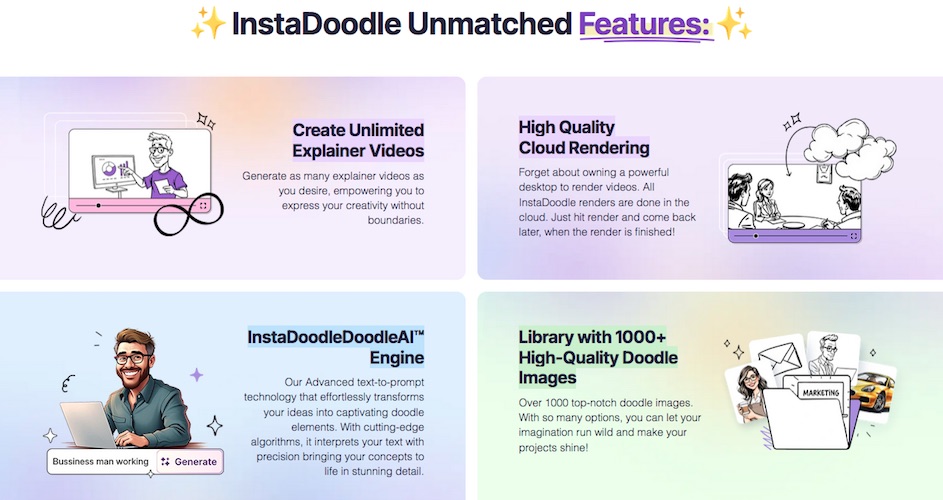
You don’t install anything. You don’t need a powerful computer. Everything runs in the cloud.

Many users report that viewers assume their videos were made by professional animation studios—when in reality, they were created in minutes.


Key Features That Actually Matter

Here are the features that make a real difference.

Text-to-Doodle Video Engine

Simply write what you want to show, and the system generates matching doodle elements automatically.

1000+ Doodle Characters and Elements

You can create videos for:
• Business presentations
• Educational content
• Marketing campaigns
• Local services

Color and Black-and-White Videos

Choose the style that fits your brand or platform.

Built-In Image Editor

Includes:
• Background removal
• Free draw tools
• Color fill options

No need for external image editing apps.

Multiple Aspect Ratios

Create videos optimized for:
• YouTube
• Instagram
• TikTok
• Facebook
• Sales pages

Must Read : Aiarty Image Enhancer Review – Upscale Photos to 32K Naturally


What Can You Create With Text-Prompt Explainer Videos?

Here are some practical examples:

• Product promotion videos
• Affiliate review videos
• Amazon product explainers
• Offline business promotion videos
• Express video sales letters
• Logo intros and stingers
• Photo slideshows
• Videos from blog articles

This flexibility makes explainer videos useful across many industries.


Pros and Cons Overview

Pros

• Extremely beginner-friendly
• No editing or design skills required
• Saves time and money
• Professional-looking results
• Works in multiple languages

Cons

• Requires an internet connection
• Clear prompts produce better results


InstaDoodle vs Traditional Video Tools

Feature
InstaDoodle
Traditional Video Software

Learning Curve
Very low
High

Cost
One-time option
Monthly subscriptions

Creation Speed
Minutes
Hours or days

Freelancers Needed
No
Often yes

Cloud Rendering
Yes
No

How to Create AI Explainer Videos Using Text Prompts

Who Should Use Text-Prompt Explainer Videos?

This approach is perfect for:

• Affiliate marketers
• YouTube creators
• Educators and coaches
• Small business owners
• Social media marketers

If you want professional videos without a production crew, this is one of the easiest solutions available.


Buying Guide: What to Look for in a Text-to-Video Tool

Before choosing any platform, consider these factors:

• Prompt accuracy
• Visual quality
• Rendering speed
• Customization options
• Supported video formats
• Pricing model (one-time vs subscription)

These elements directly impact long-term usability and value.

Must Read : Step by Step AI Video Maker tutorial


Frequently Asked Questions

Can beginners create explainer videos using text prompts?

Yes. No technical or design experience is required.

Do these videos work on social media platforms?

Yes. You can create videos optimized for YouTube, Instagram, TikTok, and Facebook.

Are explainer videos effective for affiliate marketing?

Yes. They simplify complex offers and improve trust and conversions.

Can I use my own images or logos?

Yes. You can import images and convert them into doodle-style visuals.

Do I need a powerful computer?

No. All video rendering is done in the cloud.

Are color explainer videos supported?

Yes. Full-color video creation is available.


Final Verdict: Is Text-Prompt Explainer Video Creation Worth It?

If your goal is to save time, reduce costs, and increase engagement, text-prompt explainer videos are absolutely worth it.

Tools like InstaDoodle make professional-quality explainer videos accessible to anyone—without technical frustration or high expenses.