
A laptop that suddenly gets hot, spins its fans constantly, or becomes painfully slow can be frustrating. The good news is that overheating does not always mean your laptop is failing. Why Is Your Laptop Overheating? Many reasons but you will get your fix here for sure.
In many cases, the cause is surprisingly simple: blocked vents, accumulated dust, too many demanding processes, an unsuitable surface, or poor airflow around the machine.
So, why is your laptop overheating? More importantly, what can you do about it without immediately spending money on a new computer?
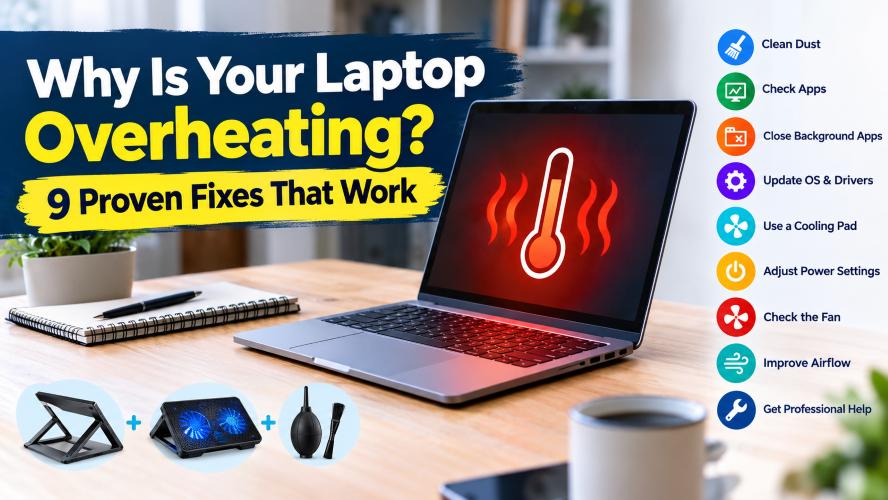
This guide walks through nine practical laptop overheating fixes, starting with the easiest solutions and moving toward hardware-related checks. You will also find tips for choosing a laptop cooling pad, a comparison of common cooling solutions, and signs that professional repair may be necessary.
Quick Answer: Why Is Your Laptop Overheating?
The most common reasons a laptop overheats include blocked air vents, dust buildup, high CPU or GPU usage, poor ventilation, an unsuitable surface, outdated or problematic drivers, aggressive performance settings, and aging cooling components.
Start by checking airflow and background processes. If the laptop remains unusually hot after those steps, inspect the cooling system and consider professional servicing.
9 Ways to Fix an Overheating Laptop
- Move your laptop to a hard, flat surface.
- Clean dust from the vents and cooling openings.
- Check which apps are using excessive CPU or GPU resources.
- Close unnecessary background applications and browser tabs.
- Update your operating system and device drivers.
- Use a cooling pad when your setup needs additional airflow.
- Adjust power and performance settings when maximum performance is unnecessary.
- Check whether the internal fan is working normally.
- Have the laptop professionally serviced if overheating persists or the hardware shows warning signs.
1. Move Your Laptop to a Hard, Flat Surface
Before changing settings or buying accessories, look at where your laptop is sitting.
Soft surfaces such as beds, blankets, cushions, and thick fabric can restrict ventilation openings. Even if the laptop feels comfortable to use there, the cooling system may not have enough room to move air.
For everyday use, place the laptop on a solid, level surface such as a desk or table. Keep the ventilation openings unobstructed.
Quick Test
- Move the laptop from a bed or sofa to a desk.
- Make sure the vents are not pressed against another object.
- Use it normally for 15–30 minutes.
- Check whether fan noise and temperatures improve.
If the laptop becomes noticeably cooler simply by changing surfaces, you may not need any additional hardware.
Must Read : Best Open Source AI Models for Your Laptop
2. Clean Dust From the Vents
Dust is one of the most overlooked causes of laptop overheating.
Over time, dust and debris can collect around ventilation openings and internal cooling components. Restricted airflow makes it harder for the cooling system to move heat away from the processor and graphics hardware.
Start by inspecting the visible vents. If they look clogged, cleaning may help restore airflow.
Be Careful When Cleaning
- Turn the laptop off before cleaning.
- Disconnect the charger and accessories.
- Follow the manufacturer’s cleaning instructions.
- Avoid forcing debris deeper into the laptop.
- Do not open the chassis unless you are comfortable working with laptop hardware.
If the laptop is still under warranty, check the manufacturer’s service guidance before opening the case.
3. Find Out Which Apps Are Making Your Laptop Hot
Sometimes the cooling system is doing exactly what it should. The problem is that your laptop is working unusually hard.
Video editing, 3D applications, games, large file compression, virtual machines, and some browser workloads can put significant demand on the CPU or GPU.
Windows users can open Task Manager and check CPU, GPU, memory, and disk usage. On macOS, Activity Monitor provides similar information.
Look for applications that consistently consume a large amount of processing power when you are not intentionally using them.
Ask Yourself
- Did the overheating start after installing an application?
- Is a demanding program running in the background?
- Does the laptop become hot only during gaming or video editing?
- Is browser activity unusually heavy?
Identifying the workload can tell you whether you have a cooling problem or simply a demanding workload.
4. Reduce Unnecessary Background Activity
Too many applications running simultaneously can keep your processor busy even when you are not actively using the laptop.
Review applications that launch automatically and close programs you do not need. You can also reduce unnecessary browser tabs, especially when several websites contain video, animations, or interactive content.
This is a particularly useful fix if your laptop becomes warm during light tasks such as browsing, writing, or watching videos.
5. Update Your Operating System and Drivers
Software updates can include bug fixes, compatibility improvements, and hardware-related updates. If overheating started after a software change, check whether your laptop manufacturer has released updated drivers or firmware.
Do not download random “driver booster” utilities simply because they promise to make your laptop cooler. Stick with your operating system’s update tools and the official support resources for your laptop manufacturer whenever possible.
6. Try a Laptop Cooling Pad
If your laptop is regularly used for gaming, editing, programming, or other sustained workloads, a laptop cooling pad can be worth considering.
A cooling pad typically raises the laptop slightly and uses one or more fans to improve airflow around its underside. The usefulness depends heavily on the laptop’s ventilation design, so it should be treated as an airflow aid rather than a guaranteed cure.
What to Look For in a Cooling Pad
- Fan placement that aligns reasonably well with your laptop’s intake area.
- A stable, non-slip surface.
- A comfortable viewing angle.
- Suitable size for your laptop.
- Adjustable fan speeds if you prefer more control.
- Reasonable noise levels for your environment.
If you already have good airflow and your laptop rarely runs demanding workloads, you may not need one.
Must Read : Acer Predator Helios Neo 16 AI Gaming Laptop Review (2026)
7. Adjust Performance and Power Settings
Your laptop does not always need to operate at maximum performance.
For web browsing, document editing, video calls, and similar everyday work, a balanced or efficiency-focused power mode may be sufficient. Lower performance demands can also reduce heat and fan activity.
For gaming or professional workloads, however, you may prefer maximum performance. In that situation, better airflow becomes more important.
8. Check Whether the Cooling Fan Is Working Properly
Listen to your laptop when it becomes warm.
Fan noise is not automatically a problem. A fan becoming louder during a demanding task can be completely normal. The concern is when the laptop gets extremely hot while the fan appears not to operate, behaves inconsistently, or makes unusual grinding or rattling sounds.
A damaged or failing fan can prevent the cooling system from doing its job properly. Because internal laptop designs vary considerably, fan replacement is usually better handled according to the manufacturer’s service instructions or by a qualified technician.
9. Get Professional Help If the Problem Persists
If you have improved airflow, cleaned accessible vents, reduced unnecessary workloads, and checked software updates but your laptop still overheats, it may be time for a deeper hardware inspection.
Potential causes can include internal dust accumulation, a cooling fan problem, deteriorated thermal material, sensor issues, or other hardware faults.
Professional servicing is especially worth considering if the laptop repeatedly shuts down, shows performance problems under light workloads, or exhibits unusual hardware noises.
Cooling Pad vs Laptop Stand vs Better Airflow
Not every overheating laptop needs a cooling pad. The right solution depends on what is causing the heat.
| Solution | Best For | Main Benefit | Potential Drawback |
|---|---|---|---|
| Hard desk surface | Everyday users | Free and simple | May not solve internal cooling problems |
| Laptop stand | Desk users | Raises laptop and improves ergonomics | Cooling improvement varies by design |
| Cooling pad | Heavy workloads | Provides additional airflow | Adds noise, cost, and desk space |
| Professional cleaning | Dust-heavy or older laptops | Addresses internal buildup | May involve service costs |
Pros and Cons of Using a Laptop Cooling Pad
| Pros | Cons |
|---|---|
| Can improve airflow around some laptops | Not a solution for every overheating cause |
| Can raise the screen to a more comfortable position | Requires extra desk space |
| Useful for sustained workloads | Fans add some noise |
| Usually simple to install and use | Effectiveness varies between laptop designs |
Who Should Consider a Cooling Pad?
A cooling pad makes the most sense for people who regularly run their laptop under sustained load.
- Gamers: Long gaming sessions can keep CPU and GPU components working hard.
- Video editors: Rendering and encoding can generate substantial heat.
- 3D creators: Rendering workloads can place sustained demands on the hardware.
- Developers: Virtual machines, containers, compilers, and local development tools can create extended CPU loads.
- Heavy multitaskers: Multiple demanding applications can increase system load.
For someone who mainly checks email, writes documents, browses the web, and watches occasional videos, fixing blocked airflow may be more useful than purchasing an accessory.
Must Read : NIMO 17 Inch Laptop Review: Power Meets Productivity
What About Thermal Paste?
Thermal paste helps transfer heat between a processor and its cooling assembly. On some older or heavily used machines, servicing the thermal interface may be part of a professional cooling-system repair.
However, replacing thermal paste is not the first step I would recommend to a beginner. Laptop construction varies significantly, and opening a thin laptop can involve delicate connectors and components.
If basic airflow and software checks do not solve the problem, professional servicing is a safer next step unless you already have experience repairing laptops.
Real-World Examples: Which Fix Should You Try?
Scenario 1: Your Laptop Gets Hot on the Bed
Start with a hard, flat surface. This costs nothing and immediately removes one common airflow problem.
Scenario 2: The Fan Is Constantly Loud While Browsing
Check Task Manager or Activity Monitor for applications consuming excessive resources. Then review browser tabs and background programs.
Scenario 3: The Laptop Overheats During Gaming
Check the ventilation, use an appropriate power mode, and consider a cooling pad if the laptop’s design and your desk setup would benefit from additional airflow.
Scenario 4: The Laptop Is Hot Even When Doing Almost Nothing
This deserves more investigation. Look for background processes, software problems, blocked vents, and possible cooling-system faults.
How to Choose a Laptop Cooling Pad
If you decide that a cooling pad fits your setup, avoid choosing one based only on the number of fans or a large advertised cooling claim.
Instead, consider the following:
- Compatibility: Check the recommended laptop size.
- Airflow design: Look at where your laptop’s intake vents are located.
- Noise: A powerful fan is less useful if the sound bothers you during work.
- Build quality: A stable platform is important, especially for daily use.
- Height adjustment: Useful if you want better screen positioning.
- Connectivity: Some models include USB pass-through ports.
- Portability: Frequent travelers may prefer a slimmer design.
Things to Check Before Buying Any Cooling Accessory
- Measure your laptop and compare it with the accessory’s supported size.
- Check whether the fan position makes sense for your laptop’s ventilation layout.
- Read recent customer feedback for noise and durability.
- Consider whether you actually need active cooling.
- Check the return policy in case the accessory does not suit your setup.
- Compare the total cost against a simple laptop stand.
Frequently Asked Questions
Why does my laptop get hot so quickly?
A laptop can heat up quickly when the CPU or GPU is under heavy load, airflow is restricted, or the cooling system is not moving heat effectively. Check running applications and ventilation first.
Is it normal for a laptop to get hot while gaming?
Yes. Gaming can place sustained demand on the CPU and GPU, which naturally produces heat. What matters is whether the laptop stays within the operating limits specified by its manufacturer and whether it shows symptoms such as unexpected shutdowns or severe performance problems.
Does a cooling pad really help an overheating laptop?
A cooling pad can improve airflow around some laptop designs, particularly during sustained workloads. Its effectiveness varies, so it should not be treated as a guaranteed fix for an internal hardware problem.
Can dust make a laptop overheat?
Yes. Dust buildup can restrict airflow and interfere with the cooling system. Cleaning accessible ventilation areas according to the manufacturer’s instructions can be a useful maintenance step.
Should I use my laptop on a bed?
A bed or soft surface can obstruct ventilation openings. A hard, flat surface is generally a better choice when the laptop needs effective airflow.
Why is my laptop fan always running?
The fan may run frequently because the laptop is under load, the ambient temperature is high, airflow is restricted, or the cooling system needs attention. Check CPU and GPU usage before assuming the fan itself is defective.
Can outdated drivers cause laptop overheating?
Software and driver problems can sometimes affect system performance and power behavior. Keeping the operating system and manufacturer-supported drivers updated is a sensible troubleshooting step.
When should I take an overheating laptop to a technician?
Consider professional service if overheating continues after basic troubleshooting, especially if the laptop shuts down unexpectedly, produces unusual fan noises, becomes extremely hot during light tasks, or shows other hardware symptoms.
Final Verdict: Start With the Simple Fixes
An overheating laptop does not automatically mean you need a replacement.
Start with the basics: move it to a hard surface, check the vents, inspect CPU and GPU usage, close unnecessary applications, and install appropriate system or manufacturer updates.
If you regularly perform demanding tasks, a laptop stand or cooling pad may be a useful addition. But if the machine remains unusually hot despite good airflow and sensible software settings, investigate the internal cooling system rather than simply adding more accessories.
The key is to identify why the laptop is overheating before spending money on a solution. That approach can save you money and, more importantly, help you avoid treating the symptom instead of the cause.
Ready to improve your laptop’s airflow? Compare suitable stands and cooling pads based on your laptop’s size, ventilation design, noise preference, and daily workload.
Updating my OS has helped me to reduce the overheating of my laptop. Thanks for the tips
Yes updating the OS helps in faster operations and lower overheating of laptop
I always use a cooling pad. I love gaming and cooling pad keeps the temperature of my laptop low
Cooling pad is one of the best solution.
I just cleaned my laptop using a blow dryer. It cleaned the wents and surprisingly, it’s working for me. no more over heating
Wow that’s amazing. We many times forget to clean the laptop externally too.
My laptop was constantly overheating. I tried one by one these solutions and after 3 solutions only it stopping heating much. I don’t know what worked but this is super amazing solutions. thank you
Thanks for your kind words Vera
This is really helpful. My laptop stopped overheating now. Thanks to your solution
Thanks Donovan!