
If you work with Excel daily, you already know the pain.
Repetitive clicks.
Long formulas that are hard to debug.
Tasks that should take seconds but eat up hours.
Excel is powerful—but it’s not always efficient.
That’s where Kutools for Excel enters the conversation. It promises to add 300+ powerful features to Excel, reduce manual work, and boost productivity almost instantly.
But does it actually deliver value for power users, analysts, and business professionals?
Or is it just another Excel add-in you’ll forget after a week?
Let’s find out.
Quick Verdict 📝
Kutools for Excel is worth it if:
- You use Excel daily for complex or repetitive tasks
- You manage large datasets, reports, or dashboards
- You want advanced features without learning VBA or macros
Not ideal if:
- You only use Excel occasionally
- You’re comfortable building everything manually with formulas or VBA
👉 For heavy Excel users, Kutools can save hours every week.
Must Read : Aiarty Image Matting Review: Precision Background Removal Made Simple
What Is Kutools for Excel?
Kutools for Excel is a professional Excel add-in that extends Microsoft Excel with over 300 advanced tools and functions.
Instead of writing complex formulas or VBA code, you can perform advanced tasks with a few clicks.
Key Highlights at a Glance
- ✅ Over 300 productivity tools
- ✅ No technical or VBA skills required
- ✅ Supports 44 languages
- ✅ Works with modern Excel versions
- ✅ 30-day full-featured free trial
- ✅ Easy to install and uninstall
- ✅ Trusted by 500,000+ users and 80,000+ businesses
This isn’t a “basic Excel helper.” It’s designed for serious Excel users.
Core Features Explained (With Real Benefits)
Instead of listing all 300+ tools, let’s focus on the ones that actually move the needle.
Navigation & Reading Experience Improvements
🔹 Navigation Pane
Quickly jump between:
- Workbooks
- Worksheets
- Columns
- Named ranges
- AutoText entries
Why it matters:
If you work with large workbooks, this alone saves serious time.
🔹 Grid Focus (Reading Layout)
Automatically highlights:
- Entire row
- Entire column of the active cell
Perfect for:
Financial modeling, audits, or reviewing large tables without losing focus.
AI Aide: Smart Excel Assistance 🤖
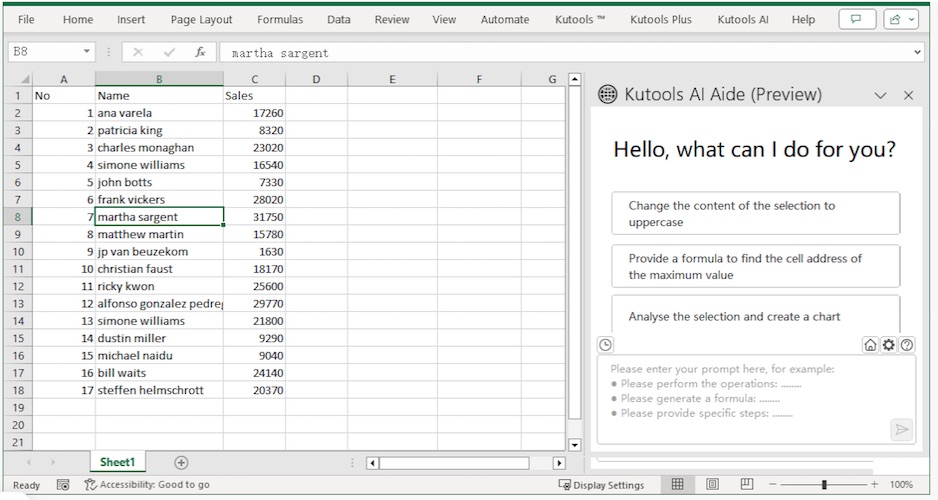
One of the newer additions is AI Aide, designed to help automate and guide Excel tasks intelligently.
Use cases include:
- Understanding complex formulas
- Generating suggestions for data operations
- Reducing manual decision-making
It’s not magic—but it’s a useful productivity enhancer for advanced workflows.
Design View: Worksheet Control Made Easy
This section is a favorite among Excel power users.
Key Design Tools
- Lock or unlock cells instantly
- Highlight unlocked cells
- Hide or unhide formulas
- Monitor precedents and dependents visually
- Highlight all formula cells or named ranges
Why it’s powerful:
You can audit, protect, and debug spreadsheets without breaking anything.
Date Picker & Big Formula Bar
📅 Date Picker
Add a drop-down calendar to date cells.
Great for:
- Forms
- Shared spreadsheets
- Reducing date-entry errors
Must Read : How to Use WhatsApp on Two Phones With the Same Number – Complete Guide
🧾 Big Formula Bar
View and edit long formulas comfortably.
If you’ve ever struggled editing nested formulas—this feels like relief.
Advanced View & Workbook Management
Kutools gives you deep control over Excel’s interface.
Popular View Tools
- Show classic Excel menus
- Snapshot and restore workbooks
- Toggle hidden rows, columns, sheets
- Hide inactive windows
- Restrict scroll areas
Result:
Less clutter. More focus.
Range & Cell Power Tools
This is where Kutools truly shines.
🔁 Transforming Data Without Formulas
- Flip ranges horizontally or vertically
- Transpose tables
- Swap ranges
- Paste only to visible cells
No helper columns. No formulas.
🔍 Duplicate & Comparison Tools
- Find and highlight duplicates
- Compare two ranges for differences
- Copy non-contiguous ranges
Perfect for:
- Data cleanup
- Reconciliation
- Quality checks
Data Validation & Input Control
Kutools goes far beyond Excel’s default validation.
Prevent Errors Before They Happen
- Prevent duplicate entries
- Allow only specific characters
- Validate email, phone, IP formats
- Bulk remove validation rules
Ideal for:
Forms, CRM data, and shared workbooks.
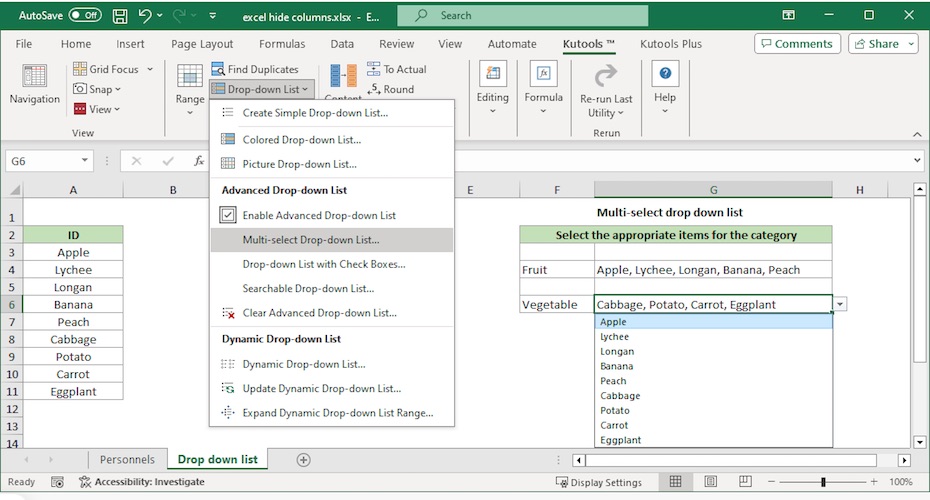
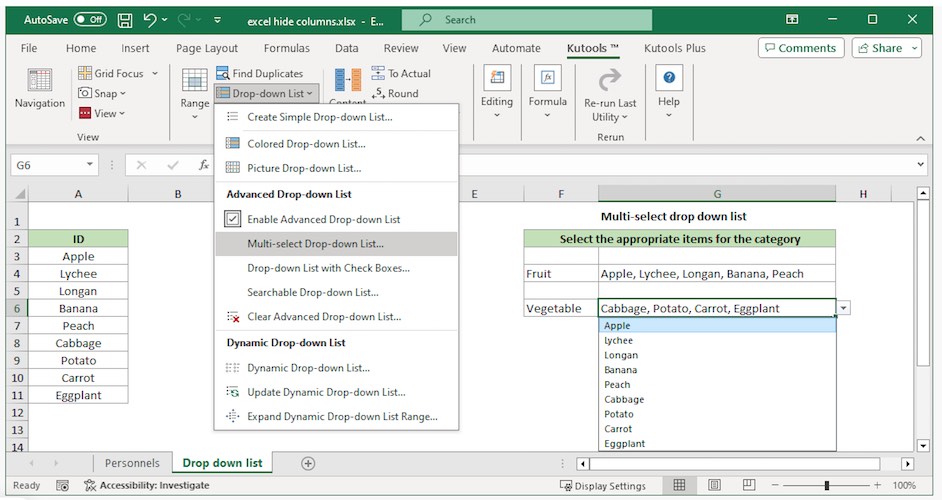
Advanced Drop-Down Lists (Huge Time Saver)
Create:
- Searchable drop-down lists
- Multi-level dependent lists
- Picture-based lists
- Multi-select drop-downs with checkboxes
This alone replaces hours of manual setup.
Content Conversion Tools
Easily convert:
- Text ↔ numbers
- Formulas ↔ values
- Numbers to words
- Units, currencies, number systems
No formulas needed.
Must Read : Why Is My Phone Screen Pressing Itself? Causes, Fixes, and Long-Term Solutions
Merge & Split Data Without Losing Information
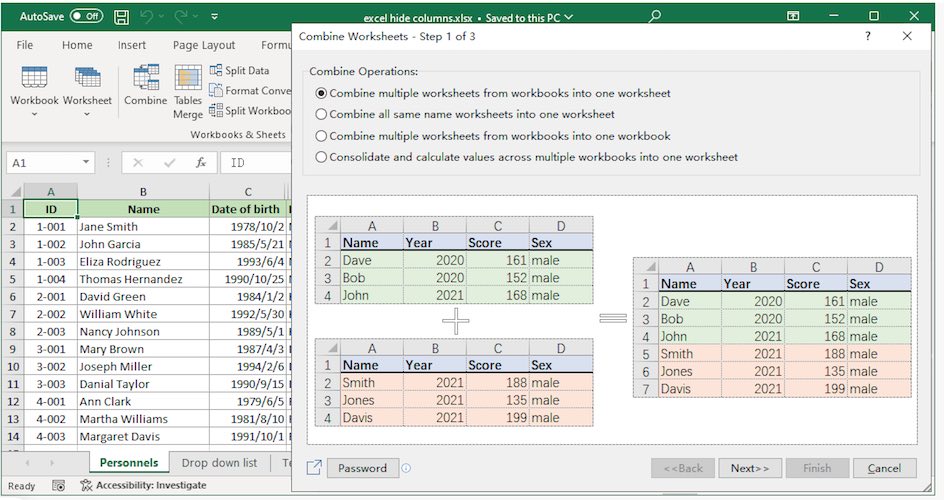
- Combine rows or columns safely
- Split names into first/last
- Merge duplicate rows with summaries
- Unmerge cells and auto-fill values
Extremely useful for reporting and data prep.
Chart Tools: Advanced Visualizations Without Coding 📊
Kutools includes dozens of chart templates Excel doesn’t offer natively.
Examples Include:
- Gantt charts
- Bell curves
- Bullet charts
- Speedometers
- Dynamic ranking charts
- Waterfall and comparison charts
If you create dashboards or reports—this is a big advantage.
Pros and Cons Table
| Pros | Cons |
|---|---|
| Massive time savings | Paid after trial |
| No VBA or coding needed | Can feel overwhelming at first |
| 300+ practical tools | Windows-only |
| Beginner-friendly UI | Not needed for casual users |
| Excellent data cleanup tools |
Kutools vs Native Excel: Is It Really Better?
| Feature | Excel Default | Kutools |
|---|---|---|
| Data cleanup | Manual | 1-click |
| Drop-down lists | Basic | Advanced |
| Chart options | Limited | Extensive |
| Duplicate handling | Weak | Powerful |
| Productivity | Slower | Much faster |
Bottom line: Kutools doesn’t replace Excel—it unlocks its full potential.
Who Should Use Kutools for Excel?
Best For:
- Data analysts
- Accountants & finance teams
- Business professionals
- Excel trainers
- Power users handling large datasets
Not Ideal For:
- Casual Excel users
- Students with very basic needs
- Mac-only users
Buying Considerations Before You Decide
Before clicking “buy,” ask yourself:
- Do I use Excel daily?
- Do I repeat the same tasks often?
- Do I avoid VBA because it’s complex?
If yes—Kutools will likely pay for itself quickly.
👉 Check price
👉 See full features
👉 Try the 30-day free trial
FAQs (People Also Ask Optimized)
1. Is Kutools for Excel safe to use?
Yes. It’s widely used, fully uninstallable, and doesn’t modify Excel files permanently.
2. Does Kutools slow down Excel?
In most cases, no. Many users report faster workflows due to fewer manual steps.
3. Can beginners use Kutools?
Absolutely. Most tools are point-and-click with clear labels.
4. Is there a free version?
There’s a 30-day full-featured free trial, no credit card required.
5. Does Kutools support multiple languages?
Yes, it supports 44 languages, similar to Excel.
6. Is Kutools worth it for power users?
For daily Excel users, the time savings alone justify the cost.
7. Can I uninstall Kutools anytime?
Yes. It’s fully removable without affecting your Excel files.
Internal Linking Suggestions (Anchor Text Only)
- Excel productivity tips
- Best Excel add-ins
- Advanced Excel formulas guide
- Excel automation tools
Final Verdict: Is Kutools for Excel Worth It? ⭐⭐⭐⭐☆
If Excel is a core part of your job, Kutools for Excel is not just worth it—it’s a strategic upgrade.
It removes friction, reduces errors, and turns complex tasks into simple clicks.
You won’t use all 300+ tools—but the ones you do use can save hours every week.
👉 Learn more about Kutools for Excel
👉 Check the latest pricing
👉 Try it free for 30 days
If productivity matters to you, Kutools is a tool you’ll wonder how you lived without.