
Keeping your Windows computer running smoothly often comes down to one simple but overlooked task: updating your device drivers. How to update your drivers in Windows automatically? Many users spend hours troubleshooting slow performance, crashes, internet issues, or hardware that suddenly stops working—without realizing that outdated or missing drivers are often the root cause.
In this in-depth guide, you’ll learn what drivers are, why updating them is essential, why Windows Update alone isn’t enough, and how to update your drivers automatically in Windows 11, 10, 8.1, and even Windows 7. Whether you’re a beginner or an experienced user, this article will help you understand drivers clearly and keep your PC in top condition.
Why Updating Your Drivers Matters in Windows
Many computer problems—especially in Windows 10 and Windows 11—are directly linked to outdated drivers. Drivers are responsible for allowing Windows to communicate with your hardware, so when they’re outdated, incompatible, or missing, things can go wrong quickly.
You should consider updating your drivers if:
- Your computer feels slower than usual
- Windows crashes, freezes, or shows blue screen errors
- Your internet connection drops or won’t connect
- Your sound, keyboard, mouse, printer, or monitor isn’t working properly
- Games stutter, graphics glitch, or performance drops
- New Windows updates cause hardware issues
In reality, no matter what problem you’re facing, there’s a strong chance that updating your drivers can fix it—or prevent it from happening in the first place.
To understand why, let’s first break down what drivers actually are.
What Are Drivers?
Drivers are small but critical pieces of software that act as interpreters between Windows and your hardware devices.
Windows and hardware components—such as your graphics card, network adapter, printer, or speakers—don’t naturally understand each other. They speak different “languages.” A driver translates Windows commands into instructions your hardware can understand, and then sends responses back to Windows.
A Simple Example: Graphics Drivers
When Windows wants to display something on your screen:
- Windows sends a command
- The graphics driver translates that command
- The graphics card executes it and displays the image
Without the driver, Windows and the graphics card can’t communicate correctly. The result? No display, poor resolution, screen flickering, or crashes.
Every Device Needs a Driver
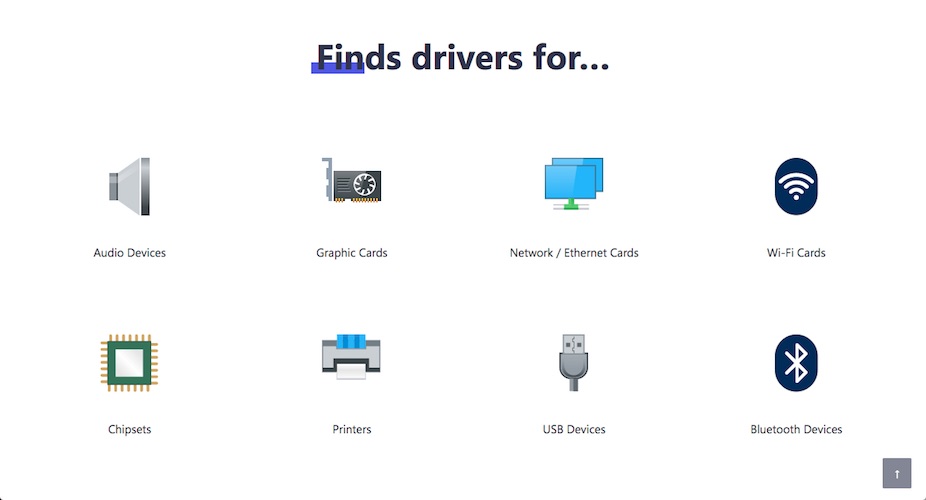
Your computer uses drivers for nearly everything, including:
- Graphics card (video driver)
- Network adapter (Wi-Fi / Ethernet driver)
- Sound card (audio driver)
- Keyboard and mouse
- USB ports and external drives
- Printer and scanner
- Bluetooth devices
Without drivers—or with outdated ones—these devices won’t function properly.
Must Read : Why Is My Phone Screen Pressing Itself? Causes, Fixes, and Long-Term Solutions
What Happens If Drivers Are Missing or Outdated?
Drivers need to be updated whenever Windows or the hardware changes how it communicates.
Why Drivers Become Outdated
- Microsoft updates Windows and changes system commands
- Hardware manufacturers improve device features
- Bugs and security vulnerabilities are discovered
- New software and games require newer drivers
When this happens, device manufacturers must update their drivers so they remain compatible with Windows.
Problems Caused by Outdated Drivers
Sometimes the impact is minor—missing new features or small performance issues. But in many cases, outdated drivers can cause serious problems, such as:
- System crashes or blue screen errors
- Hardware not being detected
- Internet connectivity failures
- Audio or video not working
- External devices randomly disconnecting
- Complete system instability
For example:
- If your hard drive driver fails, Windows can’t access your data
- If your network driver fails, you lose internet access
- If your graphics driver fails, your screen may go blank
In short, outdated drivers can cripple your system.
Why You Can’t Rely on Windows Update Alone
Windows includes a built-in tool called Windows Update, which is supposed to keep your system and drivers up to date. While it does help, it has major limitations.
1. Manufacturers Delay Driver Submissions
Hardware manufacturers must submit their drivers to Microsoft for inclusion in Windows Update. This process is:
- Time-consuming
- Technically demanding
- Often skipped for older hardware
As a result, many drivers never make it into Windows Update—or arrive months late.
2. Optional Driver Updates Are Ignored
Windows categorizes drivers as:
- Critical
- Automatic
- Optional
Most driver updates are marked as optional, meaning Windows won’t install them unless you manually look for them. Unfortunately, “optional” doesn’t mean “unimportant.” These updates often fix serious bugs and compatibility issues.
Even if you manually check optional updates, you’re still unlikely to get every driver you need.
Must Read : WhatsApp Business Features for Small Businesses
How to Update Your Drivers in Windows
There are two main ways to update drivers:
- Manually
- Automatically
Let’s explore both approaches.
Method 1: Updating Drivers Manually
Manual driver updates involve finding, downloading, and installing each driver yourself.
Steps Involved
- Identify your hardware devices
- Visit each manufacturer’s website
- Locate the correct driver for your exact model
- Ensure compatibility with your Windows version (11, 10, 8.1, or 7)
- Download and install the driver
- Repeat for every device
Downsides of Manual Updates
- Time-consuming
- Easy to download the wrong driver
- Risk of installing incompatible or unstable drivers
- Requires technical knowledge
- Difficult to keep track of future updates
Manual updates may work for advanced users, but for most people, this approach is frustrating and risky.
Method 2: Updating Drivers Automatically (Recommended)
If you don’t want to spend hours hunting down drivers—or you’re not comfortable dealing with technical details—automatic driver update tools are the safest and easiest solution.
Why Automatic Driver Updates Are Better
- Detect missing, outdated, or mismatched drivers instantly
- Download the correct driver versions automatically
- Install all updates with one click
- Reduce system crashes and hardware conflicts
- Save time and effort
One widely used solution is Driver Easy Pro.
How to Update Your Drivers Automatically with Driver Easy
Driver Easy is designed to make driver updates effortless for users of Windows 11, 10, 8.1, and 7.
Key Features of Driver Easy
- Automatically detects outdated, missing, or incorrect drivers
- Updates all drivers with one click
- Uses only genuine drivers from hardware manufacturers
- All drivers are tested and certified
- Offline scanning for computers without internet
- Safe restore feature to roll back drivers if needed
Simple Steps to Update Drivers Automatically
- Install Driver Easy
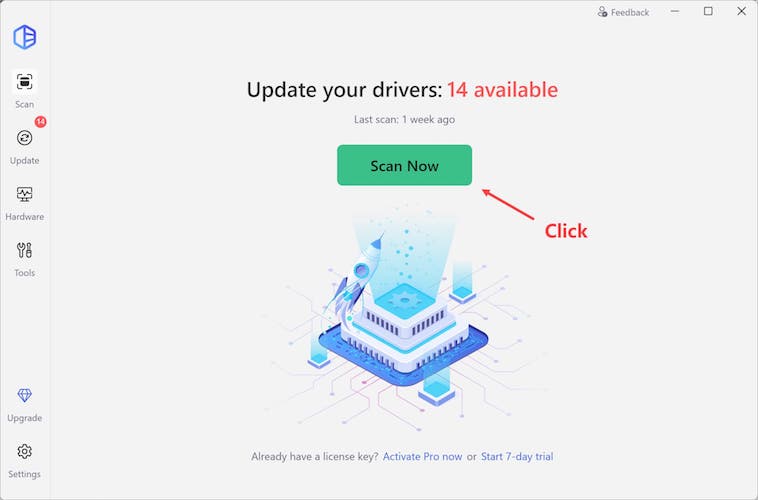
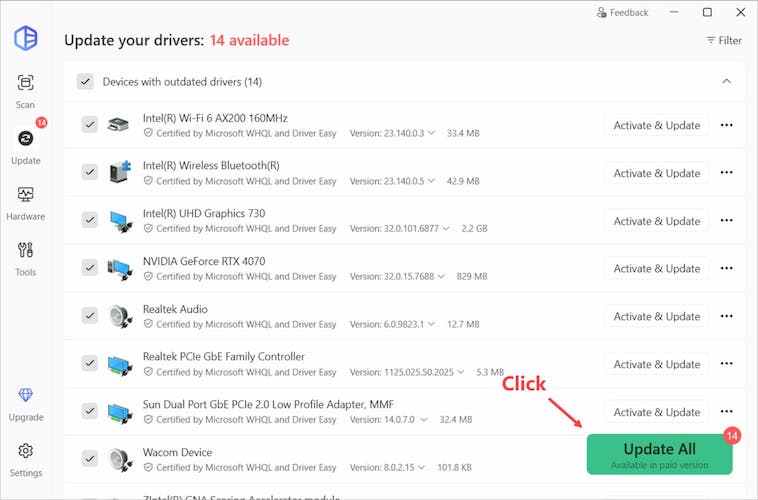
- Run a scan to detect driver issues
- Click “Update All”
- Let the software handle everything
That’s it. No searching, no guesswork, no risk.
What Makes Certified Drivers Important?
Not all drivers are created equal. Poorly tested drivers can cause instability or even damage your system.
Microsoft-Certified Drivers
Many hardware manufacturers submit their drivers to Microsoft’s Windows Hardware Quality Labs (WHQL). If a driver passes, it’s certified as stable and compatible with Windows.
Additional Testing by Driver Easy
Driver Easy goes a step further:
- Uses drivers directly from manufacturers
- Tests drivers internally for safety and stability
- Even re-tests Microsoft-certified drivers to catch issues
This double-layer testing ensures maximum reliability.
Offline Driver Updates: When You Have No Internet
One of the most frustrating problems is losing internet access due to a broken network driver. Driver Easy solves this with offline scanning.
How Offline Scan Works
- Scan your PC without internet
- Save the scan results
- Download the correct network driver on another computer
- Transfer and install it on the affected PC
This feature is invaluable when your system can’t connect online.
Safe Restore: Roll Back with Confidence
Even with certified drivers, things don’t always go as planned. That’s why having a rollback option is essential.
Driver Easy allows you to:
- Restore previous driver versions
- Undo updates safely
- Recover from unexpected issues
This gives you peace of mind when updating critical components.
Must Read: CloneDVD Review – A Deep Dive into Features, Performance, and Real-World Use
Why Millions of Users Trust Driver Easy
More than 3 million users worldwide rely on Driver Easy to keep their computers running smoothly. It’s developed by Easeware Technology Limited, a company that has been refining the software since 2009.
Their goal is simple: make driver management easy, safe, and accessible for everyone—not just tech experts.
Final Thoughts: Keep Your Drivers Updated, Keep Your PC Healthy
Drivers are the backbone of your Windows system. Without them—or with outdated ones—your computer simply can’t function properly.
Updating your drivers can:
- Improve performance
- Fix crashes and freezes
- Restore internet connectivity
- Resolve hardware malfunctions
- Prevent future problems
While Windows Update helps a little, it’s not enough on its own. For a complete, reliable solution, automatic driver updates are the smartest choice—especially for Windows 11, 10, 8.1, and 7 users.
By keeping your drivers up to date, you’re not just fixing problems—you’re preventing them.
Your computer will thank you.
I was really looking for an easy way to update all my drivers. I am glad that I found this software. Thank you for sharing this viral information. It saves my time in updating drivers and I don’t miss out on updating any important drivers
Hi Noah,
Thanks for writing down. Yes this is super easy now to update all the windows drivers in one click
This guide made updating drivers in Windows much less intimidating for me. I followed the automatic methods you shared and noticed smoother performance and fewer system errors right away. It saved me hours of manual checking and really improved my PC’s stability.
I am glad it helped you.