
A good Notion dashboard should help you see what matters without making you open five different apps. Here are the Best Notion Widgets.
But there is one problem: Notion is incredibly flexible, yet some small tools you might want every day—such as a live clock, countdown, weather display, or Pomodoro timer—aren’t always available as native dashboard elements.
That’s where Notion widgets come in.
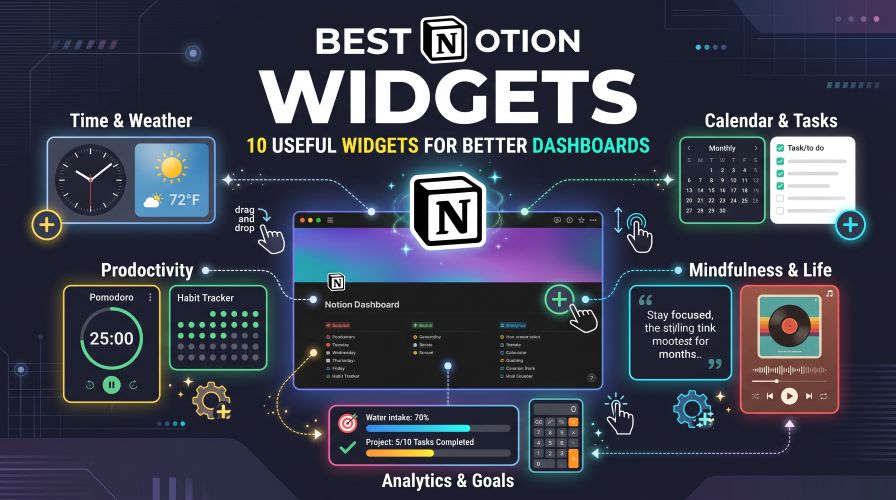
A widget is essentially a small web-based tool that you can embed into a Notion page. With the right combination, your dashboard can become a useful home screen for work, studying, planning, or personal projects.
The trick is not to add every attractive widget you find.
Too many widgets can make a workspace distracting instead of productive.
In this guide, we’ll look at the best Notion widgets worth considering, what each one is good for, their advantages and limitations, and how to choose the right ones for your setup.
Quick Summary: Best Notion Widgets
If you don’t want to read the entire guide, here’s the short version:
| Widget Type | Best For | Recommended Use |
|---|---|---|
| Clock | Time awareness | Work dashboards |
| Calendar | Date planning | Personal & work |
| Countdown | Deadlines | Projects & events |
| Pomodoro Timer | Focus sessions | Students & professionals |
| Weather | Daily planning | Personal dashboards |
| To-Do Widget | Quick tasks | Daily planning |
| Progress Bar | Goals | Long-term projects |
| Habit Tracker | Routines | Personal productivity |
| Quote Widget | Dashboard aesthetics | Minimal dashboards |
| Ambient/Audio Widget | Focus environment | Study & creative work |
Best overall approach: Start with 2–4 widgets that solve actual problems. Add more only when they improve your workflow.
What Are Notion Widgets?
Notion widgets are external mini-tools that can be embedded into a Notion page.
Most widget services work through an embed URL. You create or customize the widget, copy its embed link, and place it inside a Notion /embed block.
For example, you could create a dashboard containing:
- A digital clock
- Today’s calendar
- A countdown to your next deadline
- A Pomodoro timer
- A small weather display
The result feels more like a personalized productivity dashboard than a traditional notes page.
Services such as Indify provide customizable widgets that can be resized and styled to match a Notion workspace.
Other directories, such as Apption, collect a variety of Notion-friendly embeds, including clocks, weather tools, calendars, media, forms, and productivity utilities.
How to Add a Widget to Notion
Adding most widgets is surprisingly simple.
Step 1: Choose a widget
Pick the tool you actually need—such as a clock, countdown, weather widget, or timer.
Step 2: Customize it
Depending on the provider, you may be able to change:
- Colors
- Font
- Size
- Background
- Layout
- Time zone
- Display style
Step 3: Copy the embed link
The widget service normally provides a URL specifically for embedding.
Step 4: Open Notion
Create a new block and type:
/embed
Paste the widget URL and select the option to embed it.
That’s it.
Tip: Don’t confuse the widget’s dashboard or editing URL with its actual embed URL. Some services specifically require the generated embed link.
Must Read : Notion Pros and Cons: Is It Worth Using in 2026?
1. Clock Widget — Best for Everyday Dashboards
A clock is probably the simplest Notion widget, but it’s also one of the most useful.
If your Notion home page is open throughout the day, having the current time visible can save you from switching between windows.
Why use a Notion clock?
A clock works especially well for:
- Remote workers
- Students
- Freelancers
- People working across time zones
- Time-blocking dashboards
You can choose between minimalist digital clocks, analog designs, flip clocks, or more decorative styles.
Some widget platforms also support multiple time zones, which is particularly useful if you regularly work with people in other countries.
Best for
Workspaces where Notion is already your main daily dashboard.
Pros
- Simple
- Takes little space
- Useful every day
- Easy to customize
Cons
- Not necessary if you already keep your system clock visible
- Decorative versions can become distracting
2. Notion Calendar Widget — Best for Planning
A calendar widget gives you a quick visual reference for dates without leaving your dashboard.
It’s especially useful when your Notion page contains projects, assignments, content schedules, or important deadlines.
However, there’s an important distinction.
A simple calendar widget may only display dates. It doesn’t necessarily replace a fully integrated calendar or Notion database.
That’s why you should decide what you actually need before installing one.
Use a calendar widget if you want:
- A quick monthly view
- A visual date reference
- A cleaner dashboard
- Easy access to today’s date
If you need two-way scheduling or deeper calendar integration, check whether the provider supports the exact integration you need.
3. Countdown Widget — Best for Deadlines
Deadlines feel much more tangible when they’re visible.
A countdown widget can show the remaining time until:
- An exam
- Project launch
- Vacation
- Birthday
- Product release
- Assignment deadline
- Important meeting
Instead of writing:
Project deadline: December 15
you can display:
72 days remaining
That small visual difference can make a deadline much harder to ignore.
Who should use a Notion countdown?
Countdowns are particularly useful for students, content creators, project managers, and anyone working toward a fixed date.
Pros
- Visually noticeable
- Excellent for deadlines
- Easy to understand
- Great for personal dashboards
Cons
- Less useful for open-ended projects
- Too many countdowns can create unnecessary pressure
Best practice: Keep one or two important countdowns rather than filling your dashboard with them.
4. Pomodoro Timer — Best Notion Widget for Focus
If your biggest productivity problem is staying focused, a Pomodoro timer may be more useful than an attractive clock.
The basic idea is simple:
- Work for a focused period.
- Take a short break.
- Repeat.
- Take a longer break after several sessions.
Many Notion widget services and directories include Pomodoro-style timers.
Why put a Pomodoro timer inside Notion?
Because your tasks and timer can live in the same workspace.
You can have:
Today’s priority
→ Finish article outline
Focus timer
→ 25-minute session
Next task
→ Edit introduction
This reduces the need to constantly switch between apps.
Best for
- Students
- Writers
- Developers
- Researchers
- Freelancers
- Remote workers
If you already use another dedicated timer, however, adding another timer to Notion may not provide much benefit.
5. Weather Widget — Best for Daily Planning
A weather widget is a small convenience, but it can make a personal dashboard more useful.
Imagine opening Notion in the morning and seeing:
Monday
24°C — partly cloudy
Today’s tasks
Upcoming events
You get the basic information you need without opening another website.
Some current widget platforms offer weather widgets with location-based forecasts and customizable displays.
Best for
- Personal dashboards
- Travel planning
- Outdoor activities
- Daily planning
One thing to check
Weather widgets depend on an external service, so availability, forecast coverage, and update frequency can vary.
If weather isn’t part of your daily routine, skip it.
Must Read : 10 Best Software Similar to Notion (2026 Comparison Guide)
6. To-Do Widget — Best for Quick Tasks
Notion databases are already excellent for task management.
So why would you need a separate to-do widget?
The answer is simplicity.
A tiny checklist can be useful for temporary tasks such as:
- Call client
- Send invoice
- Buy notebook
- Review today’s notes
- Submit assignment
You don’t always need another database for five small tasks.
Some widget providers offer lightweight to-do widgets that keep task information directly inside the widget.
Best for
Small, temporary tasks—not complex project management.
If you need relationships, filters, properties, recurring tasks, and database views, use a native Notion database instead.
7. Progress Bar — Best for Long-Term Goals
Progress widgets are great for projects that have a clear beginning and end.
For example:
Website redesign
████████░░ 80%
Or:
Book reading goal
██████░░░░ 60%
The visual feedback makes progress easier to understand at a glance.
Good use cases
- Writing a book
- Learning a course
- Completing a project
- Preparing for an examination
- Tracking annual goals
Progress bars are most useful when the percentage actually means something.
Avoid adding them simply because they look nice.
8. Habit Tracker — Best for Personal Routines
Habit tracking works best when you want to build consistency.
Common examples include:
- Reading
- Exercise
- Journaling
- Studying
- Drinking water
- Practicing a skill
However, this is another category where native Notion databases may already be enough.
A dedicated widget makes sense when you want a quick visual summary rather than a detailed database.
Best for
People who want a simple visual reminder without turning habit tracking into a complicated system.
9. Quote Widget — Best for Aesthetic Notion Dashboards
Not every widget needs to improve productivity.
Sometimes you simply want your dashboard to feel more personal.
A quote widget can add a small visual break between databases, task lists, and project information.
It’s particularly popular in:
- Student dashboards
- Personal planners
- Journaling systems
- Minimalist home pages
- Creative workspaces
But there’s a catch.
A quote widget won’t make you more productive by itself.
Use it because you like the design—not because you expect it to transform your workflow.
10. Ambient Audio Widget — Best for Study & Creative Work
Some Notion-friendly widget collections include music players, ambient sound tools, or lo-fi-style audio embeds. Apption, for example, lists music and audio-related embeds alongside productivity tools.
These can be useful when you want a single workspace for:
Tasks + timer + ambient sound
For some people, that creates a pleasant study environment.
For others, audio becomes another distraction.
Try it if:
- You enjoy background sounds
- You study for long periods
- You work creatively
- You prefer a visually engaging workspace
Skip it if silence helps you concentrate better.
Best Notion Widget Services Compared
Choosing the widget itself is only half the decision.
You also need to consider where the widget comes from.
| Platform | Best For | Main Strength | Potential Limitation |
|---|---|---|---|
| Indify | Customizable dashboards | Strong customization | Some features are paid |
| Apption | Discovering different embeds | Large directory | Quality varies by individual embed |
| Widgets For Notion | Large widget selection | Broad catalog | Free usage has limits |
| WidgetBox | Widget-style dashboards | Wide widget categories | Check current availability before relying on it |
| Blocs | Users wanting a one-time upgrade | One-time Pro option | Smaller catalog than some directories |
Indify currently documents customizable layouts, typography, colors, backgrounds, and responsive sizing across its widgets.
Apption functions more like a directory of Notion-friendly embeddable applications, with categories covering everything from clocks and weather to calendars, media, and forms.
One important buying consideration is pricing structure. Some services use subscriptions, while others offer free widgets or one-time upgrades. Current third-party comparisons also show that these models can differ substantially.
Note: Widget providers can change pricing, availability, and features, so check the provider’s current plan before purchasing.
Pros and Cons of Using Notion Widgets
Pros
- Make dashboards more visually useful
- Put frequently needed information in one place
- Reduce app switching
- Add clocks, timers, weather, and countdowns
- Personalize your workspace
- Useful for study and work dashboards
- Usually require little or no coding
Cons
- Some widgets require paid plans
- External widgets can occasionally stop loading
- Too many widgets can create visual clutter
- Some features duplicate what Notion already does
- Third-party services can change pricing or availability
This last point is worth remembering.
A widget isn’t the same thing as a native Notion feature. It depends on an external service continuing to provide the embed.
Which Notion Widgets Should You Actually Use?
Here’s a simple way to decide.
For a work dashboard
Try:
- Clock
- Countdown
- Calendar
- Pomodoro timer
For a student dashboard
Try:
- Pomodoro timer
- Countdown
- Calendar
- Habit tracker
For a personal dashboard
Try:
- Clock
- Weather
- Habit tracker
- Quote
For a creative dashboard
Try:
- Clock
- Progress bar
- Ambient audio
- Quote
The goal isn’t to create the most impressive-looking dashboard.
It’s to create one you’ll actually use.
Must Read : Open Source Notion Alternatives: 10 Best Free Tools (2026)
Things to Consider Before Adding a Notion Widget
1. Does it solve a real problem?
Before adding a widget, ask:
Will I use this at least several times a week?
If the answer is no, it probably doesn’t belong on your main dashboard.
2. Is it mobile-friendly?
Notion layouts can behave differently on smaller screens.
Check how the widget looks on both desktop and mobile before designing your entire dashboard around it.
Some widget providers specifically note that resizing and layout behavior can differ between desktop and mobile.
3. Does it require an account?
Free doesn’t always mean completely frictionless.
Check whether the service requires:
- Registration
- A paid plan
- Attribution
- Usage limits
- A view limit
- A recurring subscription
4. Can you replace it easily?
This is important for long-term dashboards.
If a widget disappears, you don’t want your entire system to become unusable.
Keep important information inside native Notion databases whenever possible.
5. Does it slow down your workspace?
A page containing many external embeds may feel less streamlined than a simple Notion page.
Start small.
Are Notion Widgets Worth It?
For most users, yes—but only when used selectively.
A clock, countdown, weather card, or Pomodoro timer can make a dashboard considerably more convenient.
But adding 15 widgets because they look attractive isn’t necessarily an upgrade.
The best Notion dashboard is usually the one that gives you the right information with the fewest distractions.
Think of widgets as accessories rather than the foundation of your workspace.
Best Notion Widgets: Our Recommendation
If you’re building your first dashboard, start with these three:
1. Clock
It’s simple, compact, and useful every day.
2. Countdown
Perfect if you have an upcoming deadline or important event.
3. Pomodoro Timer
A practical choice if your dashboard is designed around focused work or study.
After using these for a week, decide whether you actually need anything else.
If you do, add a calendar, weather widget, habit tracker, or progress bar based on your specific workflow.
Frequently Asked Questions
What are the best Notion widgets?
The best Notion widgets depend on your workflow. Popular options include clocks, calendars, countdowns, Pomodoro timers, weather widgets, habit trackers, progress bars, and simple to-do tools.
Are Notion widgets free?
Many Notion widgets are available for free, but features and usage limits vary between providers. Some services offer free tiers while charging for advanced customization or additional widgets.
How do I add a widget to Notion?
Most widgets can be added by copying their embed URL, typing /embed in Notion, and pasting the URL into the embed block.
What is the best free Notion widget?
There isn’t one universal winner. A free clock is useful for almost everyone, while students may get more value from a free Pomodoro timer or countdown widget.
Can I use widgets on Notion mobile?
Many widgets can display on Notion’s mobile apps, although the experience can differ from desktop. Responsive behavior also depends on the widget provider.
Do Notion widgets slow down Notion?
External embeds can add additional content that Notion needs to load. If you notice slower pages, reduce the number of widgets and keep only the ones you regularly use.
Are Notion widgets safe?
Use reputable widget providers and review what the service does before embedding it. Avoid adding unknown widgets that request unnecessary personal information or account access.
Can I create my own Notion widget?
Yes. Some services allow custom embeds or custom widget creation. Apption, for example, provides a way to turn HTML into a Notion-embeddable URL.
Final Verdict: Which Notion Widgets Are Best?
The best Notion widgets aren’t necessarily the most colorful or feature-packed.
They’re the ones that remove a small annoyance from your daily workflow.
For most people, I’d start with a clock, countdown, and Pomodoro timer. Students may benefit from adding a calendar and habit tracker, while personal dashboards can benefit from weather or a simple progress widget.
If customization is your priority, compare services such as Indify. If you want to explore a broad selection of Notion-friendly embeds, Apption is worth browsing.
Most importantly, don’t turn your dashboard into a collection of decorations.
Build it around the information you repeatedly need.
Start with three widgets. Use them for a week. Keep the ones that genuinely make your Notion workspace better.