
If you use a Windows PC daily, chances are you juggle multiple small tools—clipboard managers, password apps, launchers, screen capture utilities—just to stay productive. Each tool works, but switching between them, managing shortcuts, and keeping everything organized can quietly drain your time.
That’s where QnE Companion steps in.
Instead of installing half a dozen separate apps, QnE Companion bundles essential productivity utilities into one lightweight desktop companion. Even better, it offers a fully usable free version, with optional upgrades if you want advanced features.
In this QnE Companion review, we’ll break down what it offers, how it performs in real-world use, and whether it’s worth installing on your PC.
Quick Summary
- Product: QnE Companion (Windows)
- Type: All-in-one productivity utility suite
- Includes: Clipboard manager, password manager, launcher, screen capture, desktop icon manager
- Pricing: Free version available + paid license for advanced features
- Best For: Windows users who want simple, fast productivity tools without bloat
Verdict: A solid free productivity companion with practical tools that work quietly in the background.
Must Read : Aiarty Image Enhancer Review – Upscale Photos to 32K Naturally
What Is QnE Companion?
QnE Companion is a collection of quick and easy-to-use utilities designed to improve everyday productivity on Windows PCs. All tools are accessible from:
- The Windows taskbar
- A small floating desktop window
- Keyboard shortcuts
You can use the utilities completely free, or unlock additional features with a one-time license.
Unlike bulky productivity suites, QnE Companion focuses on speed, simplicity, and convenience.
What’s Included in QnE Companion?
Here’s a quick overview before we dive deeper into each utility:
| Utility | Purpose |
|---|---|
| Clipboard Companion | Advanced clipboard history & management |
| Password Companion | Secure password manager with autofill |
| Screen Capture | Screenshot tool with multi-monitor support |
| QnE Launcher | Quick access to apps & files |
| Desktop Companion | Central hub for all utilities |
| Icon Companion | Desktop icon search & layout restore |
QnE Clipboard Companion Review
Why a Clipboard Manager Matters
The default Windows clipboard only remembers one item. If you copy something new, the previous content is gone.
The QnE Clipboard Companion fixes that.
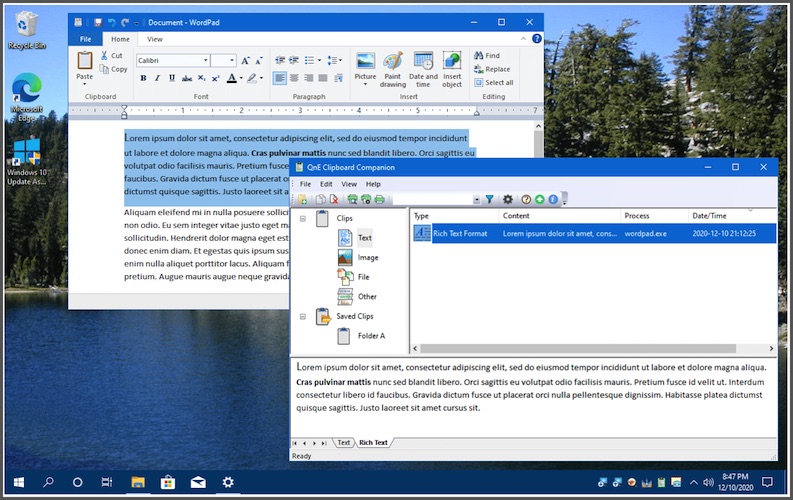
Key Features
- Stores clipboard history in an easy-to-access list
- Search, filter, and sort clips
- Categorize clips for better organization
- Save frequently used text permanently
- One-click restore to Windows clipboard
Real-World Use
If you:
- Copy email templates daily
- Reuse code snippets
- Work with repetitive text
This tool alone can save minutes every hour.
👉 Internal linking suggestion: Best clipboard manager for Windows
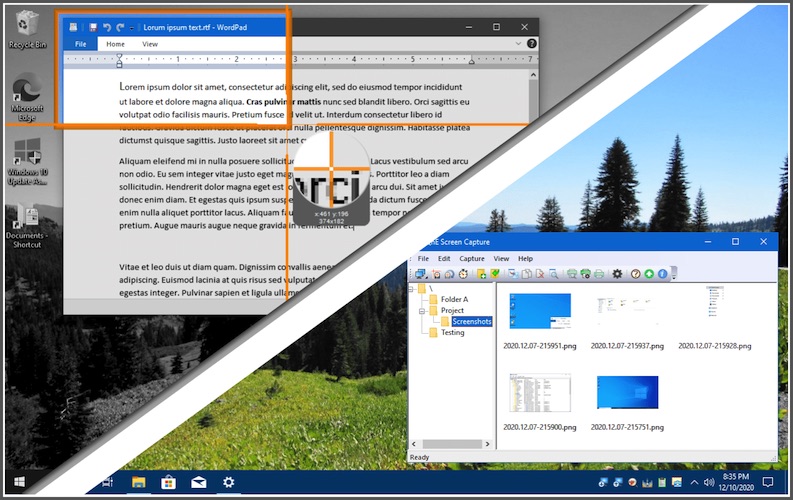
QnE Screen Capture Utility Review
Screenshots are part of everyday work—tutorials, bug reports, documentation, or quick sharing.
Highlights
- Capture entire screen or selected area
- Supports multiple monitors
- Lightweight and fast
- Ideal for saving, emailing, or printing screenshots
Who It’s Best For
- Bloggers and content creators
- Remote workers
- Students and educators
It’s not overloaded with editing features, which actually makes it faster for quick captures.
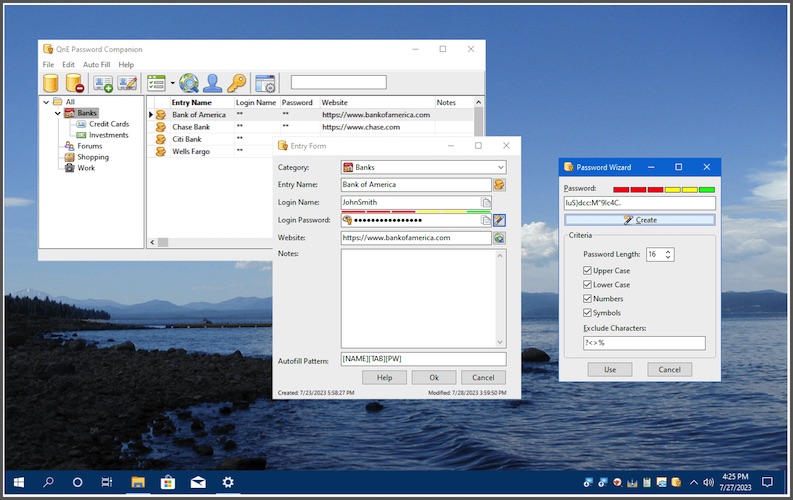
QnE Password Companion Review
A Simple Password Manager for Windows
The QnE Password Companion is a full-featured password manager built directly into the desktop companion.
Must Read : Step by Step AI Video Maker tutorial
Core Features
- Secure password storage with strong encryption
- Import passwords from Chrome, Edge, Firefox, Opera, and more
- Categorize passwords and add notes
- Auto-lock after inactivity or screen saver
- Autofill usernames and passwords using templates
- Optional password printing
Security & Practicality
While it doesn’t try to replace enterprise-grade password managers, it’s perfect for users who want:
- Offline access
- Desktop-based password control
- No subscription model
👉 Internal linking suggestion: Is desktop password manager safe?
QnE Launcher Review
Faster Access to What You Use Most
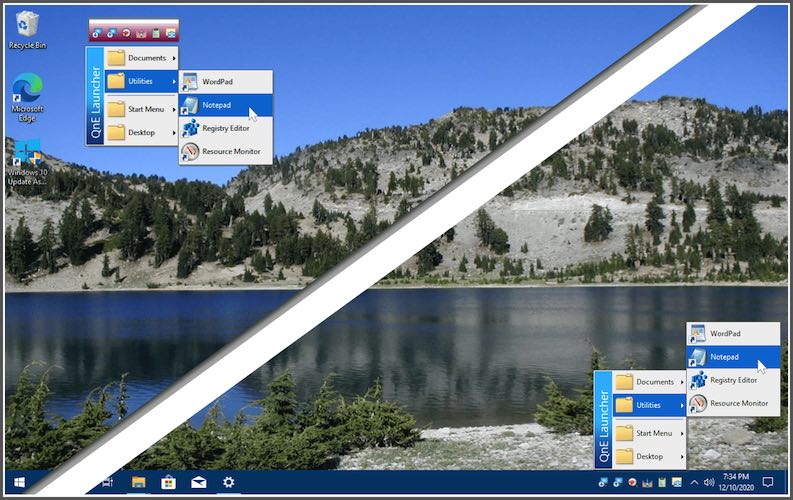
The QnE Launcher replaces endless desktop shortcuts and Start Menu hunting.
What It Does Well
- Popup menu for apps, folders, and files
- Cascading submenus for organization
- Add Desktop or Start Menu as submenus
- Launch frequently used items instantly
Why It Improves Workflow
Instead of cluttering your desktop, you get a clean launcher that stays out of the way until you need it.
QnE Desktop Companion: The Control Center
The QnE Desktop Companion acts as the central hub for all included utilities.
Access Options
- Floating desktop window
- Windows taskbar toolbar
From here, you can:
- Launch any QnE utility
- Access Icon Companion features
- Keep everything one click away
It’s simple, intuitive, and surprisingly efficient.
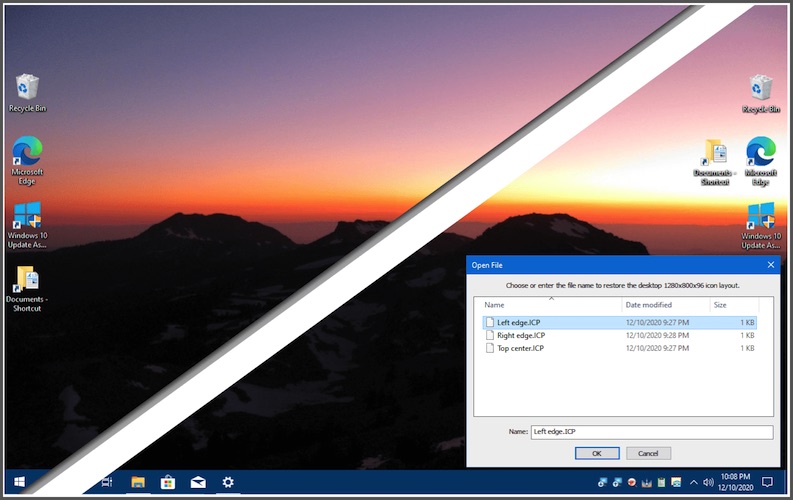
QnE Icon Companion Review
If your desktop looks like a sea of icons, this utility alone can be a lifesaver.
Standout Features
- Search desktop icons by name or pattern
- Flash recently created or modified icons
- Save and restore desktop icon layouts
- Restore layout after resolution changes or remote desktop
- Minimize all windows / undo minimize
- Refresh desktop instantly
Who Will Love This?
- Users with icon-heavy desktops
- Multi-monitor setups
- Anyone who hates reorganizing icons after display changes
Free Version vs Paid License
One of the best parts of QnE Companion is that you can use it for free.
Free Version Includes
- Access to all core utilities
- Basic features sufficient for most users
- No forced upgrade prompts
Paid License Benefits
- Unlocks additional advanced features
- One-time purchase (no subscription)
- 30-day free trial before buying
Must Read : Best Budget Earbuds in 2026
Pros and Cons of QnE Companion
✅ Pros
- Free to use with no time limit
- Lightweight and fast
- Multiple productivity tools in one package
- Desktop-focused (no browser dependency)
- Simple interface with minimal learning curve
❌ Cons
- Windows-only
- Interface is functional, not modern
- Not designed for mobile or cloud syncing
QnE Companion vs Alternatives
| Feature | QnE Companion | Separate Tools |
|---|---|---|
| Cost | Free + optional license | Often subscription-based |
| Integration | All-in-one | Multiple apps |
| System Load | Lightweight | Can be heavy |
| Ease of Access | Single hub | Multiple shortcuts |
If you prefer simplicity over flashy UI, QnE Companion has a clear advantage.
Who Should Use QnE Companion?
QnE Companion is best for:
- Windows productivity enthusiasts
- Students and remote workers
- Bloggers and developers
- Users who prefer desktop utilities
- Anyone tired of juggling multiple small tools
If you value speed, convenience, and control, this toolset makes sense.
Buying Guide: Things to Consider
Before upgrading from the free version, ask yourself:
- Do I use clipboard history daily?
- Do I want offline password storage?
- Do I rely heavily on desktop organization?
- Would a one-time license save me subscription costs?
If yes, unlocking advanced features could be worth it.
Frequently Asked Questions (FAQs)
Is QnE Companion really free?
Yes, you can use all core utilities for free. A paid license unlocks extra features.
Is QnE Companion safe to use?
Yes. Passwords are protected with strong encryption and local security measures.
Does QnE Companion work on Windows 11?
Yes, it works on modern Windows versions including Windows 10 and 11.
Can I import passwords from browsers?
Yes, it supports imports from Chrome, Edge, Firefox, Opera, and others.
Does it require an internet connection?
No, most features work completely offline.
Is there a refund policy?
There are no refunds, but a 30-day free trial is available before purchasing.
Final Verdict: Is QnE Companion Worth It?
After testing and reviewing its features, QnE Companion delivers exactly what it promises—quick, easy-to-use Windows utilities that boost productivity without complexity.
The free version alone offers real value, and the paid upgrade is optional rather than forced. For users who prefer desktop-based tools over cloud-heavy apps, this is a refreshing alternative.