


Have you ever uninstalled a program from your Windows PC, restarted the system, and still felt that something wasn’t right? Slower performance, random errors, or failed reinstallations are common signs that a program wasn’t removed completely. The truth is simple: Windows’ default uninstaller does not remove everything. Now the questio is How to Uninstall Software Completely in Windows. Well this guide will help you.
Hidden files, leftover folders, and registry entries often stay behind, slowly cluttering your system over time.
So the real question becomes:
How do you uninstall software completely in Windows without risking system stability?
That’s exactly what this guide will help you understand — and why Revo Uninstaller Pro is trusted by power users worldwide.
Quick Summary
If you’re short on time, here’s the key takeaway:
- Windows uninstallers leave behind junk files
- Leftovers can cause slowdowns and software conflicts
- Revo Uninstaller Pro removes programs and hidden leftovers
- Advanced tools like Forced Uninstall and Real-Time Monitoring offer deeper cleanup
- Ideal for beginners and advanced Windows users alike
Why Complete Software Uninstallation Matters
Most users assume uninstalling software is a one-click process.
In reality, Windows only removes the main program files, leaving behind:
- Registry keys
- Configuration files
- AppData folders
- Startup entries and logs
Over time, these leftovers can:
- Slow down Windows startup
- Cause crashes and errors
- Prevent clean reinstallation of software
- Bloat the Windows registry
That’s why relying solely on the default Windows uninstaller isn’t enough.
What Is Revo Uninstaller Pro?
Revo Uninstaller Pro is a professional Windows utility designed to remove software completely — including stubborn leftovers that standard uninstallers miss.

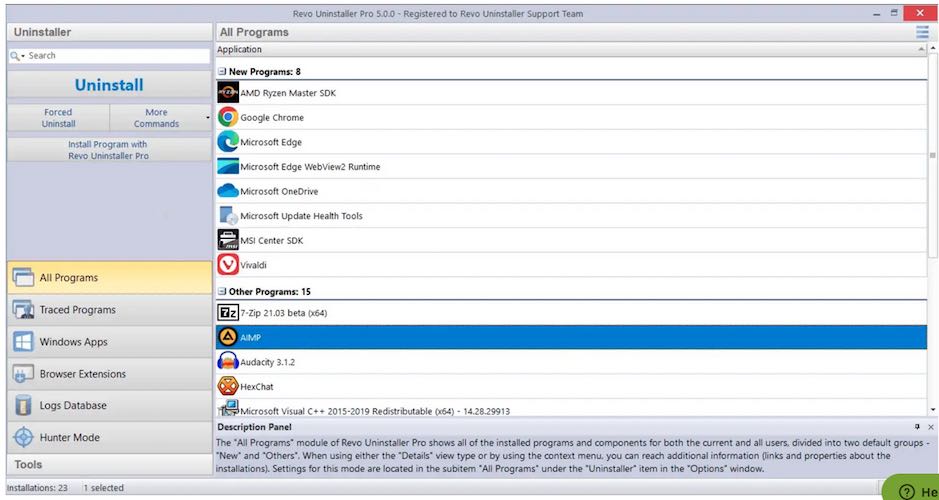
It works in two intelligent steps:
- Runs the program’s built-in uninstaller
- Scans your system for leftover files, folders, and registry entries
This method ensures a safe, thorough, and controlled uninstall process.
Key Features of Revo Uninstaller Pro
Advanced 3-Mode Leftover Removal
Revo Uninstaller Pro gives you three cleanup modes:
- Safe – Minimal risk, basic cleanup
- Moderate – Balanced cleanup (recommended)
- Advanced – Deep scan for maximum removal
This flexibility allows you to clean aggressively or conservatively, depending on your comfort level.
Complete Software Uninstall (Batch & Quick Uninstall)
If you need to uninstall multiple programs, Revo makes it simple.
With Quick / Multiple Uninstall, you can:
- Remove several programs at once
- Create a single system restore point
- Back up the registry automatically
This is especially useful when cleaning a new PC or removing bloatware.
Forced Uninstall – Remove Stubborn Programs
Some programs refuse to uninstall properly.
Common reasons include:
- Missing uninstallers
- Corrupted installations
- Programs already partially removed
Revo’s Forced Uninstall feature scans your system for known traces and removes them manually — even if Windows no longer recognizes the program.
This feature alone solves many frustrating uninstall problems.
Real-Time Installation Monitor (Trace Logs)
One of Revo Uninstaller Pro’s most powerful features is its Real-Time Installation Monitor.
It tracks:
- Files created during installation
- Registry changes
- System modifications
This data is saved as a trace log, which allows Revo to remove the software later with exceptional accuracy.
Tip: For best results, avoid installing other software while tracing an installation.
Backup Options and Uninstall History
Safety is built into Revo Uninstaller Pro.
It automatically:
- Creates registry backups
- Sets system restore points
- Stores uninstall history
If you ever need to undo changes, recovery is straightforward.


Windows Apps Removal
Modern Windows versions include built-in apps that are difficult to remove.
Revo Uninstaller Pro lists Windows Apps separately, making it easy to:
- Remove unused built-in apps
- Uninstall Microsoft Store apps
- Keep your system organized
No PowerShell commands required.
How Revo Uninstaller Pro Works (Step by Step)
- Select the program you want to uninstall
- Run the built-in uninstaller
- Choose a scan mode (Safe, Moderate, Advanced)
- Review leftover files and registry entries
- Remove selected items
The process is guided and beginner-friendly.
Revo Uninstaller Pro vs Windows Default Uninstaller
| Feature | Windows Uninstaller | Revo Uninstaller Pro |
|---|---|---|
| Leftover file removal | No | Yes |
| Registry cleanup | No | Yes |
| Forced uninstall | No | Yes |
| Batch uninstall | No | Yes |
| Installation monitoring | No | Yes |
| Backup & restore | Limited | Advanced |
Pros and Cons of Revo Uninstaller Pro
Pros
- Deep leftover removal
- Forced uninstall for broken software
- Real-time installation monitoring
- Easy-to-use interface
- Strong safety and backup features
Cons
- Paid license required for Pro features
- Advanced mode requires basic attention
Who Should Use Revo Uninstaller Pro?
Revo Uninstaller Pro is ideal for:
- Windows users who want a clean system
- Gamers who install and uninstall frequently
- Developers and testers
- IT technicians
- Anyone dealing with stubborn software
For occasional use, the free version may be enough.
For regular maintenance, the Pro version offers clear advantages.
Things to Consider Before Buying
Before choosing any uninstaller tool, consider:
- How often you install or remove software
- Whether you’ve faced uninstall errors before
- If you want deeper control over system cleanup
If these sound familiar, Revo Uninstaller Pro is worth exploring.
Frequently Asked Questions
Is Revo Uninstaller Pro safe to use?
Yes. It includes restore points, backups, and confirmation steps.
Can it remove already uninstalled programs?
Yes, using the Forced Uninstall feature.
Does it support Windows 10 and Windows 11?
Yes, it supports modern Windows versions.
Will it delete important system files?
No, as long as users review scan results carefully.
Is it better than free uninstallers?
For deep cleanup and advanced control, yes.
Can it uninstall Windows Store apps?
Yes, Windows Apps are supported.
Does it slow down my PC?
No. It runs only when used.
Final Verdict
If your goal is to uninstall software completely in Windows, Revo Uninstaller Pro delivers where default tools fall short.
With advanced leftover removal, Forced Uninstall, and Real-Time Monitoring, it helps keep your system clean, stable, and conflict-free.
For users who value control and long-term performance, Revo Uninstaller Pro is a smart investment.