


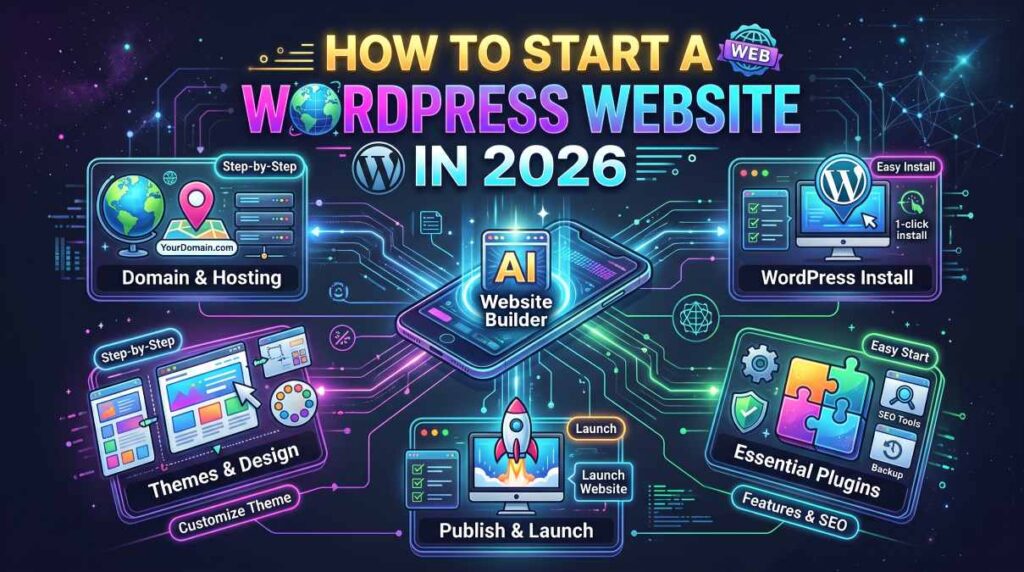
Starting a website can feel complicated when you are unfamiliar with domains, hosting, themes, plugins, and website security. You might want to start a blog, build a portfolio, launch a business website, or create a site that earns through affiliate marketing. The good news is that you do not need advanced coding skills to get started with WordPress.

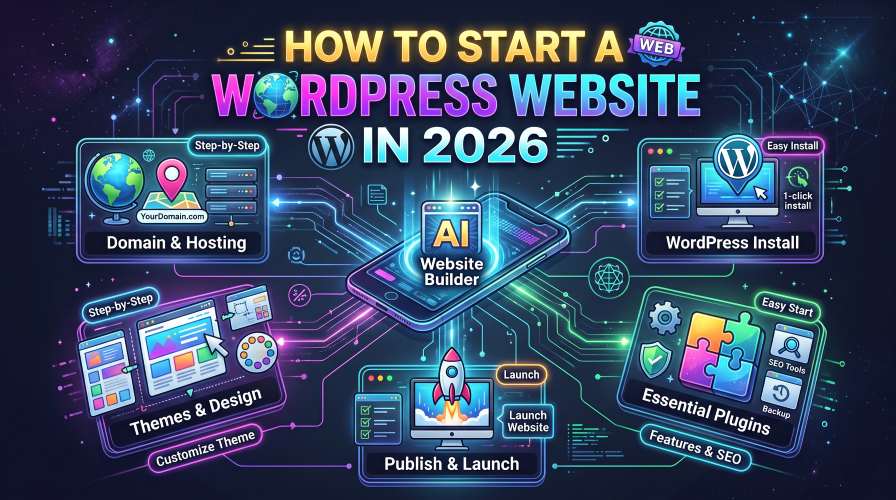
WordPress gives you the tools to publish content, customize your design, and expand your website as your needs change. However, choosing the right setup from the beginning can save you money, reduce technical problems, and make managing your website much easier.
In this guide, you will learn how to start a WordPress website step by step, what tools you actually need, how much a website may cost, and which mistakes to avoid before publishing your first page.
Quick Summary: Starting a WordPress Website
If you want to get your website online without unnecessary complications, follow these steps:
- Decide what your website will be about.
- Choose a memorable domain name.
- Select a suitable WordPress hosting provider.
- Install WordPress and configure the basic settings.
- Choose a responsive theme and customize the design.
- Install only the essential plugins.
- Create important pages and publish useful content.
- Set up security, backups, analytics, and search engine visibility.
- Test your website and launch it.
Beginner tip: Start with a simple website that works well on mobile devices. You can add advanced features later when your audience and requirements grow.
What Is WordPress, and Why Should You Use It?
WordPress is a content management system (CMS) that allows you to create and manage a website without building everything from scratch. You can use it to publish blog posts, create business pages, showcase your work, and build many other types of websites.
One important distinction is that WordPress comes in two commonly discussed forms.
- WordPress.org: The open-source software you can install on hosting that you choose. You generally have greater control over your website, its files, and its functionality.
- WordPress.com: A hosted service with its own plans, features, and limitations.
This guide focuses primarily on self-hosted WordPress using WordPress.org software.
Benefits of using WordPress
WordPress is popular for several practical reasons:
- Flexible design: Choose a theme and customize layouts to suit your brand.
- Content management: Publish, edit, organize, and update articles through a dashboard.
- Expandable functionality: Add plugins for forms, backups, SEO, security, and other features.
- Content ownership and control: With suitable hosting and access, you can manage your website files and database.
- Room to grow: A simple blog can develop into a larger publication or business website over time.
WordPress is not completely maintenance-free. You are responsible for choosing suitable hosting, managing updates, protecting your site, and keeping backups. Understanding these responsibilities before you begin will help you make better decisions.
Step 1: Choose Your Website Niche and Purpose
Before purchasing a domain or hosting plan, decide what you want your website to accomplish.
A clear purpose makes it easier to choose your design, plan your content, and attract the right readers.
For example, you might create:
- A technology blog covering software, gadgets, and tutorials.
- An affiliate website comparing web hosting services or productivity tools.
- A portfolio displaying your projects and professional experience.
- A small business website explaining your services and collecting inquiries.
- An educational website publishing guides and resources.
If you are building a technology affiliate blog, narrow your focus instead of writing about every possible topic. You could specialize in beginner website tutorials, WordPress plugins, budget laptops, or productivity software.
How to choose a profitable and manageable niche
Look for a topic that combines three factors:
- You can create useful, original content about it.
- People actively search for answers and product information.
- Relevant products or services exist that you can evaluate honestly.
Do not select a niche solely because a keyword tool shows a low competition score. Search results, competition, user needs, and your ability to produce better content all matter.
A focused website with helpful articles can provide a stronger foundation than a collection of unrelated posts.
Step 2: Choose a Domain Name
Your domain name is the address people type into their browsers to visit your website.
For example, example.com is a domain name. It does not include the hosting service where your website files are stored.
A good domain name should be easy to remember, spell, and communicate.
Domain name selection tips
- Keep the name reasonably short.
- Avoid unnecessary hyphens and confusing spellings.
- Choose a name that fits your subject and future plans.
- Check whether the corresponding social media handles are available if you intend to use them.
- Review trademark conflicts before committing to a brand name.
- Compare renewal prices, not just introductory registration offers.
A .com domain is familiar to many users, but other relevant extensions can work too. Choose an extension that suits your audience and budget.
You can register a domain through a dedicated registrar or, where available, through your hosting provider. Compare the renewal fee, DNS controls, privacy options, and transfer process before deciding.
Helpful action: Check the availability of a few domain names before making a final choice.
Step 3: Choose the Right WordPress Hosting
Hosting is the service that stores your website’s files and makes them accessible online.
Your hosting choice affects website performance, support, security features, and the amount of technical work you must handle.
For beginners, managed WordPress hosting or a reputable shared hosting plan is often a reasonable starting point.
Types of WordPress hosting
| Hosting type | Main benefit | Potential drawback | Best for |
|---|---|---|---|
| Shared hosting | Lower starting cost | Resources are shared with other sites | New blogs and small websites |
| Managed WordPress hosting | WordPress-focused maintenance and support | May cost more | Beginners who value convenience |
| VPS hosting | More control and dedicated resource allocation | Requires more technical knowledge | Growing or technically experienced sites |
| Cloud hosting | Flexible infrastructure and scaling options | Pricing and configuration can be more complex | Sites with changing resource needs |
A more expensive plan is not automatically better. Consider your expected traffic, technical skills, support needs, and the resources included in each package.
Must Read : What Type of Hosting Is Best for a Beginner?
What to check before buying hosting
Look for these features when comparing providers:
- Compatibility with a currently supported WordPress version.
- Free or reasonably priced SSL support.
- Automatic backups and a clear restoration process.
- Adequate storage and bandwidth for your needs.
- A straightforward WordPress installation process.
- Responsive customer support.
- Transparent renewal pricing.
- A data center or delivery network appropriate for your audience.
If your readers are primarily in India, compare providers’ available server locations and content delivery network options. Actual performance depends on more than server location, so test your site after setup.
Should you buy hosting with a free domain?
Some hosting packages include a domain for an introductory period. This may simplify setup, but read the terms carefully.
Check whether the domain renewal is charged separately, whether privacy protection costs extra, and whether you can transfer the domain if you switch hosting providers.
Must Read : Markdown Guide for Beginners: Syntax, Tips & Examples
Step 4: Install WordPress on Your Hosting Account
Once you have registered a domain and purchased hosting, you can install WordPress.
Many hosting providers offer a one-click installer or an automated WordPress setup wizard.
The exact dashboard varies by provider, but the general process is similar.
Typical WordPress installation process
- Sign in to your hosting account.
- Open the website management or WordPress section.
- Select the option to create a new WordPress website.
- Choose your domain name.
- Enter your site title and administrator details.
- Complete the installation and wait for confirmation.
- Open the WordPress login page and sign in.
Your login address often looks like example.com/wp-admin, although the exact address can vary.
Choose a strong, unique password and avoid sharing administrator credentials. If your host offers additional account security, enable it.
Configure the basic WordPress settings
After logging in, review the main settings before publishing content.
Site title and tagline: Use a clear site name and a short description of your website.
Permalinks: Choose a readable URL structure. For a typical blog, the post name structure is a practical option.
Time zone and language: Set these according to your audience and publishing schedule.
User accounts: Give each contributor only the permissions they need.
Search engine visibility: Confirm that your public website is allowed to be indexed when you are ready for search engines to discover it. A setting that discourages indexing can interfere with visibility.
HTTPS: Make sure your website loads securely using HTTPS and that redirects work correctly.
You now have the foundation of your WordPress website. Next, you can turn the default installation into a site that looks professional and feels easy to navigate.
Step 5: Choose a WordPress Theme and Customize Your Design
A WordPress theme controls much of your website’s visual presentation, including layouts, typography, and styling.
You do not need a premium theme to launch a professional website. A well-maintained free theme may provide everything a beginner needs.
What makes a good WordPress theme?
Look for a theme that offers:
- Responsive layouts for phones, tablets, and computers.
- Good readability and accessible design.
- Compatibility with your WordPress setup.
- Regular maintenance and support.
- Customization options that fit your needs.
- Minimal unnecessary features and dependencies.
Popular starting points include Astra, GeneratePress, and the official WordPress default themes. Features and pricing vary by version, so review their current documentation before purchasing a premium license.
Customize the important design elements
Start with the elements visitors notice first:
- Logo and site identity: Use a recognizable name and consistent branding.
- Navigation menu: Make the main categories easy to find.
- Typography: Choose readable fonts and comfortable line spacing.
- Colors: Use a small, consistent color palette.
- Homepage layout: Explain what the website offers and guide readers toward useful content.
- Mobile layout: Check menus, buttons, tables, and images on smaller screens.
For a technology blog, keep the design clean and content-focused. Visitors should be able to find a tutorial or comparison without navigating through unnecessary animations and pop-ups.
Step 6: Install Essential WordPress Plugins
Plugins add functionality to your website. They can help with search engine optimization, security, forms, caching, and backups.
However, installing too many plugins can increase maintenance work and introduce compatibility or performance issues.
Start with the functions your site actually needs.
| Website need | Example tool | What to evaluate |
|---|---|---|
| SEO | Yoast SEO or Rank Math | Metadata, sitemap, and indexing controls |
| Backups | UpdraftPlus or your host’s backup system | Backup frequency and restoration options |
| Security | Wordfence or suitable host security tools | Firewall, alerts, and account protection |
| Performance | A compatible caching or optimization tool | Speed improvements and compatibility |
| Contact forms | A maintained form plugin | Spam controls and form usability |
| Analytics | Google Analytics integration or a privacy-conscious alternative | Useful traffic and engagement reporting |
These are examples, not mandatory installations. Some hosting providers already include backups, caching, or security features.
Before installing a plugin, check its recent updates, documentation, compatibility, support history, and pricing. Avoid installing multiple plugins that perform the same job unless you understand why both are needed.
Important: A plugin is not a substitute for a complete backup strategy. Confirm that you can restore your website if an update fails or your site becomes unavailable.
Must Read : Notion Review: Is It Worth Using in 2026?
Step 7: Create the Essential Website Pages
A website needs more than a homepage and a collection of blog posts. Important pages help visitors understand your business, contact you, and make informed decisions.
Consider creating the following pages before launch.
Homepage
Explain what your website covers and who it helps. Feature your most useful articles or service pages, and provide clear navigation.
About page
Introduce the website’s purpose, your experience, and the standards you follow when publishing content.
For a technology review site, explain how you research products and distinguish verified information from personal opinions.
Must Read : What Is a Chatbot? Definition, Types, Benefits, and Examples
Contact page
Provide an appropriate way for readers, customers, or business partners to contact you. A simple contact form or professional email address may be sufficient.
Privacy policy
Explain how your website handles personal information and relevant technologies, such as analytics, cookies, advertising, and contact forms.
Your exact obligations depend on your location, audience, and services. Use a policy that accurately reflects your practices rather than copying unrelated text.
Affiliate disclosure
If you earn commissions from qualifying purchases, disclose that relationship clearly and near relevant affiliate recommendations.
For example:
“This article contains affiliate links. If you purchase through these links, we may earn a commission at no additional cost to you. Our recommendations are based on the information and criteria explained in this article.”
Only use this wording if it accurately describes your affiliate relationships. Place disclosures where readers can see them before making a purchasing decision.
Terms and conditions
A terms page can explain the general rules for using your website. Whether and how it is needed depends on your website’s activities and applicable requirements.
Step 8: Publish Helpful Content and Optimize It for SEO
Search engine optimization helps search engines understand your content and helps users find relevant answers.
A new website rarely has an established audience immediately. Focus on answering specific questions well instead of publishing large quantities of thin or repetitive content.
Find long-tail keywords
Long-tail keywords are specific search phrases that often express a clear need.
For a beginner-focused WordPress blog, possible topics include:
- How to install WordPress on shared hosting.
- How to start a WordPress blog with a custom domain.
- Best WordPress themes for technology blogs.
- How much does a WordPress website cost per year?
- Essential WordPress plugins for a new blog.
- How to secure a new WordPress website.
These are topic ideas, not verified low-competition keywords. Use keyword research tools and review the actual search results to assess demand, competition, and search intent.
A useful strategy is to create one comprehensive guide and support it with related articles. Link those articles together when doing so helps readers find the next useful answer.
Follow practical on-page SEO practices
For each article:
- Write a clear title that matches the searcher’s question.
- Use the primary keyword naturally in the title, introduction, and relevant headings.
- Structure the content with descriptive H2 and H3 headings.
- Use short paragraphs and meaningful lists.
- Add screenshots or original illustrations where they explain a process.
- Write descriptive image alt text for informative images.
- Link to relevant pages on your website.
- Cite reliable sources when discussing technical facts or product specifications.
- Update the content when important details change.
Avoid repeating the same keyword unnaturally. Search engines aim to serve useful results, and readable writing helps your visitors as well.
Write for readers, not just rankings
Before publishing an article, ask yourself three questions:
- Does it answer the main question?
- Does it include information readers would otherwise have to search for elsewhere?
- Can a beginner follow the advice without guessing at important steps?
If you recommend a product, explain its limitations and the circumstances in which an alternative may be a better fit.
That approach is especially important for affiliate articles, where readers need enough information to make a confident decision.
Step 9: Set Up Website Security, Backups, and Analytics
Before launching your website, take time to establish a basic maintenance routine.
Security checklist
- Use strong, unique passwords.
- Enable two-factor authentication where available.
- Keep WordPress core, themes, and plugins updated.
- Remove unused themes and plugins.
- Use HTTPS throughout the website.
- Limit administrator access.
- Review hosting security features and account recovery options.
Must Read : Markdown Guide for Beginners: Syntax, Tips & Examples
Backup checklist
Set up regular backups of your database and website files. Keep copies somewhere separate from the website itself when practical.
The right schedule depends on how frequently your content changes. A frequently updated website may need more frequent backups than a simple portfolio.
Test the restoration process rather than assuming a successful backup notification guarantees a usable recovery.
Analytics and search monitoring
Google Analytics can help you understand how people use your website. Google Search Console can provide information about search visibility, indexing, and search queries.
Configure these tools according to their current setup instructions. If your website uses cookies or collects personal information, assess the applicable privacy and consent requirements before enabling tracking.
Must Read : What Is a Chatbot? Definition, Types, Benefits, and Examples
Review useful metrics such as:
- Organic search clicks and impressions.
- Pages that attract relevant visitors.
- Engagement and navigation patterns.
- Broken links and indexing issues.
- Mobile usability and page performance.
Use the data to improve your content rather than making decisions based on a single metric.
Step 10: Understand the Cost of Starting a WordPress Website
One reason WordPress appeals to beginners is that the software itself can be used without purchasing a WordPress license. Running a website still involves other possible expenses.
Your actual budget depends on the services you choose.
| Expense | Is it necessary? | Budget consideration |
|---|---|---|
| WordPress software | Generally no license fee | The software is open source |
| Domain name | Yes, for a custom domain | Registration and renewal fees |
| Hosting | Yes, for a self-hosted public website | Introductory versus renewal pricing |
| SSL certificate | HTTPS is strongly recommended | Often included with hosting |
| Premium theme | No | Optional one-time or recurring fee |
| Premium plugins | No | Depends on required functionality |
| Email service | Not always | May be included or billed separately |
| Maintenance and backups | A reliable plan is important | Included features or additional services |
How much should a beginner budget?
For a small informational blog, begin by pricing a domain and an entry-level hosting plan. Add paid tools only when they solve a specific problem that free or included alternatives cannot handle adequately.
Do not assume that the cheapest first-year package offers the lowest long-term cost. Calculate the renewal price and account for any separately billed features.
A practical approach is to launch with a lightweight theme, a small plugin collection, and a realistic content plan. You can upgrade when your needs justify the expense.
Step 11: Compare WordPress With Other Website Builders
WordPress is not the only way to build a website. The right option depends on how much control you want and how much maintenance you are comfortable handling.
| Platform | Advantages | Limitations | Best suited for |
|---|---|---|---|
| Self-hosted WordPress | Flexible, expandable, and highly customizable | Requires hosting and ongoing maintenance | Blogs, affiliate sites, and content-heavy websites |
| WordPress.com | Hosted setup and plan-based management | Features and flexibility depend on the plan | Users who prefer a managed WordPress experience |
| Wix | Visual site editing and an integrated platform | Less control over the underlying hosting environment | Beginners and small business websites |
| Squarespace | Design-focused templates and integrated tools | Customization and pricing depend on the platform | Portfolios and design-led business sites |
Is self-hosted WordPress right for you?
Choose self-hosted WordPress if:
- You want greater control over your website.
- You plan to publish substantial amounts of content.
- You want to choose from a broad ecosystem of themes and plugins.
- You are willing to manage updates, security, and backups.
Consider a hosted website builder if:
- You want a more integrated setup.
- You prefer not to manage hosting infrastructure yourself.
- Your website needs are relatively straightforward.
- You are comfortable working within the platform’s available features and plans.
Neither approach is automatically superior. Compare the total cost, portability, customization, support, and ongoing responsibilities before choosing.
Step 12: Prepare Your Website for Launch
A final review can help you catch small issues before visitors arrive.
Use this checklist before announcing your website.
- The domain points to the correct website.
- HTTPS works without certificate warnings.
- The homepage explains the website’s purpose.
- Navigation menus and important links work.
- Pages display correctly on mobile devices.
- Contact forms submit successfully.
- Important pages contain useful, original content.
- Privacy and affiliate disclosures are accurate and accessible where relevant.
- Backups are configured and the restoration process is understood.
- WordPress, themes, and plugins are updated.
- Search engine visibility settings are correct.
- Analytics and Search Console are configured if needed.
- There are no unintended placeholder pages or broken images.
Once the checks are complete, share your website and begin publishing consistently. Your first version does not have to be perfect; it should be useful, secure, readable, and easy to navigate.
Common Mistakes to Avoid When Starting a WordPress Website
A few avoidable mistakes can create unnecessary expenses or technical problems.
Buying too many tools too early: Start with essential functionality. Upgrade only when a real need appears.
Choosing hosting based only on the introductory price: Check renewal fees, resource limits, support, and backup policies.
Installing plugins without reviewing them: Poorly maintained or incompatible plugins can cause security and performance problems.
Ignoring mobile visitors: Test layouts, menus, buttons, and tables on smaller screens.
Publishing thin articles: A page should answer a genuine question with enough detail to help readers take the next step.
Making unsupported affiliate claims: Do not invent product tests, personal experiences, rankings, or performance results. Clearly distinguish hands-on findings from specifications and research.
Forgetting website maintenance: Schedule time to update software, check backups, review important pages, and fix broken links.
Avoiding these mistakes will make your website easier to manage as it grows.
Frequently Asked Questions
1. Can I start a WordPress website without coding?
Yes. You can install WordPress, choose a theme, create pages, and publish articles using its dashboard and visual editing tools. Coding is optional for many common website tasks, although advanced customizations may require technical knowledge.
2. Is WordPress free to use?
The WordPress software distributed through WordPress.org is open source and generally available without a software license fee. You may still need to pay for hosting, a domain, premium themes, plugins, or other services.
3. How much does it cost to start a WordPress website?
The cost depends on your domain, hosting plan, and optional tools. A basic website can often be launched without premium themes or plugins, but you should check current registration, hosting, and renewal prices before setting your budget.
4. How long does it take to build a WordPress website?
A simple website may be set up in a few hours if your domain, hosting, and content are ready. A larger site can take days or weeks, depending on its design, functionality, content, and testing requirements.
5. Which hosting is best for WordPress beginners?
There is no single best provider for everyone. Look for straightforward WordPress installation, reliable support, SSL, adequate performance, backup options, and transparent renewal pricing. Compare the available plans against your technical skills and budget.
6. Can I earn money from a WordPress website?
Yes. Depending on your content and audience, potential revenue sources include affiliate marketing, display advertising, services, digital products, and sponsorships. Earnings are not guaranteed and depend on factors such as traffic, reader trust, content quality, and monetization choices.
7. Can I use Google AdSense on a WordPress website?
WordPress can support websites that display Google AdSense ads, provided the site and its implementation meet Google’s current requirements. Approval is not guaranteed. Publish useful original content, provide a good user experience, maintain accurate disclosures and privacy information, and follow the applicable advertising policies.
8. Is WordPress good for affiliate marketing?
WordPress can be a suitable platform for affiliate websites because it supports long-form articles, product comparisons, category pages, and internal linking. Success depends on the quality and usefulness of the content, the relevance of the recommendations, and the needs of your audience—not simply the platform you use.
Final Verdict: Is WordPress a Good Choice for Beginners?
WordPress is a strong option for beginners who want a flexible website that can grow over time. It supports everything from a personal blog to a technology publication with detailed tutorials, product comparisons, and affiliate recommendations.
The smartest way to start is to keep the initial setup manageable. Choose a suitable domain, compare hosting plans carefully, use a well-maintained theme, install only the plugins you need, and publish content that genuinely helps your audience.
If you are building a technology affiliate blog, prioritize trust before monetization. Explain product benefits and limitations, disclose affiliate relationships, and give readers enough information to make their own decisions.
You do not need an expensive setup to publish your first useful article. You need a clear purpose, a reliable foundation, and a willingness to improve your website as you learn what your readers need.
Ready to begin? Compare WordPress hosting plans, choose a domain that fits your website, and start building your first pages. Take it one step at a time, and focus on making every page worth visiting.