


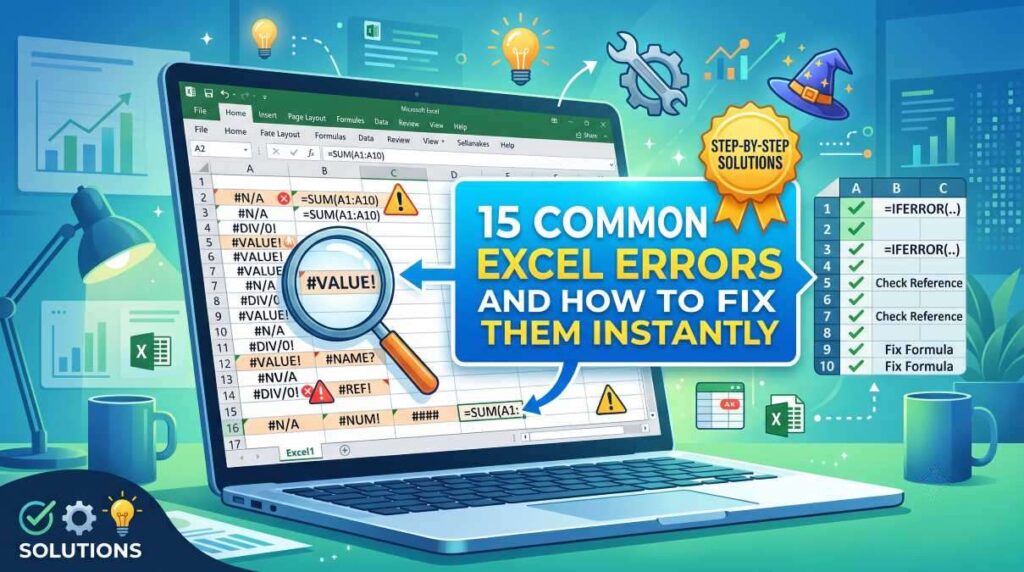
You enter a formula, press Enter, and instead of the result you expected, Excel displays something like #VALUE!, #REF!, or #N/A. Here are the 15 Common Excel Errors and How to Fix Them Instantly.
Excel errors can look intimidating, but most of them have a straightforward cause. A wrong cell reference, a missing lookup value, an incorrectly formatted number, or a small typo can be enough to break an otherwise useful spreadsheet.

The good news is that you usually don’t need to rebuild your worksheet.
In this guide, we’ll look at 15 common Excel errors and how to fix them, including what each error means, why it happens, and the quickest way to troubleshoot it.
Whether you’re working on a budget, sales report, inventory sheet, school assignment, or business dashboard, these fixes can save you considerable time.
Quick Summary: Excel Errors at a Glance
If you’re in a hurry, use this table to find the error you’re seeing.
| Excel Error | Common Cause | Quick Fix |
|---|---|---|
#DIV/0! | Dividing by zero or blank cell | Check the denominator |
#VALUE! | Wrong data type | Check numbers, text, and formula arguments |
#REF! | Invalid cell reference | Restore or replace the deleted reference |
#NAME? | Misspelled function or name | Check spelling and quotation marks |
#N/A | Lookup value not found | Check the lookup value and range |
#NUM! | Invalid numeric calculation | Check numbers and formula limits |
#NULL! | Incorrect range operator | Check spaces, commas, or range notation |
##### | Column is too narrow | Widen the column |
| Circular Reference | Formula refers back to itself | Locate and correct the circular formula |
| Wrong Result | Formula or reference mistake | Review cell references and calculation logic |
#SPILL! | Dynamic array can’t expand | Clear cells blocking the result |
#CALC! | Calculation issue with newer functions | Review the formula and returned array |
#FIELD! | Invalid linked-data field | Check the data type or field name |
#GETTING_DATA | Excel is retrieving information | Wait or check the data connection |
| Formula Displayed as Text | Cell formatted as text | Change format and re-enter formula |
1. How to Fix the #DIV/0! Error
The #DIV/0! error appears when Excel tries to divide a number by zero or by an empty cell.
For example:
=A2/B2
If B2 contains 0 or is blank, Excel cannot perform the division.
Quick Fix
Check the denominator first.
If an empty result is preferable to an error, you can use:
=IFERROR(A2/B2,"")
Or, if you want to display a helpful message:
=IF(B2=0,"Not available",A2/B2)
This is especially useful in financial reports where blank or unavailable values are common.
2. How to Fix the #VALUE! Error
#VALUE! generally means Excel received a type of data it can’t use in the calculation.
A common example is attempting to add text to a number:
=A2+B2
If A2 contains 100 but B2 contains text such as Unknown, Excel may return #VALUE!.
Try These Fixes
- Check whether numbers are stored as text.
- Remove unnecessary spaces.
- Check every argument in the formula.
- Make sure dates are recognized as dates.
- Look for hidden characters copied from websites or other applications.
Tip: If a number is stored as text, you may see a small warning indicator in the cell. Excel can sometimes convert it to a number automatically.
Must Read : Kutools for Excel Review: Is It Worth It for Power Users?
3. How to Fix the #REF! Error
#REF! means your formula contains an invalid cell reference.
This commonly happens when you delete a row or column that a formula depends on.
For example, a formula may originally reference:
=A2+C2
If the referenced cells are removed or a formula’s reference becomes invalid, Excel can replace the reference with #REF!.
How to Fix It
Look at the formula and identify the #REF! portion.
Then:
- Determine which cell or range should have been referenced.
- Replace the invalid reference.
- Check other formulas that depended on the deleted cells.
Prevention Tip
Before deleting important columns or worksheets, check whether other formulas, charts, or reports depend on them.
4. How to Fix the #NAME? Error
Seeing #NAME? usually means Excel doesn’t recognize something in your formula.
One of the most common reasons is a misspelled function.
For example:
=SUMM(A1:A10)
instead of:
=SUM(A1:A10)
Other Causes
- Misspelled function names
- Incorrect named ranges
- Missing quotation marks around text
- Typing a text condition incorrectly
- Using a function unavailable in your version of Excel
Quick Check
Read the formula slowly from left to right. Small spelling mistakes are surprisingly easy to overlook.
5. How to Fix the #N/A Error
The #N/A error often appears with lookup formulas.
It generally means Excel couldn’t find the requested value.
For example, with a lookup formula, you’re searching for an employee ID that doesn’t exist in the lookup table.
Common Reasons
- Lookup value is misspelled.
- Extra spaces exist in one dataset.
- The lookup range is incorrect.
- The value genuinely doesn’t exist.
- Numbers and text are being treated differently.
A Useful Solution
If you don’t want users to see the raw error, you can use:
=IFERROR(XLOOKUP(A2,D:D,E:E),"Not found")
This produces a more understandable result.
For older Excel versions, similar handling can be used with VLOOKUP and IFERROR.
6. How to Fix the #NUM! Error
#NUM! means Excel can’t produce a valid numerical result for the calculation.
This can happen when:
- A mathematical operation receives an invalid number.
- A function requires a valid numerical range.
- A calculation produces an impossible result.
- A formula is attempting an operation outside Excel’s supported limits.
What to Do
Check the numbers being supplied to the formula.
If you’re using financial, statistical, or mathematical functions, also check whether the values fall within the function’s acceptable range.
7. How to Fix the #NULL! Error
#NULL! is less common, but it can appear when Excel doesn’t understand the relationship between ranges in a formula.
For example, an incorrectly used space between ranges can cause trouble.
Quick Fix
Review the formula for:
- Incorrect spaces
- Missing commas
- Incorrect range operators
- Mistyped cell references
If you intended to combine two ranges, verify that you’re using the appropriate operator for the calculation.
Must Read : 10 Best AI Writing Tools That Are Better Than ChatGPT
8. How to Fix ##### in Excel
This one looks like an error, but technically, it often isn’t.
When Excel displays:
#####
the column may simply be too narrow to display the value.
This commonly happens with:
- Dates
- Times
- Large numbers
- Currency values
Instant Fix
Move your cursor to the right edge of the column header and double-click.
Excel will automatically adjust the column width.
You can also manually drag the column wider.
One More Thing
In some situations, ##### can also relate to certain negative date or time values. If widening the column doesn’t solve it, inspect the underlying value and formatting.
9. How to Fix a Circular Reference
A circular reference occurs when a formula directly or indirectly refers back to the cell containing the formula.
For example:
A1 = A2 + A1
The formula in A1 depends on A1 itself.
Excel can’t normally calculate this as a straightforward formula because the result depends on itself.
How to Find It
Go to Excel’s formula-checking tools and look for the circular reference warning.
Then inspect the affected cells.
Typical Solution
Change the formula so it references the intended input cells rather than itself.
Circular references aren’t always accidental—some advanced financial models intentionally use iterative calculations—but beginners should investigate them whenever they appear unexpectedly.
10. Why Is Excel Showing the Formula Instead of the Result?
You enter:
=SUM(A1:A10)
but Excel displays the formula itself rather than the calculated answer.
What’s happening?
The cell may be formatted as Text.
Fix
- Select the cell.
- Change its format from Text to General.
- Click inside the formula.
- Press Enter again.
Also check whether Show Formulas is enabled. If the entire worksheet displays formulas instead of results, this is an important thing to investigate.
11. How to Fix the #SPILL! Error
#SPILL! is associated with Excel’s dynamic-array formulas.
Functions such as FILTER, SORT, and UNIQUE may return multiple results. Excel needs enough empty cells to display those results.
If another value is blocking the output area, Excel can return #SPILL!.
Example
You might use:
=FILTER(A2:A100,B2:B100="Active")
If cells where the results need to appear already contain data, Excel may not be able to “spill” the results.
Fix
Check the cells around the formula and remove the content blocking the expected result.
This is one of those errors where Excel’s error indicator can be particularly useful because it may identify the obstruction.
12. How to Fix the #CALC! Error
#CALC! can occur with certain newer Excel calculation features, particularly dynamic arrays and advanced formulas.
The exact cause depends on the formula.
What to Check
- Is the formula returning an empty array?
- Are the function arguments valid?
- Are you combining functions in a way the formula engine doesn’t support?
- Does the formula behave correctly with the current dataset?
When working with newer Excel functions, test the formula with a small sample range first. It makes troubleshooting much easier.
Must Read : Best CRM for Freelancers: 4 Tools Worth Trying in 2026
13. How to Fix the #FIELD! Error
#FIELD! can occur when working with Excel’s linked or rich data types and the requested field isn’t available.
For example, a formula may attempt to retrieve a property from a data type that doesn’t contain that particular field.
Possible Fixes
- Check the data type assigned to the cell.
- Verify that the requested field exists.
- Refresh connected data if appropriate.
- Confirm that you’re using the correct field name.
This error is more likely to appear in spreadsheets using Excel’s newer connected-data features than in simple worksheets.
14. How to Fix the #GETTING_DATA Message
Sometimes Excel displays a message indicating that it is getting data.
This isn’t necessarily a formula error.
Excel may be waiting for information from an external or connected data source.
If It Doesn’t Go Away
Check:
- Your internet connection.
- Whether the data source is available.
- Whether the workbook contains external connections.
- Whether a refresh is still running.
- Whether Excel has become unresponsive.
For large workbooks, external data retrieval can take longer than a normal calculation.
15. Why Is My Excel Formula Giving the Wrong Answer?
This can be more frustrating than an obvious error.
Excel may display a perfectly normal-looking number even though the result isn’t what you expected.
Common Causes
Incorrect cell references
You may have referenced the wrong row or column.
Relative references
When copying a formula, Excel may automatically change references.
For example:
=A2*B2
copied down one row becomes:
=A3*B3
That’s useful when intended, but problematic when you needed a fixed reference.
Use Absolute References
You can lock a cell with $:
=A2*$B$1
Now B1 remains fixed when the formula is copied.
Other Things to Check
- Operator precedence
- Hidden rows
- Filtered data
- Rounded values
- Incorrect date formats
- Duplicate records
- Numbers stored as text
When a result looks wrong, don’t immediately assume Excel is broken. Trace the formula one reference at a time.
The Excel Troubleshooting Method That Saves the Most Time
Instead of randomly changing formulas, use a simple troubleshooting process.
Step 1: Read the Error
Don’t immediately hide it with IFERROR.
First understand what Excel is telling you.
Step 2: Click the Formula
Look at every cell reference and function.
Step 3: Check the Input Data
Are the source cells actually what you think they are?
Step 4: Test Smaller Pieces
If you have a long formula, test individual sections separately.
Step 5: Check Formatting
Dates, percentages, numbers, currency, and text can behave differently.
Step 6: Use Excel’s Formula Auditing Tools
Tools such as Trace Precedents, Trace Dependents, and Evaluate Formula can make complicated worksheets much easier to understand.
Best Excel Features for Preventing Formula Problems
Fixing errors is useful, but preventing them is even better.
Here are several features worth learning.
| Feature | Why It’s Useful |
|---|---|
| Excel Tables | Automatically expand formulas and ranges |
| Data Validation | Prevent incorrect data entry |
| Conditional Formatting | Highlight unusual values |
| Named Ranges | Make formulas easier to understand |
| XLOOKUP | Simplifies many lookup tasks |
| IFERROR | Provides cleaner error handling |
| Formula Auditing | Helps trace complicated formulas |
| Freeze Panes | Makes large datasets easier to navigate |
If you regularly work with spreadsheets, investing time in these features can have a bigger impact than memorizing dozens of formulas.
Should You Use Microsoft 365 or Another Spreadsheet App?
For basic calculations, many spreadsheet applications can handle everyday tasks.
However, the best choice depends on how you work.
Microsoft Excel
Best for: Business users, advanced formulas, reporting, financial models, data analysis, and compatibility with existing Excel workbooks.
Pros
- Extensive formula library
- Powerful data-analysis tools
- Strong compatibility with business workflows
- PivotTables and advanced reporting
- Large ecosystem of tutorials and support
Cons
- Some advanced features have a learning curve
- Subscription options can add ongoing cost
- Complex workbooks can become difficult to maintain
Good choice if: You regularly receive or create .xlsx files and need advanced spreadsheet functionality.
Google Sheets
Best for: Collaboration, lightweight spreadsheet work, and browser-based workflows.
Pros
- Easy real-time collaboration
- Browser-based
- Convenient sharing
- Familiar spreadsheet interface
Cons
- Some advanced Excel features work differently
- Very complex workbooks may require adjustments
- Offline workflows can be less straightforward depending on setup
Good choice if: Multiple people need to edit the same spreadsheet simultaneously.
Excel Error Prevention: A Simple Checklist
Before sharing an important spreadsheet, run through this checklist:
- Check for visible formula errors.
- Verify important formulas.
- Look for
#REF!references. - Check lookup formulas for missing values.
- Make sure numbers aren’t stored as text.
- Check formulas copied across rows and columns.
- Remove accidental circular references.
- Test important calculations with known values.
- Check column widths and number formats.
- Refresh external or connected data when necessary.
A two-minute review can prevent an embarrassing spreadsheet mistake later.
Real-World Examples: When These Fixes Matter
Example 1: Monthly Budget
You’re calculating:
=Expenses/Income
and receive #DIV/0!.
The likely problem is that the income cell is empty.
Solution: Check the income input before performing the calculation.
Example 2: Employee Lookup
You use a lookup formula to retrieve an employee’s department, but receive #N/A.
The employee ID might contain an extra space or simply not exist in the source table.
Solution: Compare the lookup value with the source data and check for formatting differences.
Example 3: Sales Report
You delete an old column and several formulas suddenly display #REF!.
The formulas depended on that column.
Solution: Restore the intended references or undo the deletion if appropriate.
Example 4: Dynamic Report
A FILTER formula returns #SPILL!.
The formula is working, but another value is occupying one of the cells where the results need to appear.
Solution: Clear the blocking cell.
When Should You Consider an Excel Course or Advanced Tool?
You don’t need an expensive tool just because you’ve encountered an Excel error.
For occasional spreadsheet work, Microsoft’s built-in help resources and practical tutorials may be enough.
An Excel course can make more sense when you:
- Use Excel every day.
- Build reports professionally.
- Work with large datasets.
- Need advanced formulas.
- Want to automate repetitive tasks.
- Regularly troubleshoot other people’s spreadsheets.
If you spend hours every week manually fixing spreadsheets, improving your Excel skills may save more time than purchasing another spreadsheet tool.
Frequently Asked Questions
What is the most common Excel error?
Errors such as #VALUE!, #DIV/0!, #N/A, and #REF! are among the common problems Excel users encounter. The cause depends on the formula and the underlying data.
How do I fix an Excel formula error?
Start by reading the error code, then inspect the formula’s cell references and input values. Check formatting, spelling, and whether referenced cells still exist.
Why does Excel show #VALUE!?
#VALUE! commonly occurs when a formula receives an incompatible type of data, such as text where Excel expects a number.
Why does Excel show #N/A?
#N/A frequently means that a lookup formula couldn’t find the requested value in its lookup range.
What does #REF! mean in Excel?
#REF! indicates an invalid cell reference. It often happens after deleting a row, column, or referenced cell.
Why does Excel show ##### instead of my number?
The column is often too narrow to display the value. Try widening the column. If that doesn’t work, inspect the value and its formatting.
How do I stop Excel errors from appearing in a report?
First identify the underlying cause rather than hiding the error. Once the formula is correct, functions such as IFERROR can be useful for presenting cleaner results when an error is an expected possibility.
How can I prevent Excel formula mistakes?
Use consistent data formatting, Excel Tables, absolute references where appropriate, data validation, formula auditing, and regular checks of important formulas.
Final Verdict: Excel Errors Are Usually Fixable
Excel errors can look complicated, but most have a logical explanation.
The key is to avoid treating every error as something that needs to be hidden. An error message is often Excel’s way of telling you exactly where to investigate.
If you’re dealing with #DIV/0!, check the denominator.
If you’re seeing #REF!, inspect your references.
If you get #N/A, check the lookup.
If you see #VALUE!, examine the data types.
And if Excel displays #####, try widening the column before changing anything else.
For beginners, learning these basic troubleshooting techniques can make Excel considerably less frustrating. For experienced users, understanding the underlying causes can make complex workbooks easier to maintain.
The best approach is simple: understand the error first, fix the underlying problem, and only then decide whether you need an error-handling formula.
If you use spreadsheets regularly, learning a few core Excel functions and auditing techniques is often one of the most practical productivity investments you can make.